> ## Documentation Index
> Fetch the complete documentation index at: https://docs.duvo.ai/llms.txt
> Use this file to discover all available pages before exploring further.
# Purchase Order Processing
> Build a Duvo agent that auto-approves purchase orders by threshold and routes high-value orders for review.
**Time to complete:** 20 minutes
**Difficulty:** Intermediate
**Prerequisites:** Procurement system access, Email or Slack connection
**You'll build:** An agent that auto-approves POs based on thresholds and routes high-value orders for review
### Why Automate This?
**The Problem**: Purchase order approvals create bottlenecks. Simple $500 orders wait in the same queue as $50,000 purchases. Managers waste time approving routine orders while critical purchases get delayed. Meanwhile, procurement teams manually check vendor status and budget availability for every single PO.
**The Solution**: A Duvo agent that intelligently processes purchase orders based on configurable thresholds—auto-approving routine orders instantly while routing high-value purchases through appropriate approval chains.
**Expected Results**:
* Auto-approve 70-80% of routine POs instantly
* Reduce approval cycle from 2-3 days to under 4 hours
* Eliminate manual vendor validation checks
* Ensure budget compliance before approval
* Complete audit trail for compliance
### What You'll Build
By the end of this tutorial, you'll have an agent that:
1. Monitors your procurement system for new purchase orders
2. Validates vendor status against your approved vendor list
3. Checks available budget before processing
4. Auto-approves orders under your threshold limits
5. Routes high-value orders to appropriate approvers
6. Sends confirmations and updates status automatically
### Before You Start
Make sure you have these ready:
**Procurement system** - You'll need logins with read/write access. [Set up logins](/user-guide/resources/my-logins)
**Email or Slack connection** - For notifications and approvals. [Add a connection](/user-guide/connections/how-to-add-connection)
**Budget system access** (optional) - For automatic budget validation
**Approved vendor list** - Either in your procurement system or as a Files file
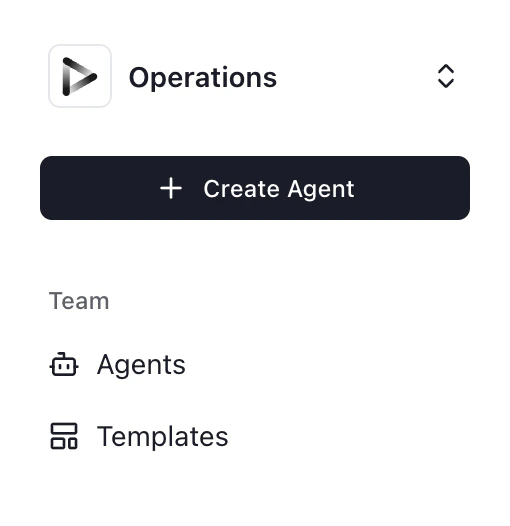
1. Click **"+ Create Agent"** from your dashboard
2. Select **"Use Agent Builder"** (recommended for this tutorial)
 Paste this prompt into the Agent Builder:
```
Monitor our procurement system for new purchase orders with status "Pending Approval".
For each new PO:
1. Extract PO number, requestor name, vendor, total amount, line items, and department
2. Check if the vendor is on our approved vendor list
3. If vendor is not approved, flag for procurement team review and stop processing
For approved vendors, apply these approval rules:
- Orders under $1,000: Auto-approve immediately
- Orders $1,000 - $5,000: Check if requestor has department manager approval, then process
- Orders over $5,000: Route to finance director for review with budget impact analysis
After approval:
1. Update PO status to "Approved"
2. Send confirmation email to requestor with expected delivery date
3. If amount exceeds $10,000, also notify the VP of Operations
Error handling:
- If vendor portal is unavailable, queue the order and retry in 1 hour
- If budget is exceeded, notify finance team and hold the order
- If no approval response in 48 hours, escalate to next level
```
Click **"Generate"** to create the agent AOP.
Duvo will generate structured AOP. Review to ensure:
* Threshold amounts match your organization's approval matrix
* Escalation paths are correct for your org structure
* All system names are correctly identified
Edit the AOP directly to adjust any thresholds or routing rules.
If your vendor list isn't in your procurement system, upload it to Files:
1. Go to **Agent Settings** > **Files**
2. Upload your approved vendor list (CSV, Excel, or PDF)
3. The agent will reference this when validating vendors
Click **"Connections"** and connect:
1. **Procurement system** - Add logins for your PO platform
2. **Email** - For sending approvals and confirmations
3. **Slack** (optional) - For real-time notifications to approvers
Run a test with sample purchase orders:
1. Click **"Run Agent"**
2. Process a few test POs at different amounts ($500, $3,000, \$8,000)
3. Verify each follows the correct approval path
Paste this prompt into the Agent Builder:
```
Monitor our procurement system for new purchase orders with status "Pending Approval".
For each new PO:
1. Extract PO number, requestor name, vendor, total amount, line items, and department
2. Check if the vendor is on our approved vendor list
3. If vendor is not approved, flag for procurement team review and stop processing
For approved vendors, apply these approval rules:
- Orders under $1,000: Auto-approve immediately
- Orders $1,000 - $5,000: Check if requestor has department manager approval, then process
- Orders over $5,000: Route to finance director for review with budget impact analysis
After approval:
1. Update PO status to "Approved"
2. Send confirmation email to requestor with expected delivery date
3. If amount exceeds $10,000, also notify the VP of Operations
Error handling:
- If vendor portal is unavailable, queue the order and retry in 1 hour
- If budget is exceeded, notify finance team and hold the order
- If no approval response in 48 hours, escalate to next level
```
Click **"Generate"** to create the agent AOP.
Duvo will generate structured AOP. Review to ensure:
* Threshold amounts match your organization's approval matrix
* Escalation paths are correct for your org structure
* All system names are correctly identified
Edit the AOP directly to adjust any thresholds or routing rules.
If your vendor list isn't in your procurement system, upload it to Files:
1. Go to **Agent Settings** > **Files**
2. Upload your approved vendor list (CSV, Excel, or PDF)
3. The agent will reference this when validating vendors
Click **"Connections"** and connect:
1. **Procurement system** - Add logins for your PO platform
2. **Email** - For sending approvals and confirmations
3. **Slack** (optional) - For real-time notifications to approvers
Run a test with sample purchase orders:
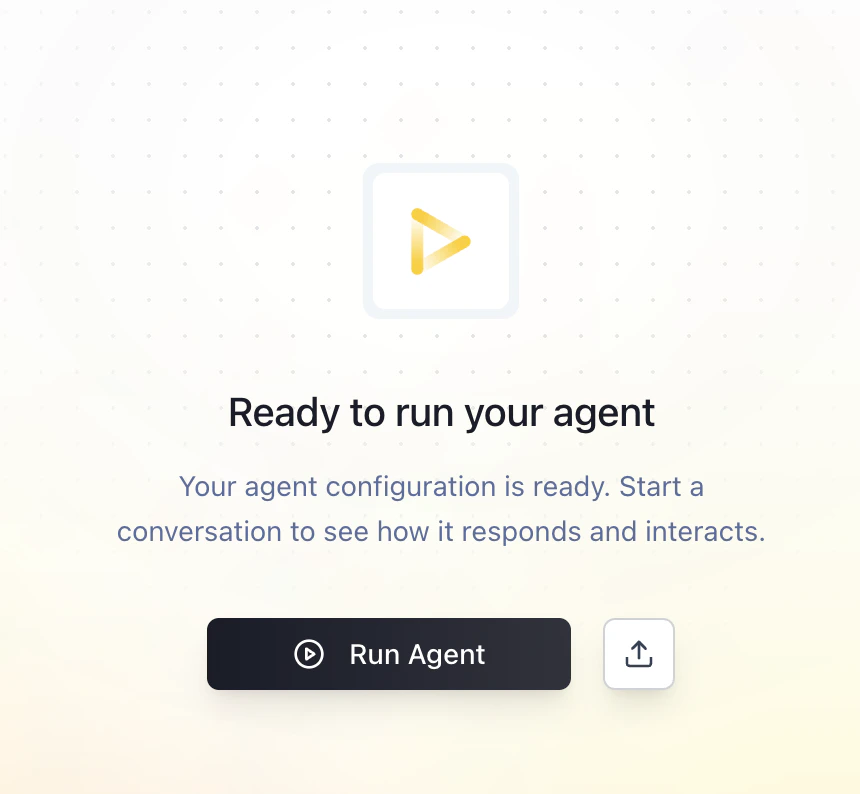
1. Click **"Run Agent"**
2. Process a few test POs at different amounts ($500, $3,000, \$8,000)
3. Verify each follows the correct approval path
 **What to check**:
* Did low-value orders auto-approve correctly?
* Did high-value orders route to the right approver?
* Did vendor validation work?
* Did confirmations send to requestors?
Set the agent to run continuously or on a schedule:
1. Go to **Agent Settings** > **Schedule**
2. Choose **"Continuous"** for real-time processing, or
3. Choose **"Every hour"** for batch processing
4. Save settings
### Expected Results
When your agent runs successfully, you should see:
**In your procurement system**:
* Auto-approved POs show "Approved" status instantly
* High-value POs show "Pending \[Approver Name] Approval"
* Rejected vendors flagged for review
**In approver inboxes**:
* Clear approval requests with PO details
* Budget impact information for large orders
* One-click approve/reject options
**In requestor inboxes**:
* Instant confirmation for auto-approved orders
* Status updates when approvals are pending
* Expected delivery dates
**In Duvo**:
* Complete audit trail of all decisions
* Approval chain documentation
* Processing time metrics
### Troubleshooting
* **Check status filter**: Verify "Pending Approval" matches your system's exact status name
* **Check permissions**: Ensure logins can view all departments' POs
* **Check polling interval**: If using scheduled runs, orders may be waiting for next cycle
* **List format**: Ensure vendor names match exactly (watch for "Inc." vs "Inc" issues)
* **List location**: Verify Files file is attached to this agent
* **Update frequency**: Make sure your vendor list is current
* **Threshold values**: Double-check dollar amounts in AOP
* **Org structure**: Verify approver names/emails are correct
* **Department mapping**: Ensure requestors are mapped to correct departments
* **System connection**: Verify budget system logins
* **Account codes**: Ensure PO account codes match budget categories
* **Timing**: Budget data may be delayed—add buffer for recent transactions
* **Email connection**: Re-authorize if needed
* **Recipient addresses**: Verify approver emails are valid
* **Spam filters**: Check if notifications are being blocked
### Take It Further
Once your basic agent is working, consider these enhancements:
```
Before processing any PO, check the department's remaining budget.
If the PO would exceed available budget by more than 10%, hold for finance review.
Include budget utilization percentage in the approval request.
```
```
If the PO is marked as "Rush" or "Urgent":
- Skip the 48-hour escalation wait time
- Send immediate Slack notification to approver
- If no response in 4 hours, auto-escalate to next level
```
```
Before auto-approving, check the vendor's performance score in our system.
If score is below 3.5/5, flag for procurement review regardless of amount.
Include vendor rating in all approval requests.
```
```
At end of each week, generate a summary of:
- Total POs processed
- Auto-approved vs manually approved ratio
- Average approval time
- Top vendors by spend
Send report to procurement manager.
```
Different users can set their own approval thresholds. [Learn about Agent Memory](/user-guide/assignment-features/assignment-memory)
* Department Manager: *"Auto-approve all purchase orders under $5,000 from approved vendors. Flag anything over $5,000 for my review."*
* Director: *"Auto-approve all purchase orders under $10,000. For orders between $10,000-$25,000, check if they're budgeted before requesting approval. Anything over $25,000 requires VP sign-off."*
### Related Resources
Configure approval workflows for high-value orders
Set personal approval thresholds per user
Upload approved vendor lists and policies
Securely store procurement system access
**What to check**:
* Did low-value orders auto-approve correctly?
* Did high-value orders route to the right approver?
* Did vendor validation work?
* Did confirmations send to requestors?
Set the agent to run continuously or on a schedule:
1. Go to **Agent Settings** > **Schedule**
2. Choose **"Continuous"** for real-time processing, or
3. Choose **"Every hour"** for batch processing
4. Save settings
### Expected Results
When your agent runs successfully, you should see:
**In your procurement system**:
* Auto-approved POs show "Approved" status instantly
* High-value POs show "Pending \[Approver Name] Approval"
* Rejected vendors flagged for review
**In approver inboxes**:
* Clear approval requests with PO details
* Budget impact information for large orders
* One-click approve/reject options
**In requestor inboxes**:
* Instant confirmation for auto-approved orders
* Status updates when approvals are pending
* Expected delivery dates
**In Duvo**:
* Complete audit trail of all decisions
* Approval chain documentation
* Processing time metrics
### Troubleshooting
* **Check status filter**: Verify "Pending Approval" matches your system's exact status name
* **Check permissions**: Ensure logins can view all departments' POs
* **Check polling interval**: If using scheduled runs, orders may be waiting for next cycle
* **List format**: Ensure vendor names match exactly (watch for "Inc." vs "Inc" issues)
* **List location**: Verify Files file is attached to this agent
* **Update frequency**: Make sure your vendor list is current
* **Threshold values**: Double-check dollar amounts in AOP
* **Org structure**: Verify approver names/emails are correct
* **Department mapping**: Ensure requestors are mapped to correct departments
* **System connection**: Verify budget system logins
* **Account codes**: Ensure PO account codes match budget categories
* **Timing**: Budget data may be delayed—add buffer for recent transactions
* **Email connection**: Re-authorize if needed
* **Recipient addresses**: Verify approver emails are valid
* **Spam filters**: Check if notifications are being blocked
### Take It Further
Once your basic agent is working, consider these enhancements:
```
Before processing any PO, check the department's remaining budget.
If the PO would exceed available budget by more than 10%, hold for finance review.
Include budget utilization percentage in the approval request.
```
```
If the PO is marked as "Rush" or "Urgent":
- Skip the 48-hour escalation wait time
- Send immediate Slack notification to approver
- If no response in 4 hours, auto-escalate to next level
```
```
Before auto-approving, check the vendor's performance score in our system.
If score is below 3.5/5, flag for procurement review regardless of amount.
Include vendor rating in all approval requests.
```
```
At end of each week, generate a summary of:
- Total POs processed
- Auto-approved vs manually approved ratio
- Average approval time
- Top vendors by spend
Send report to procurement manager.
```
Different users can set their own approval thresholds. [Learn about Agent Memory](/user-guide/assignment-features/assignment-memory)
* Department Manager: *"Auto-approve all purchase orders under $5,000 from approved vendors. Flag anything over $5,000 for my review."*
* Director: *"Auto-approve all purchase orders under $10,000. For orders between $10,000-$25,000, check if they're budgeted before requesting approval. Anything over $25,000 requires VP sign-off."*
### Related Resources
Configure approval workflows for high-value orders
Set personal approval thresholds per user
Upload approved vendor lists and policies
Securely store procurement system access