> ## Documentation Index
> Fetch the complete documentation index at: https://docs.duvo.ai/llms.txt
> Use this file to discover all available pages before exploring further.
# Shopify Product Feed
> Build a Duvo agent that scrapes supplier product data and formats it into a Shopify-compatible import feed.
**Time to complete:** 10 minutes
**Difficulty:** Beginner
**Prerequisites:** Google Sheets or Excel connection
**You'll build:** An agent that scrapes product data and formats it for Shopify import
***
### Why Automate This?
**The Problem**: E-commerce teams manually browse supplier websites, copy product details into spreadsheets, and reformat data for Shopify import. This process takes hours, is prone to errors, and needs to be repeated whenever suppliers update their catalog. Missing a new product or price change means lost sales.
**The Solution**: A Duvo agent that automatically browses supplier websites, extracts product information, and formats it into a Shopify-compatible feed—ready to import or sync with your store.
**Expected Results**:
* Reduce catalog updates from hours to minutes
* Eliminate manual copy-paste errors
* Catch new products and price changes automatically
* Maintain consistent data formatting for Shopify
* Schedule regular updates to keep catalog current
***
### What You'll Build
By the end of this tutorial, you'll have an agent that:
1. Navigates to a supplier website
2. Extracts product details (name, price, SKU, description, images)
3. Formats data into Shopify's required CSV structure
4. Outputs to Google Sheets or Excel for import
***
### Before You Start
Make sure you have these ready:
**Google Sheets or Excel connection** - For storing the formatted feed. [Add a connection](/user-guide/connections/how-to-add-connection)
**Supplier website URL** - The website you want to scrape
**Shopify import format** (optional) - Upload to Files for reference
***
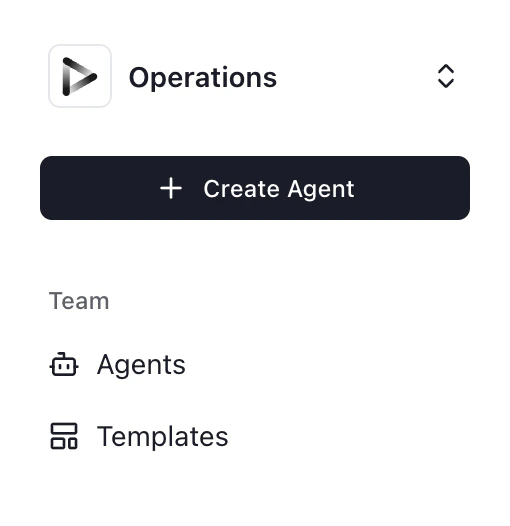
1. Click **"+ Create Agent"** from your dashboard
2. Select **"Use Agent Builder"** (recommended for this tutorial)
 Paste this prompt into the Agent Builder (modify the URL for your supplier):
```
Research all available iPhone options on apple.com and collect them into a spreadsheet in a format I can import into Shopify.
For each product found:
1. Extract the product name
2. Extract all available variants (storage size, color)
3. Extract the price for each variant
4. Extract the product description
5. Extract product image URLs
6. Generate a unique SKU based on product name and variant
Format the data with these Shopify columns:
- Handle (URL-friendly product name)
- Title
- Body (HTML description)
- Vendor
- Type
- Tags
- Published
- Option1 Name, Option1 Value
- Option2 Name, Option2 Value
- Variant SKU
- Variant Price
- Image Src
Save to a new Google Sheet called "Apple Products - Shopify Feed" with today's date.
```
Click **"Generate"** to create the agent AOP.
Review to ensure:
* The correct website URL is specified
* All product fields you need are captured
* Shopify column mapping is correct for your store
Click **"Connections"** and connect:
1. **Google Sheets or Excel** - For outputting the formatted feed
1. Click **"Run Agent"**
2. Watch as the agent browses the supplier website
3. View the extracted products in real-time
**What to watch for**:
* Is the agent finding all products?
* Are prices being extracted correctly?
* Are images being captured?
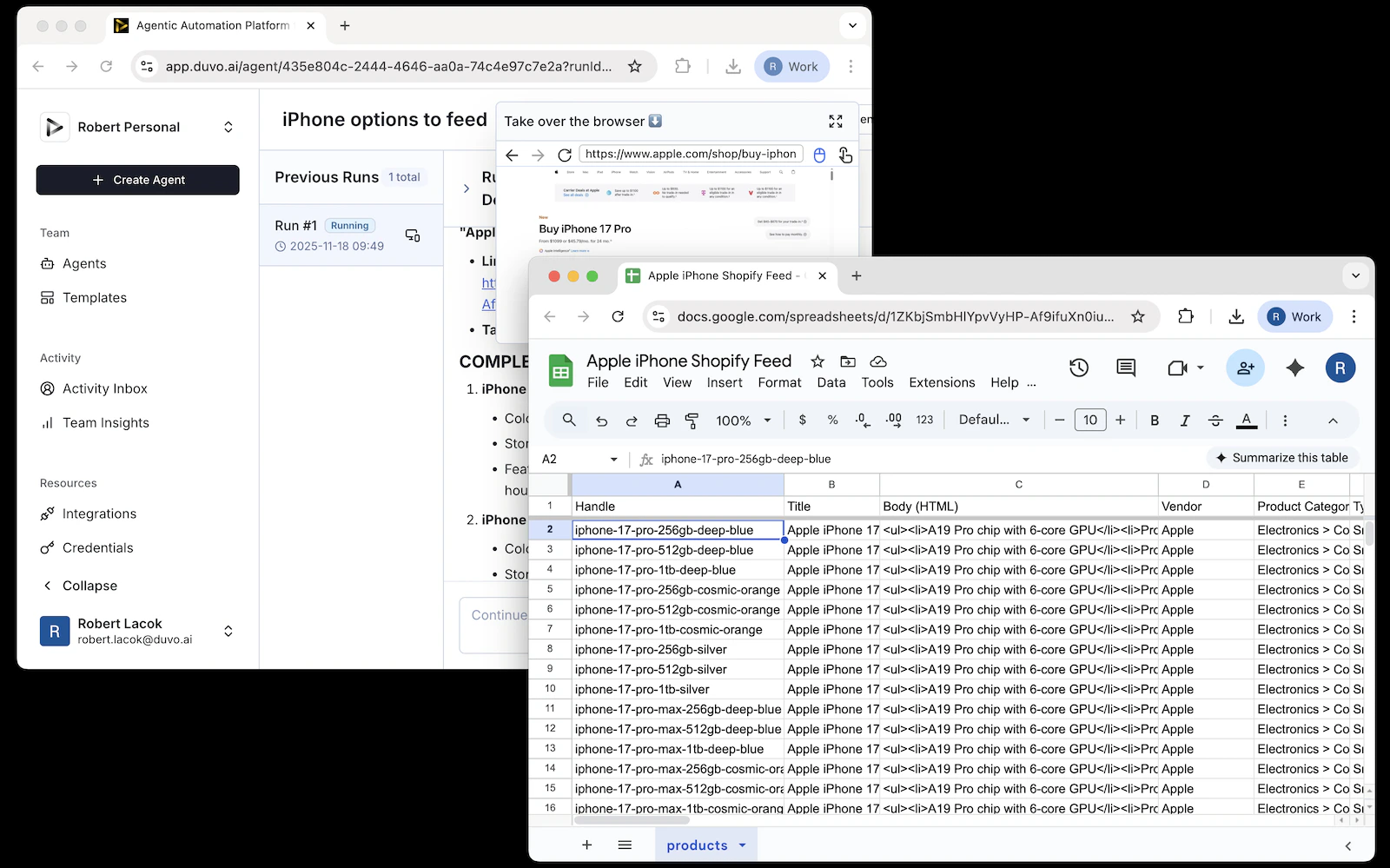
Once complete, check your Google Sheet:
1. Verify all products were captured
2. Check that formatting matches Shopify requirements
3. Validate prices and variants are correct
Paste this prompt into the Agent Builder (modify the URL for your supplier):
```
Research all available iPhone options on apple.com and collect them into a spreadsheet in a format I can import into Shopify.
For each product found:
1. Extract the product name
2. Extract all available variants (storage size, color)
3. Extract the price for each variant
4. Extract the product description
5. Extract product image URLs
6. Generate a unique SKU based on product name and variant
Format the data with these Shopify columns:
- Handle (URL-friendly product name)
- Title
- Body (HTML description)
- Vendor
- Type
- Tags
- Published
- Option1 Name, Option1 Value
- Option2 Name, Option2 Value
- Variant SKU
- Variant Price
- Image Src
Save to a new Google Sheet called "Apple Products - Shopify Feed" with today's date.
```
Click **"Generate"** to create the agent AOP.
Review to ensure:
* The correct website URL is specified
* All product fields you need are captured
* Shopify column mapping is correct for your store
Click **"Connections"** and connect:
1. **Google Sheets or Excel** - For outputting the formatted feed
1. Click **"Run Agent"**
2. Watch as the agent browses the supplier website
3. View the extracted products in real-time
**What to watch for**:
* Is the agent finding all products?
* Are prices being extracted correctly?
* Are images being captured?
Once complete, check your Google Sheet:
1. Verify all products were captured
2. Check that formatting matches Shopify requirements
3. Validate prices and variants are correct
 ***
### Expected Results
When your agent runs successfully, you should see:
**In Google Sheets/Excel**:
* Complete product catalog with all variants
* Properly formatted for Shopify import
* Consistent SKU generation
* All image URLs captured
**Ready for Shopify**:
* Download as CSV
* Import directly into Shopify Admin
* Or connect via API for automatic sync
**In Duvo**:
* Complete log of pages visited
* Count of products extracted
* Any errors or missing data flagged
***
### Troubleshooting
* **Page structure**: Website may have changed—update your AOP
* **Dynamic loading**: Some sites require scrolling to load products
* **Login required**: Some supplier sites need authentication
* **Currency symbols**: Ensure agent is extracting numeric values only
* **Sale prices**: Specify whether to capture regular or sale price
* **Regional pricing**: Check if site is showing correct region's prices
* **Lazy loading**: Images may need page scroll to load
* **Multiple images**: Specify if you want primary image only or all images
* **Image size**: Request specific image sizes if available
* **Special characters**: Product names may have characters that need escaping
* **HTML in descriptions**: Ensure proper HTML formatting for Shopify
* **Variant structure**: Verify Option1/Option2 mapping matches your store
***
### Take It Further
Once your basic agent is working, consider these enhancements:
```
After collecting Apple products, also collect from:
- Samsung (samsung.com/phones)
- Google (store.google.com/phones)
Combine all products into a single feed with Vendor field populated.
```
```
Run every Sunday at midnight.
Compare new prices to previous feed.
Flag any products with price changes greater than 10%.
Email me a summary of changes before publishing.
```
```
Check if each product shows "In Stock" or "Out of Stock".
Set Shopify inventory to 100 if in stock, 0 if out of stock.
Mark out-of-stock products as unpublished.
```
```
For each product, generate:
- SEO-optimized title (include key features)
- Meta description (150 characters)
- URL-friendly handle
- Relevant tags for filtering
```
```
Also check competitor sites for the same products.
Add a "Competitor Price" column.
Flag any products where our price is higher.
```
***
### Related Resources
How Duvo navigates websites
Upload Shopify format templates
Connect spreadsheet apps
Improve extraction accuracy over time
***
### Expected Results
When your agent runs successfully, you should see:
**In Google Sheets/Excel**:
* Complete product catalog with all variants
* Properly formatted for Shopify import
* Consistent SKU generation
* All image URLs captured
**Ready for Shopify**:
* Download as CSV
* Import directly into Shopify Admin
* Or connect via API for automatic sync
**In Duvo**:
* Complete log of pages visited
* Count of products extracted
* Any errors or missing data flagged
***
### Troubleshooting
* **Page structure**: Website may have changed—update your AOP
* **Dynamic loading**: Some sites require scrolling to load products
* **Login required**: Some supplier sites need authentication
* **Currency symbols**: Ensure agent is extracting numeric values only
* **Sale prices**: Specify whether to capture regular or sale price
* **Regional pricing**: Check if site is showing correct region's prices
* **Lazy loading**: Images may need page scroll to load
* **Multiple images**: Specify if you want primary image only or all images
* **Image size**: Request specific image sizes if available
* **Special characters**: Product names may have characters that need escaping
* **HTML in descriptions**: Ensure proper HTML formatting for Shopify
* **Variant structure**: Verify Option1/Option2 mapping matches your store
***
### Take It Further
Once your basic agent is working, consider these enhancements:
```
After collecting Apple products, also collect from:
- Samsung (samsung.com/phones)
- Google (store.google.com/phones)
Combine all products into a single feed with Vendor field populated.
```
```
Run every Sunday at midnight.
Compare new prices to previous feed.
Flag any products with price changes greater than 10%.
Email me a summary of changes before publishing.
```
```
Check if each product shows "In Stock" or "Out of Stock".
Set Shopify inventory to 100 if in stock, 0 if out of stock.
Mark out-of-stock products as unpublished.
```
```
For each product, generate:
- SEO-optimized title (include key features)
- Meta description (150 characters)
- URL-friendly handle
- Relevant tags for filtering
```
```
Also check competitor sites for the same products.
Add a "Competitor Price" column.
Flag any products where our price is higher.
```
***
### Related Resources
How Duvo navigates websites
Upload Shopify format templates
Connect spreadsheet apps
Improve extraction accuracy over time