> ## Documentation Index
> Fetch the complete documentation index at: https://docs.duvo.ai/llms.txt
> Use this file to discover all available pages before exploring further.
# Complaint Triage
> Build an agent that classifies customer complaints by severity and topic, drafts a response for human approval, routes each case, and tags SLA deadlines.
**Time to complete:** 45 minutes
**Difficulty:** Intermediate
**Prerequisites:** At least one inbound channel connected (Gmail, Outlook, Zendesk, Intercom, or Slack)
**You'll build:** An agent that reads incoming customer complaints, classifies them by severity and topic, drafts a tone-checked response for human approval, routes each case to the right queue, and tags SLA deadlines
***
## Why Automate This?
**The Problem**: Complaints arrive across email, Zendesk, Intercom, and Slack simultaneously. Someone has to open each one, judge its severity, decide which team owns it, write an appropriate first response, and make sure SLA clocks start ticking — all before anything gets done about the underlying issue. At volume, this triage work consumes hours of CX time daily. Cases get misrouted. Tone-deaf responses go out without review. Regulated complaints — those that mention regulators, legal action, or data breaches — can sit in a standard queue when they legally require a documented response within a defined window.
**The Solution**: A Duvo agent that monitors your complaint inboxes, reads each new complaint, classifies it by severity and topic, drafts a first response for human approval, routes the case to the right team, and tags the SLA deadline. Humans stay in control of every customer-facing message. The agent handles the triage logic so they can focus on resolution.
**Expected Results**:
* Reduce triage time per complaint from minutes to seconds
* Ensure regulated complaints are identified and escalated immediately
* Eliminate misrouting caused by agents reading quickly under volume
* Every drafted response reviewed before it reaches a customer
* Complete audit trail of every complaint received, classified, and acted on
***
## What You'll Build
By the end of this playbook, you'll have an agent that:
1. Monitors inbound complaint sources: shared email inbox, Zendesk ticket queue, Intercom conversations, or a Slack channel
2. Reads each complaint and classifies it by severity (regulated, high, standard) and topic (refund, delivery, product defect, billing dispute, service outage, safety incident)
3. Looks up the sender in your CRM to factor in account tier and complaint history
4. Deduplicates across channels so a customer emailing and opening a Zendesk ticket for the same issue creates one case, not two
5. Drafts a first-response appropriate to the severity and topic
6. Pauses for Human-in-the-Loop approval — a reviewer approves or edits the draft before anything reaches the customer
7. Routes the approved case to the correct queue, applies severity and topic tags, and sets the SLA due date
8. Sends a Slack notification for regulated complaints to your compliance channel
9. Escalates any unanswered approval request that is approaching its SLA window
**Connections used**:
* Gmail or Outlook — inbound complaint email
* Zendesk — ticket ingestion and case routing (optional)
* Intercom — conversation ingestion (optional)
* Slack — channel monitoring and compliance notifications (optional)
* HubSpot or Salesforce — CRM lookup for customer history (optional)
* Human-in-the-Loop — approval gate before any response is sent
***
## Before You Start
Make sure you have these ready:
* **Inbound channel access** — Connect at least one of: [Gmail](/user-guide/connections/available-connections/gmail), [Outlook](/user-guide/connections/available-connections/microsoft-outlook), [Zendesk](/user-guide/connections/available-connections/zendesk), or [Intercom](/user-guide/connections/available-connections/intercom).
* **Severity definitions** — Know what makes a complaint regulated vs. high vs. standard at your company. For financial services this is usually FCA/COBS-regulated language; for healthcare it is HIPAA-related; for consumer businesses it is typically safety incidents or refund requests above a threshold.
* **Topic taxonomy** — A list of the complaint categories your team already uses (e.g., refund, delivery failure, product defect, billing dispute, service outage, safety incident). These become the classification labels.
* **Routing rules** — Which team or queue owns each severity/topic combination. For example: regulated complaints → compliance team; billing disputes → finance; product defects → product support.
* **SLA windows** — Your target response deadlines by severity (e.g., regulated: 2 business hours; high: 8 hours; standard: 24 hours).
* **CRM login** (optional) — Read access to [HubSpot](/user-guide/connections/available-connections/hubspot) or [Salesforce](/user-guide/connections/available-connections/salesforce) for customer history lookup. [Store logins securely](/user-guide/resources/my-logins).
***
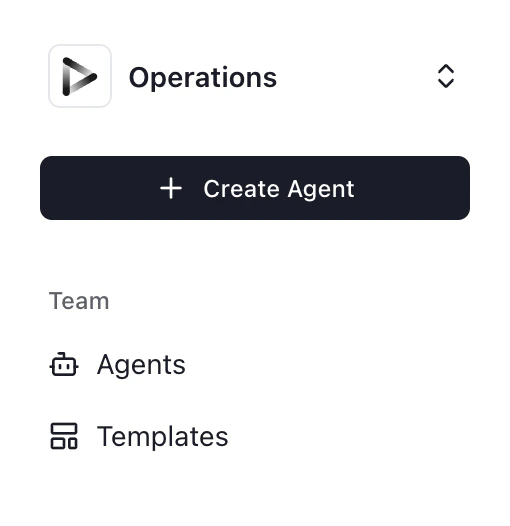
1. Click **"+ Create Agent"** from your dashboard.
2. Select **"Use Agent Builder"**.
 Paste this prompt into the Agent Builder and replace the bracketed placeholders with your specifics:
```
Monitor [complaints@company.com / Zendesk queue name / Intercom inbox] for new inbound complaints.
For each new complaint:
1. Read the full complaint text and identify:
- Customer name and contact details
- Channel it arrived on (email / Zendesk / Intercom / Slack)
2. If [your CRM] is connected, look up the sender by email to get:
- Account tier (enterprise, standard, trial, or unknown)
- Number of open tickets
- Previous complaint count in the last 90 days
3. Classify the complaint:
Topic (choose one): [refund, delivery failure, product defect, billing dispute, service outage, safety incident, other]
Severity (apply in order — stop at first match):
- Regulated: complaint text contains any of [your regulated trigger phrases, e.g. "FCA", "ombudsman", "legal action", "solicitor", "compensation claim", "data breach", "GDPR"]
- High: safety incident; refund request above $[your threshold]; same customer complained within the last 30 days on any channel; account tier is enterprise and complaint describes service unavailability
- Standard: all other complaints
4. Draft a first-response appropriate to the severity:
- Regulated: formal and empathetic; explicitly acknowledge receipt and state the regulatory response window
- High: warm and urgent; commit to a specific follow-up timeline
- Standard: friendly and reassuring; set expectations for resolution time
5. Request human review before sending anything. Title: "[Severity] — [Topic] — [Customer name]". Description: full complaint text, customer history, classification rationale, draft response, and routing recommendation.
6. After approval:
- Send the approved (or edited) response to the customer
- In [your helpdesk]: assign to [routing target], apply tags severity-[tier] and topic-[topic], set SLA due date to [current time + SLA window]
- For Regulated complaints: also send a Slack message to [#compliance-alerts] with customer name, complaint summary, SLA deadline, and case link; add an internal ticket note: "Regulated complaint — SLA: [deadline] — triaged by Duvo"
- Log: complaint ID, channel, received timestamp, severity, topic, routed to, SLA deadline, approved by, response sent timestamp
```
Click **"Generate"** to create the agent AOP.
Duvo will generate a structured AOP from your description. Before continuing, confirm:
* Your severity definitions are precise enough that the agent can classify without ambiguity. Vague definitions ("serious complaints") produce inconsistent classifications.
* Your topic categories cover the complaints your team actually receives.
* The tone guidance for each severity tier matches your brand voice.
* The routing targets are named exactly as they appear in your helpdesk.
Edit the AOP directly to adjust anything that does not match.
Click **"Connections"** and add:
1. **Gmail or Outlook** — The shared complaints inbox. If the account is not yours personally, an admin may need to authorize it.
2. **Zendesk** *(optional)* — For ticket ingestion and routing. See [Zendesk](/user-guide/connections/available-connections/zendesk).
3. **Intercom** *(optional)* — For conversation ingestion. See [Intercom](/user-guide/connections/available-connections/intercom).
4. **Slack** *(optional)* — If complaints arrive via a Slack channel or you want compliance notifications. See [Slack](/user-guide/connections/available-connections/slack).
5. **CRM** *(optional)* — [HubSpot](/user-guide/connections/available-connections/hubspot) or [Salesforce](/user-guide/connections/available-connections/salesforce) for customer history lookup.
6. **Human-in-the-Loop** — Already available by default. No additional setup required.
If you are monitoring more than one channel, update your AOP so the agent processes each source and avoids creating duplicate cases:
```
Check all configured inbound sources in sequence:
- Email inbox: read unread emails with complaint-related subject or body
- Zendesk: read new tickets with status "new" or "open" in the complaints view
- Intercom: read new conversations tagged "complaint" or assigned to the complaints inbox
- Slack channel: read new messages posted in #customer-complaints since the last check
Deduplication: before classifying a new complaint, check whether a complaint
from the same customer email address about the same topic has been processed
in the last 24 hours. If found, attach this new message to the existing case
rather than creating a new one.
If attaching to an existing case: re-evaluate the case severity using the combined
history. A repeat complaint within 30 days triggers High classification — upgrade
the case if it was classified lower and re-route accordingly.
```
Precise rules prevent the most common failure — regulated complaints landing in a standard queue. Add these explicitly to your AOP:
```
Severity classification rules (apply in order — stop at first match):
Regulated:
- Complaint text contains any of: [your regulated trigger phrases]
Examples: "FCA", "ombudsman", "legal action", "solicitor", "compensation claim",
"data breach", "GDPR", "I will be contacting the regulator"
- Customer explicitly states intent to escalate to a regulator or legal body
High:
- Complaint involves a safety incident (personal injury, product hazard, food safety)
- Refund or compensation request above [$X / £X]
- Same customer has complained within the last 30 days on any channel
- Account tier is enterprise and complaint describes service unavailability
- Complaint references media amplification ("going to post on Twitter", "already tweeted")
Standard:
- All other complaints
```
The agent pauses after drafting a response and sends a Human-in-the-Loop review request. Give reviewers everything they need to decide quickly:
```
Human approval request format:
- Title: "[Severity] — [Topic] — [Customer name or ID]"
Example: "Regulated — Billing dispute — Jane Smith"
- Description:
* Channel: [email / Zendesk / Intercom / Slack]
* Customer: [name, email, account tier, open ticket count, prior complaints in 90 days]
* Complaint text: [full original text]
* Classification: Severity [X] | Topic [Y]
* Classification rationale: why this severity was assigned
* Routing recommendation: [queue name]
* SLA deadline: [calculated timestamp]
* Draft response: [full draft text for review]
- Options:
(a) Approve — send draft as written
(b) Approve with edits — reviewer edits the draft, then approves
(c) Escalate — route to a senior agent or manager without sending a response yet
(d) Reject — do not send; log the reason
```
Add an escalation path for unanswered requests:
```
If the Human-in-the-Loop request has not been acted on within:
- 30 minutes (Regulated): send a Slack DM to [compliance lead] and post in #compliance-alerts
- 2 hours (High): send a Slack DM to [cx team lead]
Include: customer name, severity, topic, SLA deadline, link to the pending review request.
```
See [Human-in-the-Loop](/user-guide/assignment-features/human-in-the-loop) and [Designing Human-in-the-Loop Workflows](/user-guide/assignment-features/hitl-design) for guidance on structuring effective review requests.
Set the agent to run automatically when new complaints arrive:
1. Go to **Agent Settings** > **Schedule**.
2. Select **Event-driven trigger**.
3. For email: set the trigger to **"New email"** in your connected inbox. Optionally filter on subject-line keywords ("complaint", "refund", "issue") to reduce noise from non-complaint messages.
4. For Zendesk or Intercom: set a scheduled trigger to run every 15 minutes and check for new tickets in the complaints queue.
For high-volume environments, combine continuous email monitoring with a scheduled Zendesk sweep so nothing falls through.
See [Event-Driven Triggers](/user-guide/assignment-features/event-driven-triggers) and [Scheduling Agents](/user-guide/assignment-features/scheduling-assignments) for full setup details.
Before going live, run the agent against realistic test cases. Use the sample dataset below — send each row's text as an email to your inbox or import it as a Zendesk ticket to simulate real intake.
```csv theme={"dark"}
id,channel,severity,topic,customer_id,text
C001,email,standard,delivery_late,CUST-7821,"My order was supposed to arrive last Thursday. It still hasn't shown up and tracking hasn't updated in 4 days."
C002,email,high,safety_incident,CUST-4492,"I found a piece of plastic in the product I received. My child almost swallowed it. This is completely unacceptable."
C003,email,regulated,billing_dispute,CUST-9103,"I have been incorrectly charged three times this month. I have raised this twice already with no resolution. I will be contacting the FCA if this is not resolved today."
C004,zendesk,standard,product_defect,CUST-2215,"The item stopped working after two weeks. I would like a replacement or a refund please."
C005,email,high,delivery_late,CUST-7821,"This is my second complaint this month about the same delivery issue. Nobody has followed up from my last email."
C006,zendesk,high,delivery_late,CUST-7821,"Opened a Zendesk ticket as well — my order still hasn't arrived."
C007,email,standard,general_feedback,CUST-3301,"The product seems a bit off but I'm not sure if it's supposed to work this way. Maybe it's fine?"
```
| Test case | What to verify |
| ------------------------------------------------------------------------------- | -------------------------------------------------------------------------------------------------------- |
| Standard complaint — delivery late (C001) | Classified correctly, warm draft generated, routed to standard queue |
| High complaint — safety incident (C002) | Classified as High, urgent tone in draft, routed to senior-cx queue |
| Regulated complaint — FCA mention (C003) | Classified as Regulated, formal draft with regulatory acknowledgment, compliance Slack notification sent |
| Repeat complaint within 30 days (C001 + C005, same customer) | C005 promoted to High, attached to existing C001 case |
| Multi-channel duplicate — email + Zendesk same day (C005 + C006, same customer) | Deduplication triggers, one case created or merged |
| Ambiguous feedback (C007) | Classification applied, check it matches your rules |
Paste this prompt into the Agent Builder and replace the bracketed placeholders with your specifics:
```
Monitor [complaints@company.com / Zendesk queue name / Intercom inbox] for new inbound complaints.
For each new complaint:
1. Read the full complaint text and identify:
- Customer name and contact details
- Channel it arrived on (email / Zendesk / Intercom / Slack)
2. If [your CRM] is connected, look up the sender by email to get:
- Account tier (enterprise, standard, trial, or unknown)
- Number of open tickets
- Previous complaint count in the last 90 days
3. Classify the complaint:
Topic (choose one): [refund, delivery failure, product defect, billing dispute, service outage, safety incident, other]
Severity (apply in order — stop at first match):
- Regulated: complaint text contains any of [your regulated trigger phrases, e.g. "FCA", "ombudsman", "legal action", "solicitor", "compensation claim", "data breach", "GDPR"]
- High: safety incident; refund request above $[your threshold]; same customer complained within the last 30 days on any channel; account tier is enterprise and complaint describes service unavailability
- Standard: all other complaints
4. Draft a first-response appropriate to the severity:
- Regulated: formal and empathetic; explicitly acknowledge receipt and state the regulatory response window
- High: warm and urgent; commit to a specific follow-up timeline
- Standard: friendly and reassuring; set expectations for resolution time
5. Request human review before sending anything. Title: "[Severity] — [Topic] — [Customer name]". Description: full complaint text, customer history, classification rationale, draft response, and routing recommendation.
6. After approval:
- Send the approved (or edited) response to the customer
- In [your helpdesk]: assign to [routing target], apply tags severity-[tier] and topic-[topic], set SLA due date to [current time + SLA window]
- For Regulated complaints: also send a Slack message to [#compliance-alerts] with customer name, complaint summary, SLA deadline, and case link; add an internal ticket note: "Regulated complaint — SLA: [deadline] — triaged by Duvo"
- Log: complaint ID, channel, received timestamp, severity, topic, routed to, SLA deadline, approved by, response sent timestamp
```
Click **"Generate"** to create the agent AOP.
Duvo will generate a structured AOP from your description. Before continuing, confirm:
* Your severity definitions are precise enough that the agent can classify without ambiguity. Vague definitions ("serious complaints") produce inconsistent classifications.
* Your topic categories cover the complaints your team actually receives.
* The tone guidance for each severity tier matches your brand voice.
* The routing targets are named exactly as they appear in your helpdesk.
Edit the AOP directly to adjust anything that does not match.
Click **"Connections"** and add:
1. **Gmail or Outlook** — The shared complaints inbox. If the account is not yours personally, an admin may need to authorize it.
2. **Zendesk** *(optional)* — For ticket ingestion and routing. See [Zendesk](/user-guide/connections/available-connections/zendesk).
3. **Intercom** *(optional)* — For conversation ingestion. See [Intercom](/user-guide/connections/available-connections/intercom).
4. **Slack** *(optional)* — If complaints arrive via a Slack channel or you want compliance notifications. See [Slack](/user-guide/connections/available-connections/slack).
5. **CRM** *(optional)* — [HubSpot](/user-guide/connections/available-connections/hubspot) or [Salesforce](/user-guide/connections/available-connections/salesforce) for customer history lookup.
6. **Human-in-the-Loop** — Already available by default. No additional setup required.
If you are monitoring more than one channel, update your AOP so the agent processes each source and avoids creating duplicate cases:
```
Check all configured inbound sources in sequence:
- Email inbox: read unread emails with complaint-related subject or body
- Zendesk: read new tickets with status "new" or "open" in the complaints view
- Intercom: read new conversations tagged "complaint" or assigned to the complaints inbox
- Slack channel: read new messages posted in #customer-complaints since the last check
Deduplication: before classifying a new complaint, check whether a complaint
from the same customer email address about the same topic has been processed
in the last 24 hours. If found, attach this new message to the existing case
rather than creating a new one.
If attaching to an existing case: re-evaluate the case severity using the combined
history. A repeat complaint within 30 days triggers High classification — upgrade
the case if it was classified lower and re-route accordingly.
```
Precise rules prevent the most common failure — regulated complaints landing in a standard queue. Add these explicitly to your AOP:
```
Severity classification rules (apply in order — stop at first match):
Regulated:
- Complaint text contains any of: [your regulated trigger phrases]
Examples: "FCA", "ombudsman", "legal action", "solicitor", "compensation claim",
"data breach", "GDPR", "I will be contacting the regulator"
- Customer explicitly states intent to escalate to a regulator or legal body
High:
- Complaint involves a safety incident (personal injury, product hazard, food safety)
- Refund or compensation request above [$X / £X]
- Same customer has complained within the last 30 days on any channel
- Account tier is enterprise and complaint describes service unavailability
- Complaint references media amplification ("going to post on Twitter", "already tweeted")
Standard:
- All other complaints
```
The agent pauses after drafting a response and sends a Human-in-the-Loop review request. Give reviewers everything they need to decide quickly:
```
Human approval request format:
- Title: "[Severity] — [Topic] — [Customer name or ID]"
Example: "Regulated — Billing dispute — Jane Smith"
- Description:
* Channel: [email / Zendesk / Intercom / Slack]
* Customer: [name, email, account tier, open ticket count, prior complaints in 90 days]
* Complaint text: [full original text]
* Classification: Severity [X] | Topic [Y]
* Classification rationale: why this severity was assigned
* Routing recommendation: [queue name]
* SLA deadline: [calculated timestamp]
* Draft response: [full draft text for review]
- Options:
(a) Approve — send draft as written
(b) Approve with edits — reviewer edits the draft, then approves
(c) Escalate — route to a senior agent or manager without sending a response yet
(d) Reject — do not send; log the reason
```
Add an escalation path for unanswered requests:
```
If the Human-in-the-Loop request has not been acted on within:
- 30 minutes (Regulated): send a Slack DM to [compliance lead] and post in #compliance-alerts
- 2 hours (High): send a Slack DM to [cx team lead]
Include: customer name, severity, topic, SLA deadline, link to the pending review request.
```
See [Human-in-the-Loop](/user-guide/assignment-features/human-in-the-loop) and [Designing Human-in-the-Loop Workflows](/user-guide/assignment-features/hitl-design) for guidance on structuring effective review requests.
Set the agent to run automatically when new complaints arrive:
1. Go to **Agent Settings** > **Schedule**.
2. Select **Event-driven trigger**.
3. For email: set the trigger to **"New email"** in your connected inbox. Optionally filter on subject-line keywords ("complaint", "refund", "issue") to reduce noise from non-complaint messages.
4. For Zendesk or Intercom: set a scheduled trigger to run every 15 minutes and check for new tickets in the complaints queue.
For high-volume environments, combine continuous email monitoring with a scheduled Zendesk sweep so nothing falls through.
See [Event-Driven Triggers](/user-guide/assignment-features/event-driven-triggers) and [Scheduling Agents](/user-guide/assignment-features/scheduling-assignments) for full setup details.
Before going live, run the agent against realistic test cases. Use the sample dataset below — send each row's text as an email to your inbox or import it as a Zendesk ticket to simulate real intake.
```csv theme={"dark"}
id,channel,severity,topic,customer_id,text
C001,email,standard,delivery_late,CUST-7821,"My order was supposed to arrive last Thursday. It still hasn't shown up and tracking hasn't updated in 4 days."
C002,email,high,safety_incident,CUST-4492,"I found a piece of plastic in the product I received. My child almost swallowed it. This is completely unacceptable."
C003,email,regulated,billing_dispute,CUST-9103,"I have been incorrectly charged three times this month. I have raised this twice already with no resolution. I will be contacting the FCA if this is not resolved today."
C004,zendesk,standard,product_defect,CUST-2215,"The item stopped working after two weeks. I would like a replacement or a refund please."
C005,email,high,delivery_late,CUST-7821,"This is my second complaint this month about the same delivery issue. Nobody has followed up from my last email."
C006,zendesk,high,delivery_late,CUST-7821,"Opened a Zendesk ticket as well — my order still hasn't arrived."
C007,email,standard,general_feedback,CUST-3301,"The product seems a bit off but I'm not sure if it's supposed to work this way. Maybe it's fine?"
```
| Test case | What to verify |
| ------------------------------------------------------------------------------- | -------------------------------------------------------------------------------------------------------- |
| Standard complaint — delivery late (C001) | Classified correctly, warm draft generated, routed to standard queue |
| High complaint — safety incident (C002) | Classified as High, urgent tone in draft, routed to senior-cx queue |
| Regulated complaint — FCA mention (C003) | Classified as Regulated, formal draft with regulatory acknowledgment, compliance Slack notification sent |
| Repeat complaint within 30 days (C001 + C005, same customer) | C005 promoted to High, attached to existing C001 case |
| Multi-channel duplicate — email + Zendesk same day (C005 + C006, same customer) | Deduplication triggers, one case created or merged |
| Ambiguous feedback (C007) | Classification applied, check it matches your rules |
 Review the session log after each test to confirm classification, draft quality, routing, and SLA tagging all behaved as expected. Adjust severity rules in your AOP if the classification is off.
***
## Expected Results
When your agent is running successfully:
**In your helpdesk (Zendesk / Intercom)**:
* Every complaint has a severity tag, topic tag, and SLA due date applied within minutes of arrival.
* Cases are assigned to the correct queue without manual triage.
* Regulated tickets have an internal note documenting the classification and SLA deadline.
**In your Requests**:
* A pending Human-in-the-Loop approval for each complaint, with full complaint text, draft response, and routing recommendation visible inline.
* Approved cases move to the correct queue immediately after the reviewer acts.
**In customer inboxes**:
* A first response with consistent, appropriate tone — reviewed by a human before sending.
* Regulated complaints receive a formal acknowledgment that meets compliance requirements.
**In your Slack compliance channel**:
* An immediate notification for every regulated complaint, with customer name, complaint summary, SLA deadline, and a link to the case.
**In your audit log**:
* A complete, timestamped record of every complaint: received, classified, drafted, approved, routed, and responded.
***
## Troubleshooting
* **Trigger phrase list is too narrow**: Review recent regulated complaints your team handled manually. Identify the exact phrases customers used and add them to the AOP's regulated trigger conditions.
* **Paraphrasing**: Customers do not always use precise regulatory language. Add plain-language equivalents: `"I'll contact the financial regulator"` alongside `"FCA"`.
* **Test with known examples**: Paste a known regulated complaint into the agent manually and check the classification output.
* **Severity mismatch**: If a High complaint is being drafted with Standard tone, the severity classification is incorrect. Tighten the High-tier conditions in the AOP.
* **Template is too generic**: Add example phrases to your tone guidance: `"For High severity, open with: 'I completely understand how frustrating this is and want to resolve it urgently for you.'"`.
* **Brand voice not reflected**: Add a style note to the AOP: `"Write in a warm but professional tone. Avoid corporate jargon. Use contractions. Never use 'we apologize for the inconvenience.'"`
* **Trigger filter too broad**: Narrow the email subject filter or add body-text exclusions. Add a gate at the start of your AOP: `"First, confirm this message is a genuine complaint. If it is a general inquiry, sales contact, or automated notification, skip it and log: 'Not a complaint — skipped.'"`
* Confirm the escalation path in Step 7 is set correctly (correct Slack channel and DM target).
* Remind reviewers to enable notifications for [Requests](/user-guide/assignment-features/requests) so they are alerted when a new approval request arrives.
* See [Designing Human-in-the-Loop Workflows](/user-guide/assignment-features/hitl-design) for additional escalation patterns.
* Review the deduplication logic in Step 5. Make sure the matching uses both customer email address and a time window — not email alone, since a customer may have two legitimate complaints a week apart.
***
## Take It Further
Once your agent is triaging complaints reliably, consider these enhancements:
**Generate a weekly complaint trends report**
```
Every Monday at 8am, summarize the past 7 days of complaint data:
- Total complaints by channel
- Breakdown by severity tier and topic
- Average time from receipt to first response, by tier
- Top 3 complaint topics
- Number of regulated complaints and whether all were resolved within SLA
Send to [cx-manager@company.com] and post a summary to #cx-weekly.
```
**Close the loop with product**
```
At the end of each week, for all complaints with topic "product defect" or "service outage":
Summarize the distinct issues reported, grouped by product area.
Create a Linear issue (or Notion page) titled "CX Complaint Themes — [Week of X]"
with the grouped summary and post the link to #product-feedback.
```
**SLA breach alerts**
```
For any case tagged "severity-high" that has not been updated in the helpdesk
within 4 hours of the SLA deadline:
Send a Slack DM to the assigned agent:
"SLA approaching for [customer name] — [case link]. 4 hours remaining."
```
**Key account fast-lane**
```
If the sender's email domain is in the key account list (uploaded to Files),
treat their complaint as High severity regardless of content,
and send an immediate Slack DM to their dedicated account manager.
```
***
## Related
How approval gates work and how to configure them
When to use approvals, how to structure them, and escalation patterns
Where Human-in-the-Loop approval requests appear
How to trigger the agent when a new complaint arrives
How to run on a fixed schedule for batch intake
Ticket ingestion and case routing
Conversation ingestion
Connect a shared complaints inbox
Connect a shared Outlook inbox
Channel monitoring and compliance notifications
Customer history lookup
Account lookup and CRM record logging
Store CRM and helpdesk credentials securely
Related playbook for structured data extraction from inbound emails
Review the session log after each test to confirm classification, draft quality, routing, and SLA tagging all behaved as expected. Adjust severity rules in your AOP if the classification is off.
***
## Expected Results
When your agent is running successfully:
**In your helpdesk (Zendesk / Intercom)**:
* Every complaint has a severity tag, topic tag, and SLA due date applied within minutes of arrival.
* Cases are assigned to the correct queue without manual triage.
* Regulated tickets have an internal note documenting the classification and SLA deadline.
**In your Requests**:
* A pending Human-in-the-Loop approval for each complaint, with full complaint text, draft response, and routing recommendation visible inline.
* Approved cases move to the correct queue immediately after the reviewer acts.
**In customer inboxes**:
* A first response with consistent, appropriate tone — reviewed by a human before sending.
* Regulated complaints receive a formal acknowledgment that meets compliance requirements.
**In your Slack compliance channel**:
* An immediate notification for every regulated complaint, with customer name, complaint summary, SLA deadline, and a link to the case.
**In your audit log**:
* A complete, timestamped record of every complaint: received, classified, drafted, approved, routed, and responded.
***
## Troubleshooting
* **Trigger phrase list is too narrow**: Review recent regulated complaints your team handled manually. Identify the exact phrases customers used and add them to the AOP's regulated trigger conditions.
* **Paraphrasing**: Customers do not always use precise regulatory language. Add plain-language equivalents: `"I'll contact the financial regulator"` alongside `"FCA"`.
* **Test with known examples**: Paste a known regulated complaint into the agent manually and check the classification output.
* **Severity mismatch**: If a High complaint is being drafted with Standard tone, the severity classification is incorrect. Tighten the High-tier conditions in the AOP.
* **Template is too generic**: Add example phrases to your tone guidance: `"For High severity, open with: 'I completely understand how frustrating this is and want to resolve it urgently for you.'"`.
* **Brand voice not reflected**: Add a style note to the AOP: `"Write in a warm but professional tone. Avoid corporate jargon. Use contractions. Never use 'we apologize for the inconvenience.'"`
* **Trigger filter too broad**: Narrow the email subject filter or add body-text exclusions. Add a gate at the start of your AOP: `"First, confirm this message is a genuine complaint. If it is a general inquiry, sales contact, or automated notification, skip it and log: 'Not a complaint — skipped.'"`
* Confirm the escalation path in Step 7 is set correctly (correct Slack channel and DM target).
* Remind reviewers to enable notifications for [Requests](/user-guide/assignment-features/requests) so they are alerted when a new approval request arrives.
* See [Designing Human-in-the-Loop Workflows](/user-guide/assignment-features/hitl-design) for additional escalation patterns.
* Review the deduplication logic in Step 5. Make sure the matching uses both customer email address and a time window — not email alone, since a customer may have two legitimate complaints a week apart.
***
## Take It Further
Once your agent is triaging complaints reliably, consider these enhancements:
**Generate a weekly complaint trends report**
```
Every Monday at 8am, summarize the past 7 days of complaint data:
- Total complaints by channel
- Breakdown by severity tier and topic
- Average time from receipt to first response, by tier
- Top 3 complaint topics
- Number of regulated complaints and whether all were resolved within SLA
Send to [cx-manager@company.com] and post a summary to #cx-weekly.
```
**Close the loop with product**
```
At the end of each week, for all complaints with topic "product defect" or "service outage":
Summarize the distinct issues reported, grouped by product area.
Create a Linear issue (or Notion page) titled "CX Complaint Themes — [Week of X]"
with the grouped summary and post the link to #product-feedback.
```
**SLA breach alerts**
```
For any case tagged "severity-high" that has not been updated in the helpdesk
within 4 hours of the SLA deadline:
Send a Slack DM to the assigned agent:
"SLA approaching for [customer name] — [case link]. 4 hours remaining."
```
**Key account fast-lane**
```
If the sender's email domain is in the key account list (uploaded to Files),
treat their complaint as High severity regardless of content,
and send an immediate Slack DM to their dedicated account manager.
```
***
## Related
How approval gates work and how to configure them
When to use approvals, how to structure them, and escalation patterns
Where Human-in-the-Loop approval requests appear
How to trigger the agent when a new complaint arrives
How to run on a fixed schedule for batch intake
Ticket ingestion and case routing
Conversation ingestion
Connect a shared complaints inbox
Connect a shared Outlook inbox
Channel monitoring and compliance notifications
Customer history lookup
Account lookup and CRM record logging
Store CRM and helpdesk credentials securely
Related playbook for structured data extraction from inbound emails