

Setup
Click Enable on the Connections page and authorize with your Google account.Capabilities
- Create spreadsheets — Generate new spreadsheets and add sheets to existing ones to organize data for your workflows.
- Read spreadsheet data — Pull values from any sheet you have access to, including cell ranges, full sheets, and multi-tab workbooks.
- Update individual cells — Modify specific cell values to keep records current as your agent processes information.
- Batch update and append rows — Write or append large volumes of data efficiently, including CSV imports, without manual entry.
- Clear data ranges — Remove values from specific cell ranges to reset sheets or prepare them for fresh data.
- Format cells — Apply formatting such as number formats, text styles, and colors to keep spreadsheets readable and professional.
- Rename and organize sheets — Rename, reorder, and delete tabs within a spreadsheet to reflect their contents or workflow stage.
- Row-change triggers — Start a Run automatically when values change in watched columns of a spreadsheet row. See Triggers for setup and limits.
Triggers
The Google Sheets trigger starts a Run when a row’s watched values change in a connected spreadsheet — including when a value changes back to what it was before.
Both the columns and row range filters are required, so the trigger always watches a bounded area instead of the whole sheet. Columns and rows combined can cover up to 250,000 cells — a range that exceeds this budget is rejected when you try to save it, so you always know exactly what’s being watched.
The trigger checks the spreadsheet on a schedule (see Scheduling Agents). It compares the current values in the watched columns against the last-seen values for each row and starts a Run for every row whose values changed, including a row that changes back to a previous value. Rows whose values have not changed since the last check do not start a Run. If more than 250 rows change between checks, Duvo processes the first 250 and catches up on the next check.
Changing the trigger’s settings — spreadsheet, tab, columns, row range, or key column — resets change tracking. The next check records a fresh baseline of the watched range and does not start Runs.
Watch only the columns people edit, not the columns Duvo writes results into. A write into a watched column starts another Run — and can keep starting new Runs on every check if the value keeps changing.
Key Benefits
- Central data hub — Connect your agents to the spreadsheets your team already uses, with no migration required.
- Bulk operations — Read or write hundreds of rows at once, including direct CSV imports, saving hours of manual data entry.
- Real-time record keeping — Keep spreadsheets current with automated updates as your agents complete their work.
- Audit trails — Log every agent action in a spreadsheet for complete transparency and easy review.
- No database required — Use familiar spreadsheets as a lightweight data layer without standing up infrastructure.
Workflow Examples
See Google Sheets Workflows for step-by-step tutorials covering the three most common patterns: logging data to a live tracker, driving bulk actions from a spreadsheet list, and enriching rows with information from external sources.Works Well With

Gmail
Pull data from incoming emails and log it in a tracking spreadsheet, or use spreadsheet data to personalize outgoing messages.

Google Drive
Store exported spreadsheets or source files in Drive, and use Sheets for structured data processing alongside unstructured documents.

Browser
Scrape data from web pages and write the results directly into a spreadsheet for analysis or reporting.
Troubleshooting
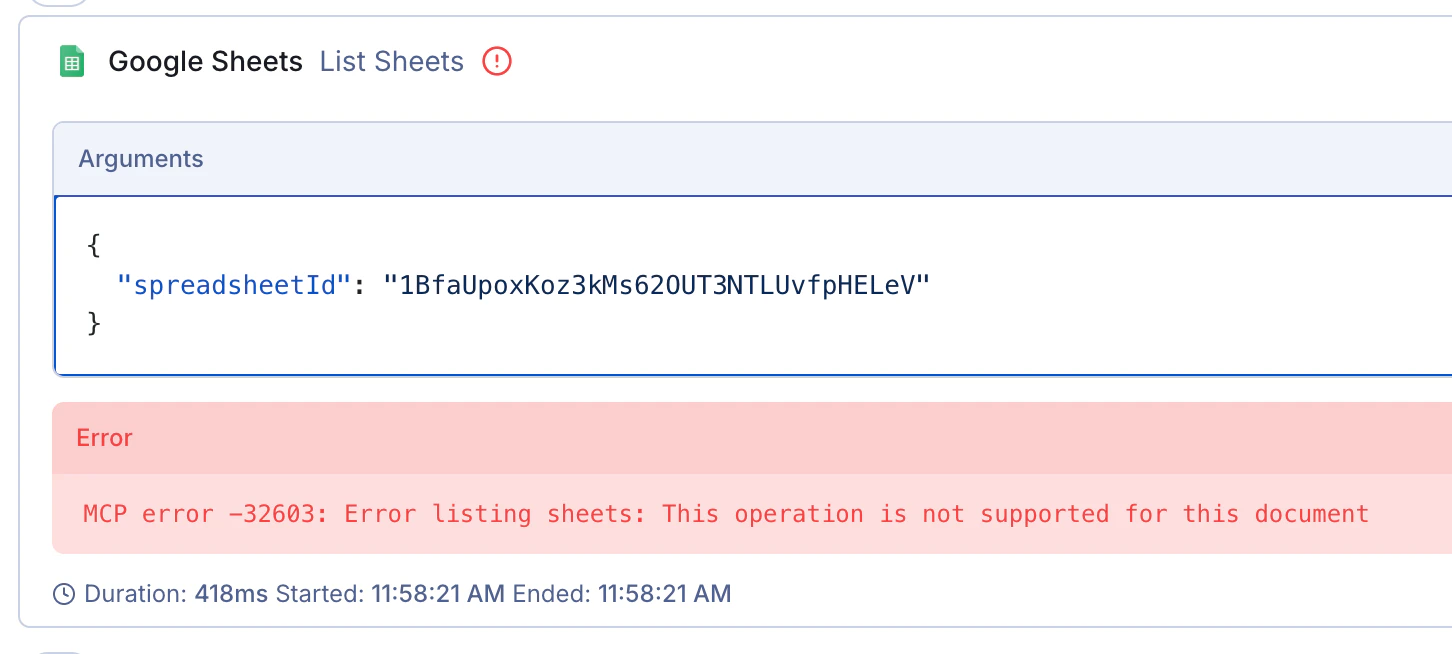
Error: “This operation is not supported for this document”
If you encounter the errorMCP error -32603: Error listing sheets: This operation is not supported for this document, this is likely because you’re trying to access an imported .xlsx file rather than a native Google Sheet.
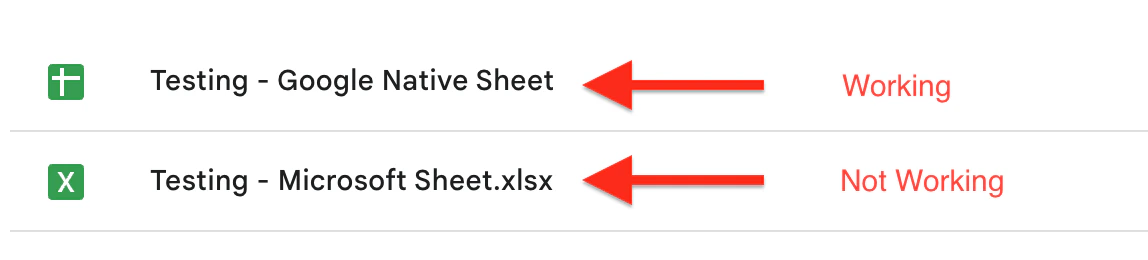
.xlsx). When you upload an Excel file to Google Drive, it remains in .xlsx format by default, even though you can view it in the Google Sheets interface. You can identify these files by the .xlsx extension in the filename or the Excel icon in Google Drive.
1
Open the imported file
Open the
.xlsx file in Google Sheets.2
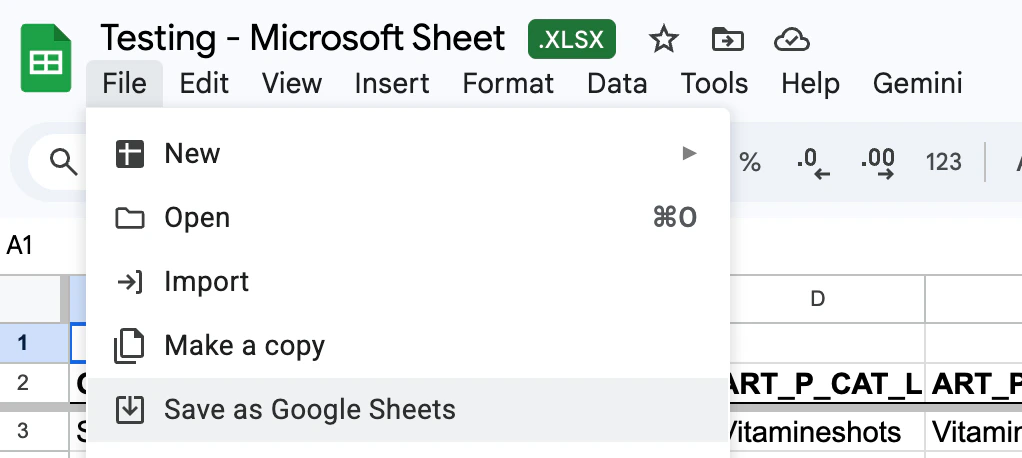
Convert it to a native Google Sheet
Go to File > Save as Google Sheets.
3
Update the agent with the new URL
Use the new Google Sheet URL for your agent.
.xlsx format (for compatibility with other systems), you can use the Google Drive connection instead. With Google Drive, the agent can download the .xlsx file to its local workspace, read or modify it directly, and upload it back to Google Drive while keeping the original Excel format intact.