

Setup
A Slack workspace on a paid Slack plan — Slack requires automation apps to install only into paid workspaces, so an install into a free workspace is refused.
Manager role or above in Duvo — needed to install the app. Linking your own account afterwards has no role requirement.
Permission to add apps in your Slack workspace — granted on the Slack side by a workspace admin.
Install the Duvo app (once per workspace)
- Open the Connections page in Duvo.
- Find Slack and click Enable.
- Authorize the Duvo app in your Slack workspace.
Link your Slack account (each team member)
- Open the Connections page.
- Open Slack and find your workspace.
- Click Enable next to your account.
Connecting Slack authorizes two identities at once: the Duvo app, which posts with an APP badge, and your own Slack account. Messages appear from the Duvo app by default. Sending messages, reactions, and editing or deleting messages can act as you instead when your agent’s AOP asks for it — see Slack bot identity.
Working with agents in Slack
Once the Duvo app is installed, the work happens in Slack itself.- Start a Run by mentioning the app — Invite the Duvo app to a channel with
/invite @Duvo, then tag it there and the agent starts work, posting its results back in the same thread. Good for on-demand reports and quick actions without opening Duvo. Which channels can start a Run is set per agent — see Slack channel triggers. - Approve, deny, and answer in the thread — When an agent needs a decision or input, the Duvo app sends you a direct message. Approve, deny, or answer right there, or click through to handle it in Duvo. Several requests in one Run are grouped into a single DM thread.
- Live status updates — While a Run is in progress, Duvo posts what the agent is currently doing. Updates pause when a request is waiting on a human and resume when work continues.
- Files and images as context — Files and images attached to messages in the thread are downloaded automatically and made available to the agent, so a request can carry its supporting documents.
- Bot and third-party messages are read too — Agents capture the full content of every message in a thread, including structured messages from apps like Jira, GitHub, and PagerDuty. Titles, field values, and descriptions are extracted for them.
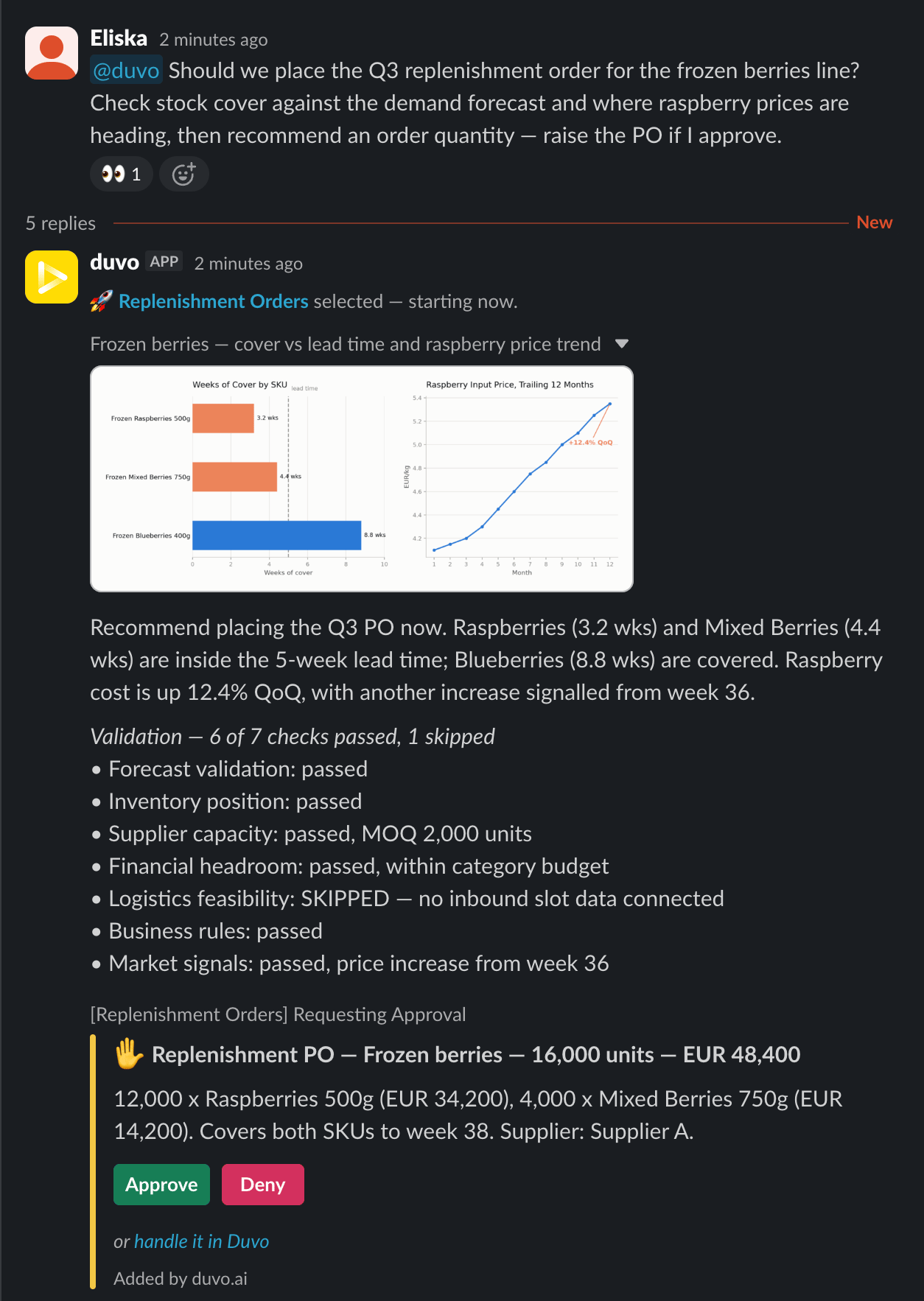
Mentioning the Duvo app starts a Run. The agent posts its evidence and recommendation in the thread, then asks for approval before placing the order.
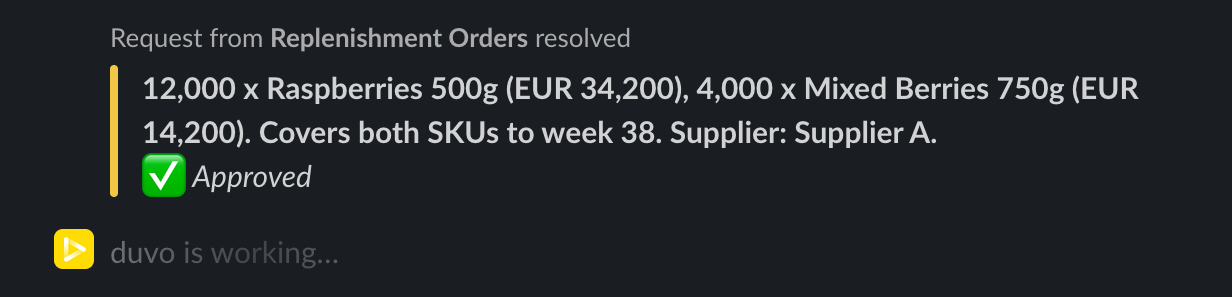
The resolved request. Duvo records the decision in the thread and the Run continues.
Figures in these examples are illustrative.
What agents can do in Slack
Each capability runs under one of the two identities. App means the Duvo app acts as itself, in the channels it has been added to. You means it runs under your linked account, reaching only what that account can already see.- Send messages (app, or you when the AOP asks for it) — Post updates to channels, send direct messages, reply to threads, and schedule messages for later delivery.
- Edit and delete messages (app, or you) — Update or remove previously sent messages.
- React to messages (app, or you) — Add and remove emoji reactions.
- Manage channels (you) — Create, archive, unarchive, and rename channels, set topics and purposes, and join public channels.
- Upload and download files (app for files attached in the thread, you for files elsewhere in Slack) — Send documents, reports, and images to channels and conversations, or pull files from Slack into the Run.
- Retrieve information (you) — Pull conversation history from a channel or thread, retrieve a specific message by channel and timestamp, and look up channel and user details.
- Coordinate team members (you) — Find users, look up profiles, list channel members, and invite or remove people from channels.
Message formatting
Agents write in standard Markdown, which is converted to Slack’s native formatting before sending:- Bold, italic, and
strikethroughtext - Bullet and numbered lists
Inline codeand multi-line code blocks- Links as clickable Slack links
- Headings rendered as bold text (Slack has no native headings)
- Tables rendered as native Slack tables, preserving rows and columns
Duvo uses large language models. Responses, summaries, and other output can be
inaccurate or incomplete — review anything consequential before acting on it.
Notification preferences
Turn Slack notifications on or off in Settings > Requests. When they are on, the Duvo app sends you:- Human-in-the-loop requests — approvals, questions, and input needed
- Error alerts when a Run fails
Key benefits
- Respond without leaving Slack — Handle approvals, answer questions, and read agent output in the place your team already works.
- Team-wide access — One install covers the whole team. Any linked member can start a Run and receive notifications.
- Automated team updates — Status reports, alerts, and Run results posted to the right channels on their own.
- Real-time visibility — Live status updates keep the thread informed without anyone switching to Duvo.
- Context-rich requests — Files, images, and bot messages from the thread reach the agent automatically.
- Clear identity — Agent messages come from the Duvo app by default, so automated communication stays distinct from personal messages. Actions your AOP configures to act as you post from your own account instead.
Works Well With

Gmail
Monitor incoming emails and post summaries or alerts to a Slack channel so your team stays informed without checking their inbox.

Google Sheets
Pull data from spreadsheets and share formatted reports in Slack on a schedule, or ask the Duvo app for a report and have results written back to the sheet.

Linear
Post project updates, new issue notifications, or sprint summaries to dedicated Slack channels to keep engineering and product teams aligned.
Outcome Examples
Request intake and routing
Request intake and routing
Requests that arrive in #helpdesk, #ops-requests, or any shared channel are read, classified, and routed to the right person or ticketing system. The requester gets an acknowledgment in the thread; the right team gets a ticket or DM. Covers IT help, HR questions, finance approvals, and general ops.
Threshold alerts
Threshold alerts
An agent polls your data warehouse or CRM every hour and posts a Slack notification only when a condition is met — inventory below reorder point, fraud rate above threshold, error count spiking. No noise when everything is fine.
Automated weekly summaries
Automated weekly summaries
Every Monday morning, a structured summary of last week’s key metrics is posted to your team’s channel, pulled from live warehouse or CRM data. No manual preparation.
Troubleshooting
Notifications not appearing
Notifications not appearing
- Check that the Slack workspace is connected on the Connections page
- Confirm your own Slack account is linked there too
- Confirm Slack notifications are enabled there
- Make sure the Duvo app is not muted in Slack
Cannot install the app
Cannot install the app
- Confirm your Slack workspace is on a paid Slack plan — free workspaces cannot install the app
- Installing needs the Manager role or above in Duvo
- Confirm you are allowed to add apps in your Slack workspace
- Allow browser popups for the authorization flow
- Check for network restrictions blocking OAuth
Mentions are not starting a Run
Mentions are not starting a Run
- Confirm the Duvo app has been invited to the channel with
/invite @Duvo - Confirm the agent has Slack triggers enabled for that channel
- Confirm you are tagging the Duvo app itself
- Make sure the agent is live and has a published build
Security and privacy
Tokens are encrypted at rest, and the two identities reach different things:- The Duvo app reaches only the channels and conversations it has been added to.
- Your linked account reaches whatever that Slack account can already see.