

Introduction
Teams are organizational containers that control who has access to which agents in Duvo. Every agent must belong to a team, allowing you to manage collaboration, maintain security, and organize your automation effectively.What is a Team?
A team determines:- Who can see and use specific agents
- Who can edit agent AOPs
- How agents are organized across your company
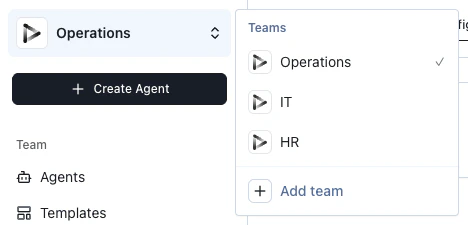
Why Teams Matter
Security: Keep sensitive agents accessible only to authorized users Organization: Group agents by department, function, or project for easy management Collaboration: Enable multiple users to work together on agents while keeping others separateHow to Structure Your Teams
There’s no single “right” way—it depends on your business needs. Common approaches include organizing by department (Sales, Finance, HR), by function (Customer Support, Reporting), by project (client-specific teams), or using a hybrid approach. Start simple with a few teams that mirror your existing organizational structure, then add more as needed.Team Logo
You can upload a custom logo for your team that displays in the sidebar and team switcher. This makes it easier to identify your team at a glance, especially if you belong to multiple teams. To upload a team logo:Open the Team tab in Settings
Open Settings and navigate to the Team tab.
Upload an image
In the Team Logo section, click the upload area or drag and drop an image file (PNG, JPG, or WebP, up to a few MB).
See it applied
Your logo appears immediately in the sidebar and team switcher.
Profile Settings
You can update your personal profile information from the Profile tab in Settings:- Name: Changes take effect immediately.
- Email: Entering a new email address sends a confirmation email to the new address. The change applies once you click the link in that email. If your account is managed through an external identity provider (such as SAML SSO), email changes must be made through that provider.
Managing Team Membership
Multiple teams: Users can belong to multiple teams simultaneously. For example, a sales operations manager might access both “Sales Team” and “Operations Team” agents. Flexible access: Easily add or remove users as roles change without disrupting the agents themselves.Which Role Should I Assign?
Pick the role based on what the person needs to do day-to-day:
For a detailed breakdown of every permission, see Roles and Permissions.