

Introduction
Once you’ve built your agent, it’s time to see it in action. Running an agent in Duvo is designed to be fully transparent—you can observe exactly what the agent is doing at every step, understand its reasoning, and interact with it in real-time if needed.Tracking Active Runs in the Sidebar
When one or more Runs are running, the sidebar shows a Running indicator listing each agent that has active Runs, along with a count of how many are in progress. Clicking an agent name in this list takes you directly to its Runs tab so you can monitor progress. Each agent card in the main view also shows a badge with its active Run count, so you can see at a glance which agents are currently working without navigating away.Starting a Run
Click Run Agent
When you’re ready to run your agent, click the “Run Agent” button. Your agent will immediately begin working through its AOP.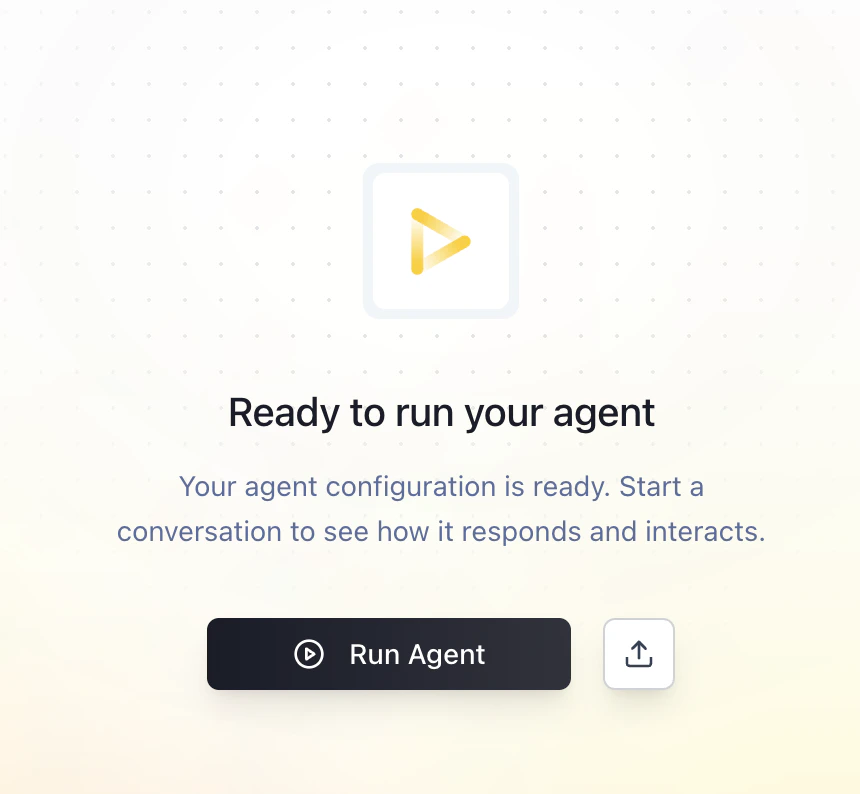
Understanding the Session Log
The session log appears on the right side of your screen and provides complete visibility into your agent’s activities. This is where you’ll monitor progress, see detailed steps, and interact with your agent during the run.The To-Do List
The first thing your agent does is review its AOP and generate a to-do list. This list breaks down the entire workflow into discrete steps, giving you a clear overview of what the agent plans to accomplish. You can use the to-do list to track how far along the agent is in the process and what tasks remain.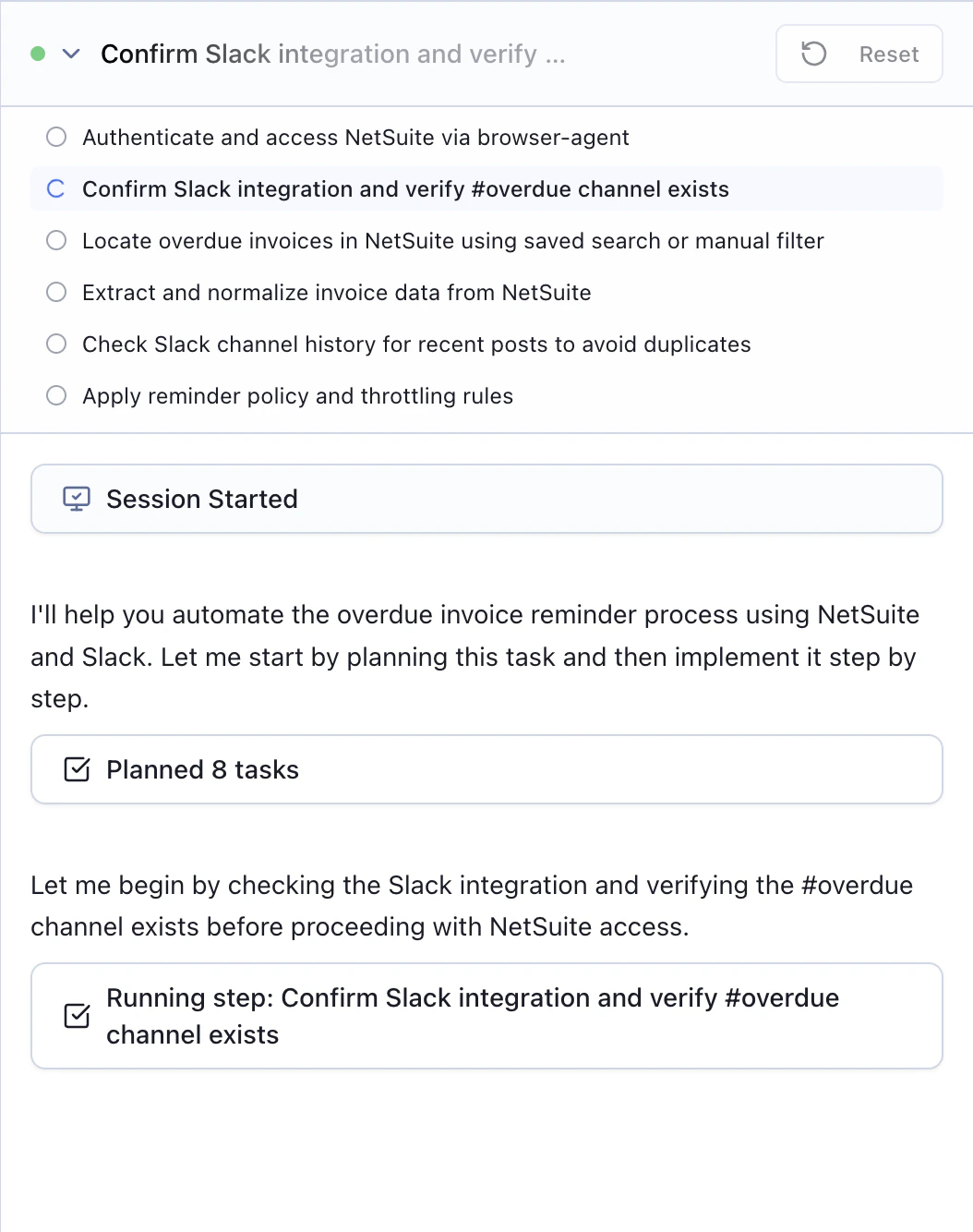
Real-Time Activity Log
Every step of the process is captured in the session log, providing complete transparency into what your agent is doing: Agent reasoning: See the agent’s thought process and decision-making as it works through each step Tool calls: Monitor which tools and systems the agent is accessing, such as reading from your CRM, sending emails, or navigating browser-based systems Human-in-the-loop (HITL) requests: When the agent reaches an approval point, it will pause and request your review. You’ll see exactly what action it wants to take and can approve, modify, or reject before it proceeds This detailed logging ensures you always understand what’s happening and can identify exactly where adjustments might be needed.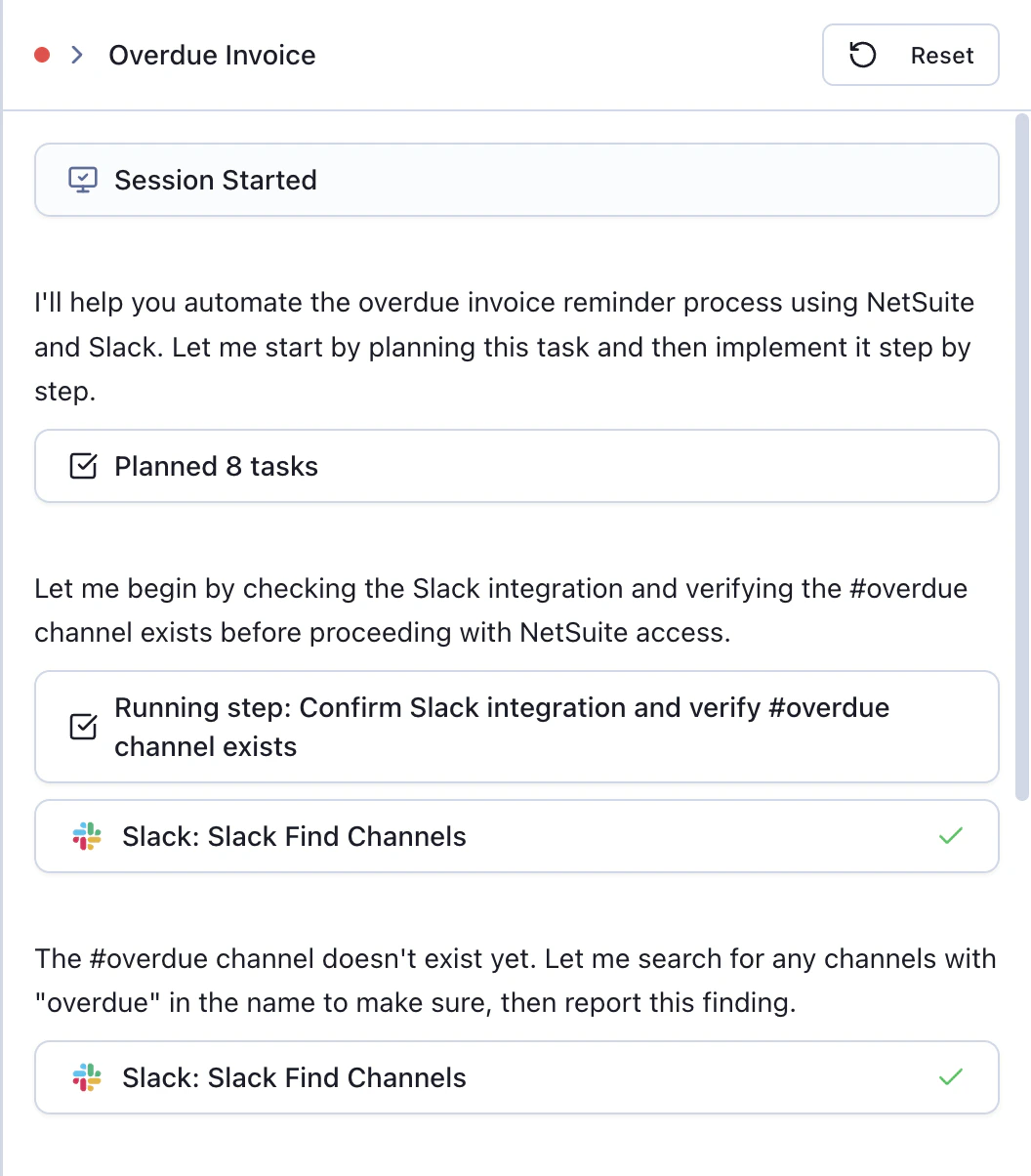
Interacting During a Run
At the bottom of the session log, you’ll find the run-time prompt. This is your direct line of communication with the agent during the current run.
What is the Run-Time Prompt?
The run-time prompt allows you to interact with your agent while it’s actively working. You can provide additional context, answer questions, give guidance, or offer corrections without stopping the entire process.When to Use the Run-Time Prompt
Use the run-time prompt when you need to:- Respond to a human-in-the-loop (HITL) request
- Provide additional information the agent needs to continue
- Clarify something the agent is uncertain about
- Offer guidance on handling an unexpected situation
Viewing and Downloading Run Files
When an agent creates or modifies files during a run — such as reports, exports, or processed documents — those files appear in the Files panel in the run view.What the Files Panel Shows
The Files panel lists all files in the agent’s workspace for that run. Each file shows its name, size, and when it was last modified. The list updates automatically while the run is running and refreshes whenever a tool writes to the workspace.Downloading Files
- Download a single file: Click the download icon next to any file to save it directly.
- Download all files: Use the Download All button to get every file in the workspace as a single ZIP archive. The ZIP is named after the agent and run number for easy identification.