

Time to complete: 15 minutesDifficulty: BeginnerPrerequisites: Email connection, CRM access (optional)You’ll build: An agent that drafts and sends professional customer emails with consistent tone
Why Automate This?
The Problem: Customer support teams spend hours crafting individual email responses. Response quality varies by team member. Customers wait too long for answers. Important context from previous interactions gets missed. And maintaining a consistent brand voice across dozens of daily emails is nearly impossible. The Solution: A Duvo agent that monitors incoming customer emails, gathers relevant context from your CRM and files, and drafts professional responses that maintain your brand voice—ready to send or review before sending. Expected Results:- Reduce average response time from 4 hours to under 30 minutes
- Ensure 100% consistent brand voice and formatting
- Automatically include relevant context from customer history
- Free up 3-4 hours per support person per day
- Improve customer satisfaction scores
What You’ll Build
By the end of this tutorial, you’ll have an agent that:- Monitors your inbox for new customer inquiries
- Categorizes emails by type (support, sales, billing, etc.)
- Pulls customer history and context from your CRM
- Drafts professional responses using your brand voice
- Sends automatically or queues for your review
- Logs all interactions back to your CRM
Before You Start
Make sure you have these ready:Email connection - Connect Gmail or Outlook. Add a connection
CRM access (recommended) - For customer context and history. Set up logins
Email templates (optional) - Upload to Files for consistent formatting
FAQ/Documentation (optional) - For the agent to reference when answering questions
Create Your Agent
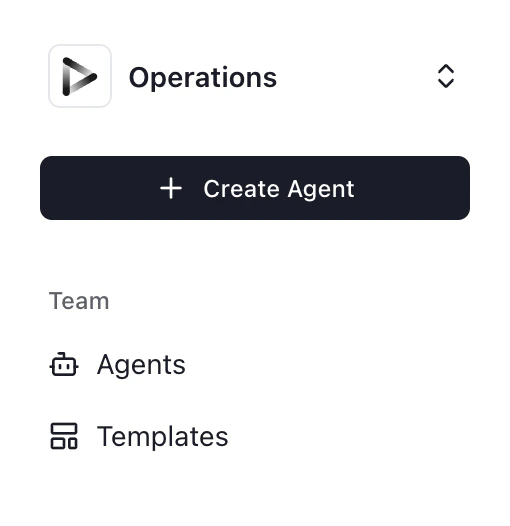
- Click ”+ Create Agent” from your dashboard
- Select “Use Agent Builder” (recommended for this tutorial)
Describe Your Workflow
Paste this prompt into the Agent Builder:Click “Generate” to create the agent AOP.
Review Generated AOP
Review the generated AOP to ensure:
- Email categorization logic matches your needs
- Approval rules align with your policies
- Tone and style guidelines are captured
Add Files Resources
Upload resources the agent should reference:
- Go to Agent Settings > Files
- Upload your FAQ documents, product guides, and email templates
- These will be used to craft accurate, helpful responses
- Product FAQ document
- Troubleshooting guides
- Email signature template
- Refund/return policy
- Brand voice guidelines
Configure Connections
Click “Connections” and connect:
- Email - Connect the inbox to monitor (Gmail or Outlook)
- CRM - Connect Salesforce, HubSpot, or your CRM system
- Slack (optional) - For notifications when emails need review
Set Up Human-in-the-Loop
Configure which emails need your review before sending:
- Go to Agent Settings > Approvals
- Enable “Review before sending” for:
- Complaints
- Billing issues over $100
- Any email you want to personally review
Test Your Agent
Send test emails to verify each category works:
- Send a support question from a test account
- Send a billing inquiry
- Send a complaint
- Verify responses are appropriate and routed correctly
- Is the tone professional and friendly?
- Did it pull correct customer context from CRM?
- Did complaints get queued for review?
- Were interactions logged to CRM?
Enable Continuous Monitoring
Set the agent to monitor emails continuously:
- Go to Agent Settings > Schedule
- Select “Continuous” for real-time responses
- Save settings
Expected Results
When your agent runs successfully, you should see: In customer inboxes:- Fast, professional responses (under 30 minutes)
- Consistent formatting and brand voice
- Relevant links to documentation
- Personalized with their account details
- Complaints and sensitive issues queued for review
- Draft emails ready for your approval
- Significant time savings on routine responses
- All interactions logged automatically
- Follow-up reminders set
- Complete customer communication history
- Categorization accuracy metrics
- Response time tracking
- Review queue for pending approvals
Troubleshooting
Emails not being detected
Emails not being detected
- Inbox connection: Re-authorize email connection
- Folder monitoring: Ensure agent is watching the correct folder (Inbox, not a subfolder)
- Filters: Check if emails are being auto-filtered before agent sees them
Wrong categorization
Wrong categorization
- Refine AOP: Add more specific keywords for each category
- Add examples: Include sample emails for each type in your AOP
- Use Learning: Mark correct categorizations to improve over time
Customer not found in CRM
Customer not found in CRM
- Email matching: CRM may have different email than the one they’re writing from
- Company domain: Try matching by company domain instead of exact email
- Create new contact: Add instruction to create CRM contact if not found
Tone doesn't match brand
Tone doesn't match brand
- Upload guidelines: Add brand voice document to Files
- Provide examples: Include sample responses showing desired tone
- Refine AOP: Be more specific about tone (e.g., “friendly but professional, never use slang”)
Responses missing context
Responses missing context
- CRM fields: Ensure agent has access to relevant CRM fields
- Files: Upload more comprehensive documentation
- Previous emails: Enable access to email thread history
Take It Further
Once your basic agent is working, consider these enhancements: Add sentiment analysis- Account Manager: “Always use a warm, conversational tone. Include my direct phone number in the signature. CC me on all customer correspondence.”
- Technical Support: “Keep responses concise and technical. Include links to our documentation. Don’t CC me unless it’s urgent.”
Related Resources
Human-in-the-Loop
Configure review workflows for sensitive emails
Agent Memory
Personalize communication style per team member
Files
Upload FAQs and email templates