

When the live view appears
A live view tile appears in the run panel automatically whenever an in-progress run uses:- Browser automation — any agent that navigates websites, fills in forms, or reads browser-based systems.
- Computer Use — agents operating the Duvo-managed Windows sandbox.
- Windows Remote Desktop — agents working inside your own Windows machines.
Live view is not available for completed or stopped runs. After a run finishes, a screenshot timeline replaces the live tile so you can step through what the agent did.
Opening and expanding the view
While a run is in progress, a thumbnail card appears at the bottom of the run panel showing a live preview of the browser or desktop.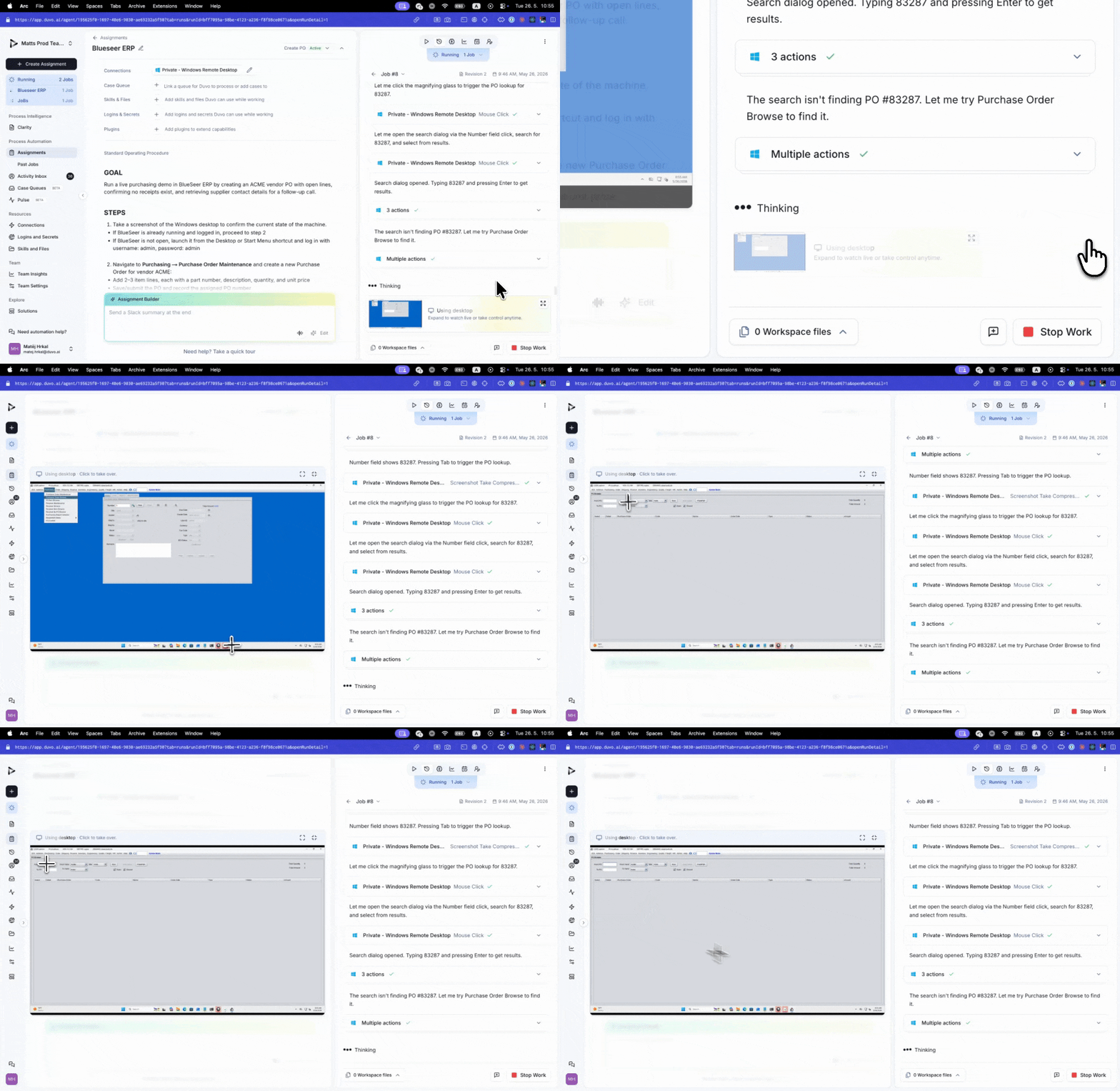
- Thumbnail — The default state. A small preview lets you see activity at a glance without leaving your current view. The card label changes to “Browsing” or “Using desktop” while the agent is actively working.
- Split view — Click the thumbnail or the expand icon to open a larger panel that appears over the run view. Use this when you need to see what the agent is doing clearly while keeping the session log visible.
- Full screen — Click the maximize icon in the split view header to expand to a full-screen overlay. Use this when demonstrating the agent to a stakeholder or auditing complex multi-step work.
Taking control
The live view is interactive. You can take control of the browser or desktop at any point while a run is in progress.Expand the live view
Expand the live view to split or full-screen mode.
Start interacting
Click anywhere inside the browser or desktop to start interacting. The header shows “Click to take over.”
Drive the session
Type, click, and navigate as you would normally.
Hand back to the agent
Use the run-time prompt in the session log to tell the Agent what changed or how to continue.
What you can see
An overlay in the bottom corner of the expanded view shows the tool currently executing — useful for understanding which step of the process is active without reading through the session log.
Use cases
Catching a problem before it lands — Watch a new agent run for the first time and intervene if it is about to take a wrong action. Expanding the view lets you see exactly what the agent sees, so you can step in and correct the situation before it completes a bad step. Auditing an unusual decision — When a completed run shows issues, open the run and step through the screenshot timeline to see exactly what the agent did and why. Training new builders — Walk a new team member through an in-progress run by sharing your screen in split view mode. They can watch the agent work in real time while you explain the AOP logic alongside it. Demonstrating to stakeholders — Run an agent in full-screen mode during a meeting to show stakeholders exactly how the automation works. The live view makes the process concrete and visible, which is more effective than describing it. Guiding an edge case — If the agent reaches a state it has not encountered before, take control, navigate through the edge case manually, then hand back and let the agent finish.Screenshot replay (after the run)
Once a run completes, the live tile is replaced by a screenshot replay. This is a step-by-step visual timeline of everything the agent did — one screenshot per browser action or desktop interaction. Click any screenshot to expand it. Use the timeline to understand what the agent saw at each step, which is useful for post-run audits and for refining the AOP based on what you observe.Access
Anyone with access to view and run the agent can open the live view for runs they can see. Owners and Administrators can also view runs started by other team members from the Runs List. See Roles and Permissions for the full breakdown.Related pages
Browsing Capabilities
How browser automation works
Computer Use
Browser and Windows desktop automation options
How to Run Your Agent
The session log, run-time prompt, and files panel
Runs List
Monitoring active and completed runs across all agents
Retries, Failures, and Skipped Steps
What happens when a run fails