

Time to complete: 20 minutesDifficulty: IntermediatePrerequisites: CRM/Sales platform access, Email or Slack connection, Spreadsheet connectionYou’ll build: An agent that generates and distributes customized sales reports every week
Why Automate This?
The Problem: Sales managers spend Monday mornings pulling data from multiple systems, building spreadsheets, calculating metrics, and formatting reports. By the time reports are distributed, the data is already hours old. Different regions get different formats. And creating personalized views for each stakeholder is simply not feasible manually. The Solution: A Duvo agent that automatically pulls sales data, calculates KPIs, generates formatted reports with regional filtering, and distributes them to the right stakeholders—all before anyone arrives Monday morning. Expected Results:- Eliminate 3-4 hours of manual report building per week
- Deliver reports by 7 AM Monday (before anyone asks)
- Provide personalized regional views for each manager
- Ensure consistent metrics and formatting
- Include week-over-week comparisons automatically
What You’ll Build
By the end of this tutorial, you’ll have an agent that:- Pulls sales data from your CRM for the past week
- Calculates key performance metrics and comparisons
- Generates formatted reports with charts and highlights
- Filters data by region for each recipient
- Distributes via email and posts to Slack
- Archives reports in your shared drive
Before You Start
Make sure you have these ready:CRM/Sales platform - Salesforce, HubSpot, or similar. Set up logins
Email connection - For distributing reports. Add a connection
Google Sheets or Excel - For generating formatted reports
Slack connection (optional) - For posting summaries
Google Drive or SharePoint (optional) - For archiving reports
Create Your Agent
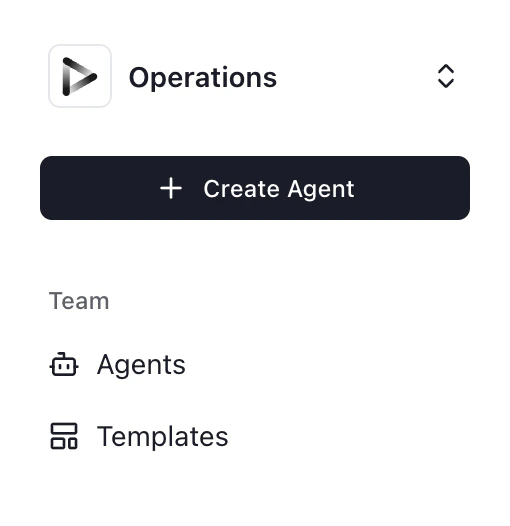
- Click ”+ Create Agent” from your dashboard
- Select “Use Agent Builder” (recommended for this tutorial)
Describe Your Workflow
Paste this prompt into the Agent Builder:Click “Generate” to create the agent AOP.
Review Generated AOP
Review to ensure:
- All metrics are correctly defined
- Regional territories match your organization
- Distribution list is accurate
- Report format meets your needs
Upload Report Template
Create a consistent look by uploading a template:
- Go to Agent Settings > Files
- Upload your report template (Excel or Google Sheets format)
- Include your company branding, chart styles, and section layouts
Configure Connections
Click “Connections” and connect:
- CRM - Salesforce, HubSpot, or your sales platform
- Google Sheets or Excel - For report generation
- Email - For distribution
- Slack (optional) - For team notifications
- Google Drive or SharePoint (optional) - For archiving
Test Your Agent
Run a manual test before scheduling: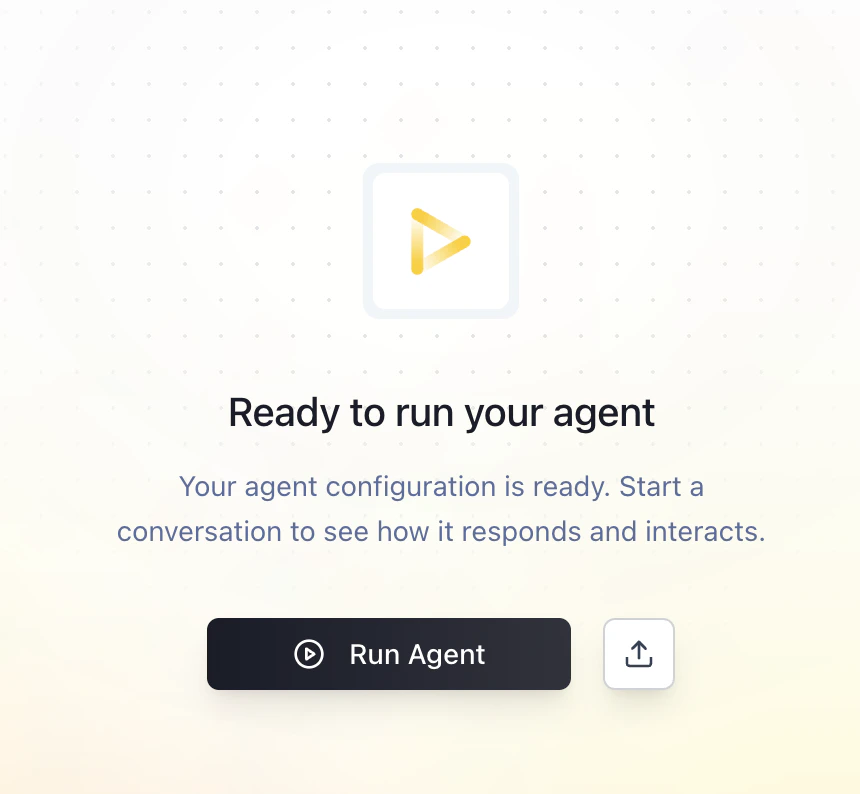
- Click “Run Agent”
- Review the generated report for accuracy
- Verify regional filtering is correct
- Check that all recipients received their reports
- Are the numbers accurate vs your CRM?
- Is the regional breakdown correct?
- Did the formatting look right?
- Were all stakeholders included?
Schedule Weekly Runs
Set up the Monday morning schedule:
- Go to Agent Settings > Schedule
- Select Weekly on Monday at 6:00 AM
- Choose your timezone
- Save settings
Expected Results
When your agent runs successfully, you should see: In stakeholder inboxes (by 7 AM Monday):- Formatted PDF reports with charts
- Executive summary highlighting key wins and concerns
- Week-over-week comparisons
- Regional breakdown specific to their territory
- Quick highlights summary
- Link to full report
- Celebration of top performers
- Archived reports with date stamps
- Historical data for trend analysis
- Accessible to entire sales organization
- Execution log with timing
- Data quality alerts if applicable
- Distribution confirmation
Troubleshooting
Report shows wrong numbers
Report shows wrong numbers
- Date range: Verify timezone settings match your CRM
- Filters: Check that all deal stages are included
- Currency: Ensure consistent currency conversion if international
- Duplicates: Confirm deals aren’t being counted multiple times
Regional data is incorrect
Regional data is incorrect
- Territory mapping: Verify state/country agents in AOP
- Account agent: Check that accounts have correct region tags in CRM
- New territories: Update AOP when territories change
Report formatting issues
Report formatting issues
- Template: Ensure template is properly formatted and compatible
- Data types: Verify numbers are formatted as numbers, dates as dates
- Chart data ranges: Check that charts reference correct cells
Emails not delivering
Emails not delivering
- File size: Large reports may be blocked—consider Drive links instead
- Recipients: Verify email addresses are current
- Spam filters: Check corporate spam filters for attachments
Slack posts failing
Slack posts failing
- Channel permissions: Ensure agent has permission to post
- Message length: Slack has character limits—keep summaries concise
- Bot configuration: Verify Slack app is properly installed
Take It Further
Once your basic agent is working, consider these enhancements:Add forecast accuracy tracking
Add forecast accuracy tracking
Create exception alerts
Create exception alerts
Add competitive intelligence
Add competitive intelligence
Generate rep scorecards
Generate rep scorecards
Personalize with Agent Memory
Personalize with Agent Memory
Regional managers can customize their reports. Learn about Agent Memory
- West Region Manager: “Only include data for California, Oregon, and Washington territories. Highlight accounts over $50K in annual value. Send the report to my regional team at 6 AM Pacific.”
- East Region Manager: “Only include data for New York, New Jersey, and Pennsylvania territories. Highlight accounts over $100K in annual value. Send the report to my regional team and VP of Sales.”
Related Resources
Agent Memory
Customize reports for each stakeholder
Files
Upload report templates and formatting guides
Connections Overview
Connect your CRM and communication tools
Human-in-the-Loop
Review reports before distribution