

Time to complete: 20 minutesDifficulty: IntermediatePrerequisites: Procurement system access, Email or Slack connectionYou’ll build: An agent that auto-approves POs based on thresholds and routes high-value orders for review
Why Automate This?
The Problem: Purchase order approvals create bottlenecks. Simple 50,000 purchases. Managers waste time approving routine orders while critical purchases get delayed. Meanwhile, procurement teams manually check vendor status and budget availability for every single PO. The Solution: A Duvo agent that intelligently processes purchase orders based on configurable thresholds—auto-approving routine orders instantly while routing high-value purchases through appropriate approval chains. Expected Results:- Auto-approve 70-80% of routine POs instantly
- Reduce approval cycle from 2-3 days to under 4 hours
- Eliminate manual vendor validation checks
- Ensure budget compliance before approval
- Complete audit trail for compliance
What You’ll Build
By the end of this tutorial, you’ll have an agent that:- Monitors your procurement system for new purchase orders
- Validates vendor status against your approved vendor list
- Checks available budget before processing
- Auto-approves orders under your threshold limits
- Routes high-value orders to appropriate approvers
- Sends confirmations and updates status automatically
Before You Start
Make sure you have these ready:Procurement system - You’ll need logins with read/write access. Set up logins
Email or Slack connection - For notifications and approvals. Add a connection
Budget system access (optional) - For automatic budget validation
Approved vendor list - Either in your procurement system or as a Files file
Create Your Agent
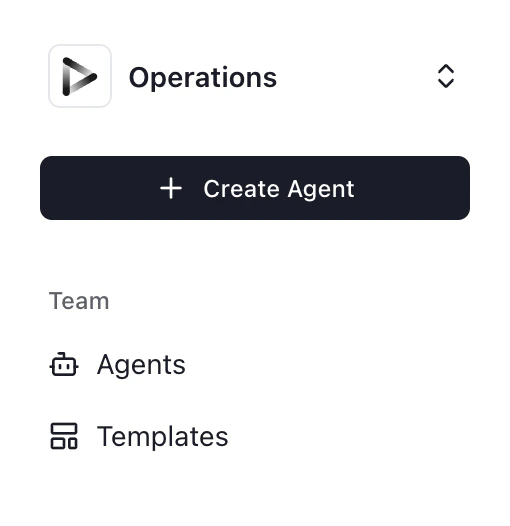
- Click ”+ Create Agent” from your dashboard
- Select “Use Agent Builder” (recommended for this tutorial)
Describe Your Workflow
Paste this prompt into the Agent Builder:Click “Generate” to create the agent AOP.
Review Generated AOP
Duvo will generate structured AOP. Review to ensure:
- Threshold amounts match your organization’s approval matrix
- Escalation paths are correct for your org structure
- All system names are correctly identified
Add Your Approved Vendor List
If your vendor list isn’t in your procurement system, upload it to Files:
- Go to Agent Settings > Files
- Upload your approved vendor list (CSV, Excel, or PDF)
- The agent will reference this when validating vendors
Configure Connections
Click “Connections” and connect:
- Procurement system - Add logins for your PO platform
- Email - For sending approvals and confirmations
- Slack (optional) - For real-time notifications to approvers
Test Your Agent
Run a test with sample purchase orders: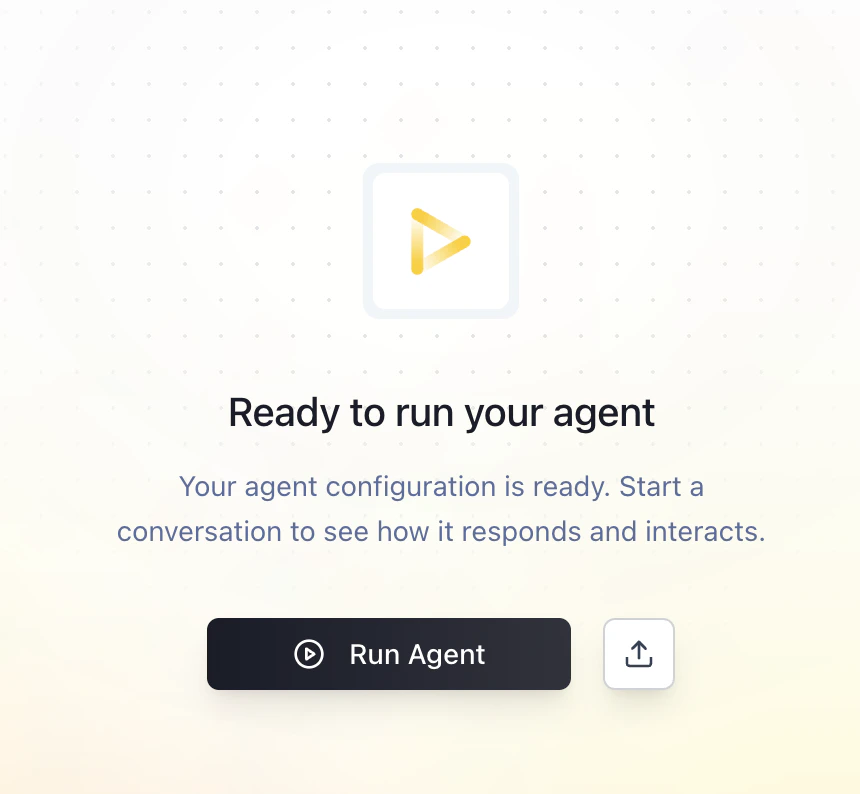
- Click “Run Agent”
- Process a few test POs at different amounts (3,000, $8,000)
- Verify each follows the correct approval path
- Did low-value orders auto-approve correctly?
- Did high-value orders route to the right approver?
- Did vendor validation work?
- Did confirmations send to requestors?
Enable Continuous Monitoring
Set the agent to run continuously or on a schedule:
- Go to Agent Settings > Schedule
- Choose “Continuous” for real-time processing, or
- Choose “Every hour” for batch processing
- Save settings
Expected Results
When your agent runs successfully, you should see: In your procurement system:- Auto-approved POs show “Approved” status instantly
- High-value POs show “Pending [Approver Name] Approval”
- Rejected vendors flagged for review
- Clear approval requests with PO details
- Budget impact information for large orders
- One-click approve/reject options
- Instant confirmation for auto-approved orders
- Status updates when approvals are pending
- Expected delivery dates
- Complete audit trail of all decisions
- Approval chain documentation
- Processing time metrics
Troubleshooting
Orders not being detected
Orders not being detected
- Check status filter: Verify “Pending Approval” matches your system’s exact status name
- Check permissions: Ensure logins can view all departments’ POs
- Check polling interval: If using scheduled runs, orders may be waiting for next cycle
Vendor validation failing
Vendor validation failing
- List format: Ensure vendor names match exactly (watch for “Inc.” vs “Inc” issues)
- List location: Verify Files file is attached to this agent
- Update frequency: Make sure your vendor list is current
Wrong approval routing
Wrong approval routing
- Threshold values: Double-check dollar amounts in AOP
- Org structure: Verify approver names/emails are correct
- Department mapping: Ensure requestors are mapped to correct departments
Budget check errors
Budget check errors
- System connection: Verify budget system logins
- Account codes: Ensure PO account codes match budget categories
- Timing: Budget data may be delayed—add buffer for recent transactions
Notifications not sending
Notifications not sending
- Email connection: Re-authorize if needed
- Recipient addresses: Verify approver emails are valid
- Spam filters: Check if notifications are being blocked
Take It Further
Once your basic agent is working, consider these enhancements:Add budget pre-check
Add budget pre-check
Implement rush order handling
Implement rush order handling
Add vendor performance scoring
Add vendor performance scoring
Create spending reports
Create spending reports
Personalize with Agent Memory
Personalize with Agent Memory
Different users can set their own approval thresholds. Learn about Agent Memory
- Department Manager: “Auto-approve all purchase orders under 5,000 for my review.”
- Director: “Auto-approve all purchase orders under 10,000-25,000 requires VP sign-off.”
Related Resources
Human-in-the-Loop
Configure approval workflows for high-value orders
Agent Memory
Set personal approval thresholds per user
Files
Upload approved vendor lists and policies
My Logins
Securely store procurement system access