

Agents can search and retrieve records, post supplier invoices and credit memos, and cancel posted invoices and credit memos.
Setup
Connecting SAP S/4HANA to Duvo requires three setup steps in your SAP system — creating a technical user, activating the required OData services with OAuth enabled, and registering an OAuth 2.0 client. Once complete, enter the credentials in Duvo to enable the connection.Create a technical user
In your SAP system, run transaction
SU01 and create a technical user.- Set User Type to System.
- Save the password — this becomes the
Client Secretin Duvo. - Assign authorizations:
- Sandbox / testing:
SAP_ALL(validate connectivity only — never use in production). - Production:
SAP_BC_OAUTH2_APIplus the SAP-delivered specialist role for each API you plan to use — for example,SAP_BR_BUPA_MASTER_SPECIALIST(Business Partner),SAP_BR_PRODMASTER_SPECIALIST(Product),SAP_BR_PRICING_SPECIALIST(Pricing),SAP_EWM_*(Warehouse). - Invoice posting: to let agents post supplier invoices, also assign the accounts payable role, for example
SAP_BR_AP_ACCOUNTANT.
- Sandbox / testing:
Activate the OData services
Run transaction
/IWFND/MAINT_SERVICE. For each service below, add it with System Alias = LOCAL and check Enable OAuth for Service:API_BUSINESS_PARTNER— Business partner, customer, and vendor dataAPI_PRODUCT_SRV— Product and material master dataAPI_SLSPRICINGCONDITIONRECORD_SRV— Sales pricing conditionsAPI_WAREHOUSE— Extended Warehouse Management (EWM) data
API_SUPPLIERINVOICE_PROCESS_SRV— Supplier invoices and credit memosAPI_PURCHASEORDER_PROCESS_SRV— Purchase orders, used to match invoices to orders
Register an OAuth 2.0 client
Run transaction
SOAUTH2 and register a new OAuth 2.0 client.- Client Type: Confidential.
- Client ID must match the technical user’s username from the first step.
- Grant Type: Client Credentials (uncheck all others).
- Assign scopes for every service activated in the previous step.
- After creating the client, edit it and check Scope parameter may be omitted.
- Copy the Token Endpoint URL — you’ll enter this as the
Token URLin Duvo.
Add the connection in Duvo
On the Connections page, open SAP S/4HANA and fill in these fields:
string
required
Any name to help you identify this connection later.
URL
required
Your SAP S/4HANA host URL (for example,
https://your-sap-host.com). This is the base URL for all OData API calls.URL
required
The OAuth 2.0 token endpoint copied in the previous step (for example,
https://your-sap-host.com/sap/bc/sec/oauth2/token).string
required
Your technical user’s username from the first step (for example,
MCP_DUVO).string
required
Your technical user’s password from the first step.
SAP Client Number defaults to
100. If your system uses a non-standard client number, contact your Duvo representative.Third-party documentation
Third-party documentation
- SAP Help Portal — Activate and Maintain Services — Guide for
/IWFND/MAINT_SERVICEand OData service activation. - SAP Help Portal — OAuth 2.0 configuration — Setting up OAuth clients and scopes in
SOAUTH2.
Detailed setup walkthrough with screenshots
Detailed setup walkthrough with screenshots
A step-by-step version of the setup above, with screenshots from a live SAP system. Use this if you’re new to SAP administration or want to verify each screen before moving on.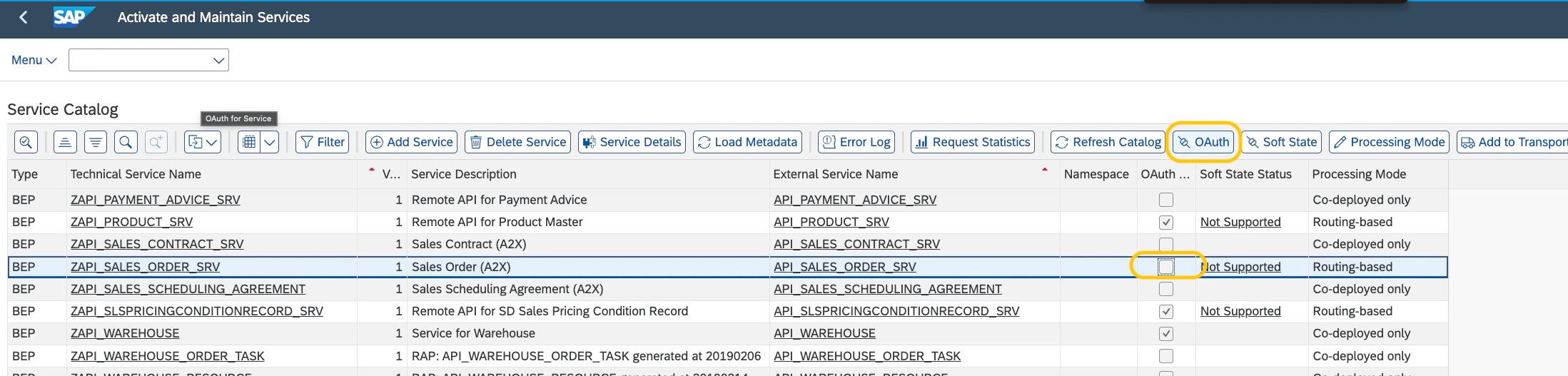
Step 1 — Create the technical user
The technical user represents the Duvo connection in your SAP system. Already have one? Skip this step. If you don’t know the password, reset it and note the new value.-
Run transaction
SU01.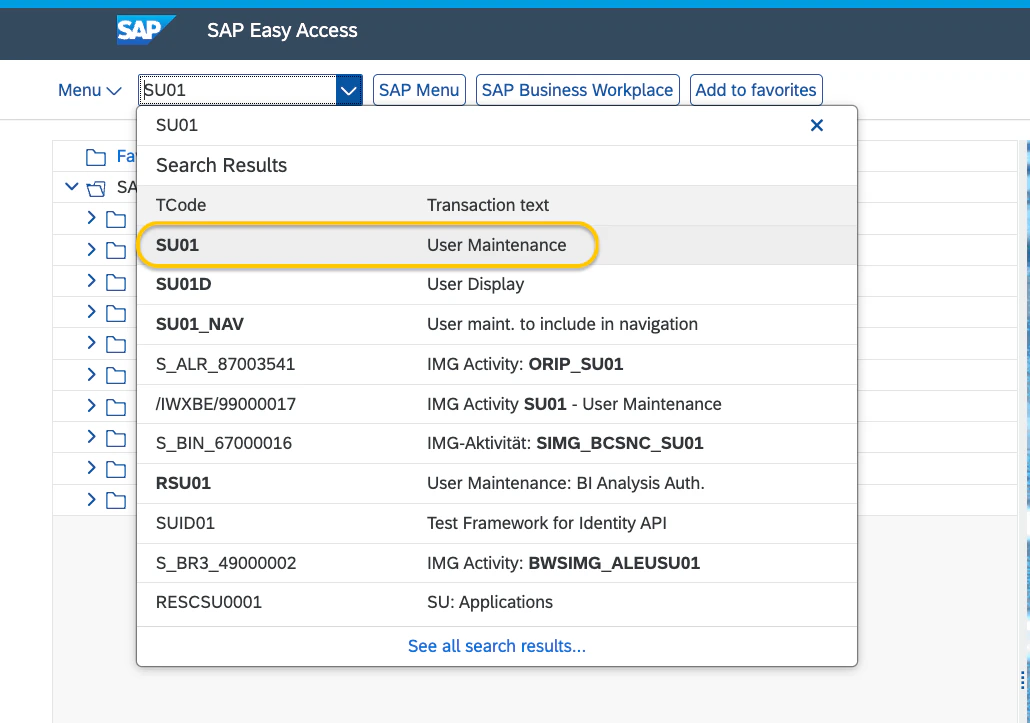
-
Enter a username (e.g.
MCP_DUVO) and click Technical User.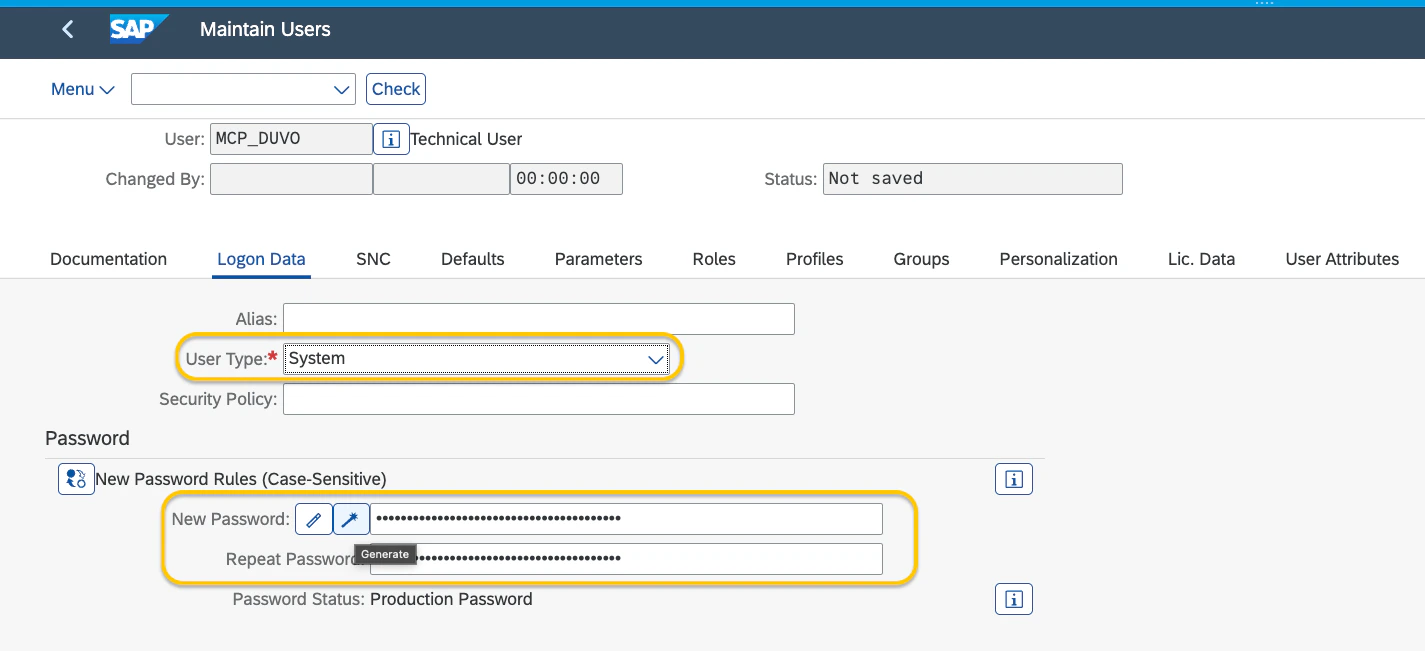
- On the Logon Data tab, set User Type to System.
-
Generate or set a password. Save it securely — this is the
client_secretyou’ll enter in Duvo.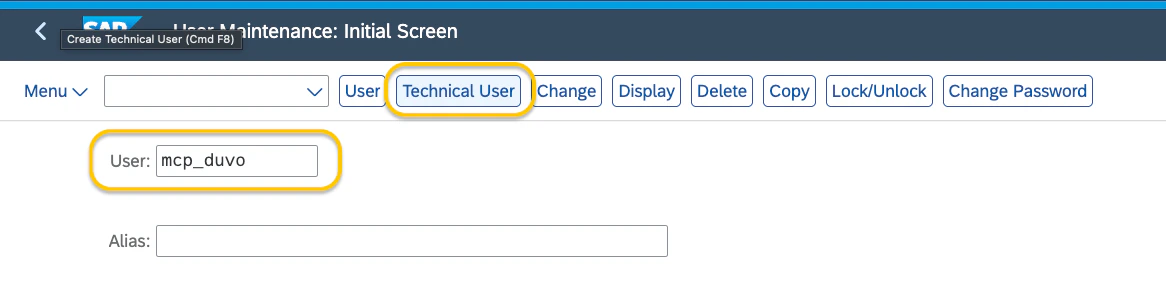
-
On the Profiles (or Roles) tab, assign authorizations.
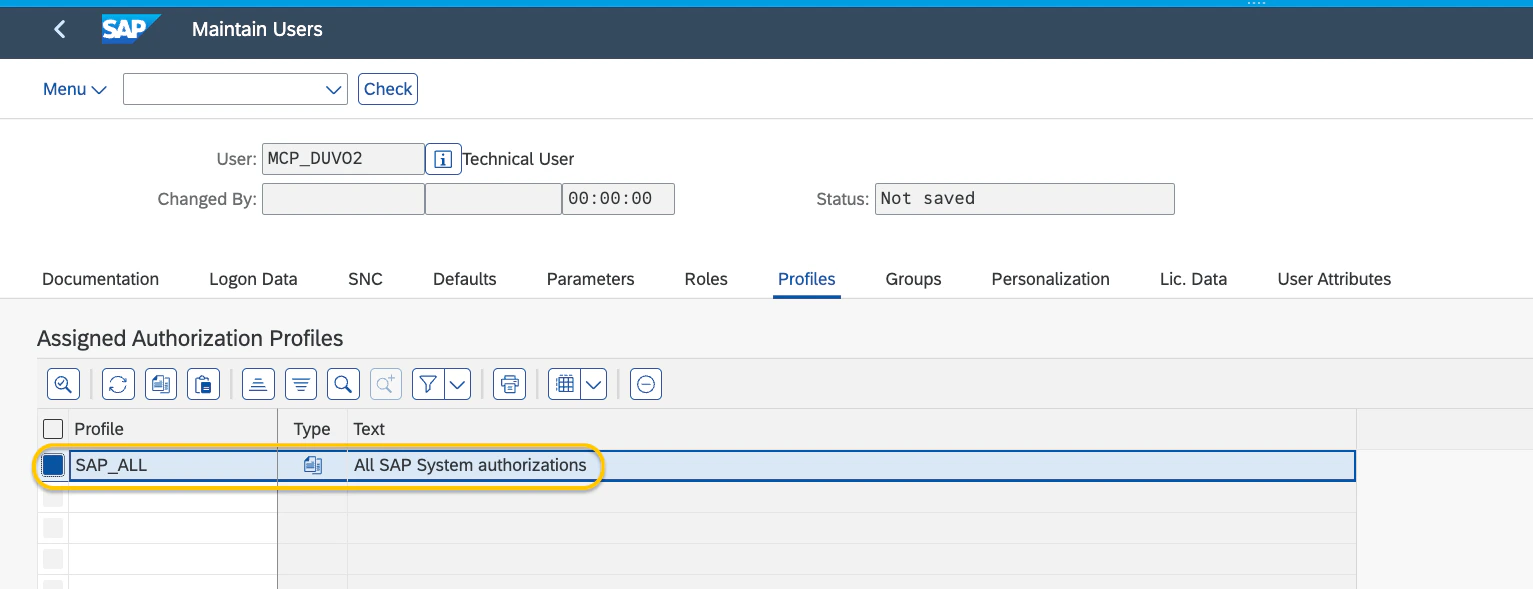
Role and profile agents depend on your specific SAP system. Always prefer least-privilege roles.
- Sandbox / testing only: you can temporarily use
SAP_ALLto validate connectivity.SAP_ALLis a highly privileged profile that grants full access to the SAP system — never use it in production. - Production: ask your administrator to assign least-privilege roles. At minimum, this should include:
SAP_BC_OAUTH2_API— OAuth plumbing (always required)- The SAP-delivered role per activated API, for example
SAP_BR_BUPA_MASTER_SPECIALIST(Business Partner),SAP_BR_PRODMASTER_SPECIALIST(Product),SAP_BR_PRICING_SPECIALIST(Pricing),SAP_EWM_*(Warehouse).
- Sandbox / testing only: you can temporarily use
-
Save (
Ctrl+S).
Step 2 — Activate the OData services
Four services need to be active with OAuth enabled:API_BUSINESS_PARTNERAPI_PRODUCT_SRVAPI_SLSPRICINGCONDITIONRECORD_SRVAPI_WAREHOUSE
API_SUPPLIERINVOICE_PROCESS_SRV and API_PURCHASEORDER_PROCESS_SRV.If they are already activated, skip this step. If a service is active but OAuth is not enabled, select it in the list and click the OAuth button in the toolbar.-
Run transaction
/IWFND/MAINT_SERVICE.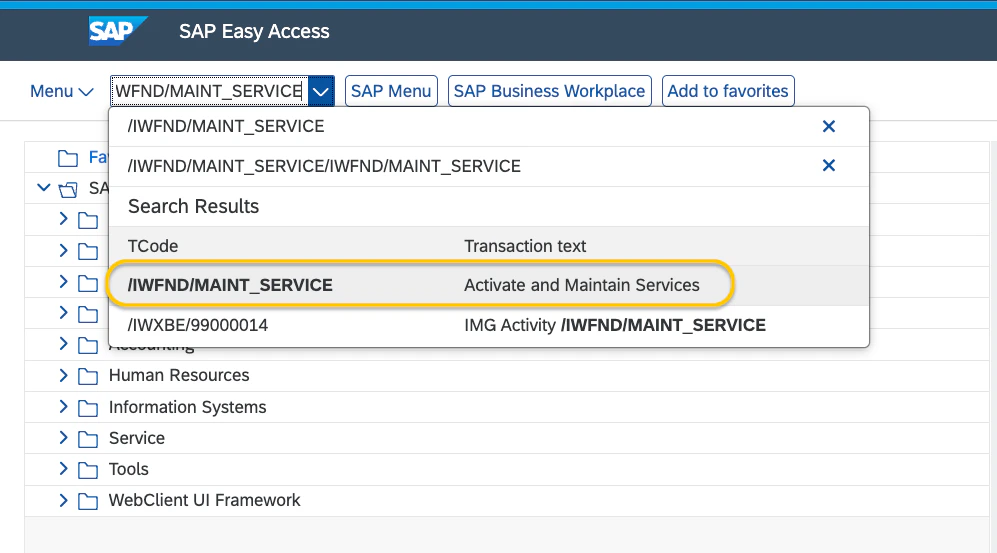
-
Click Add Service.
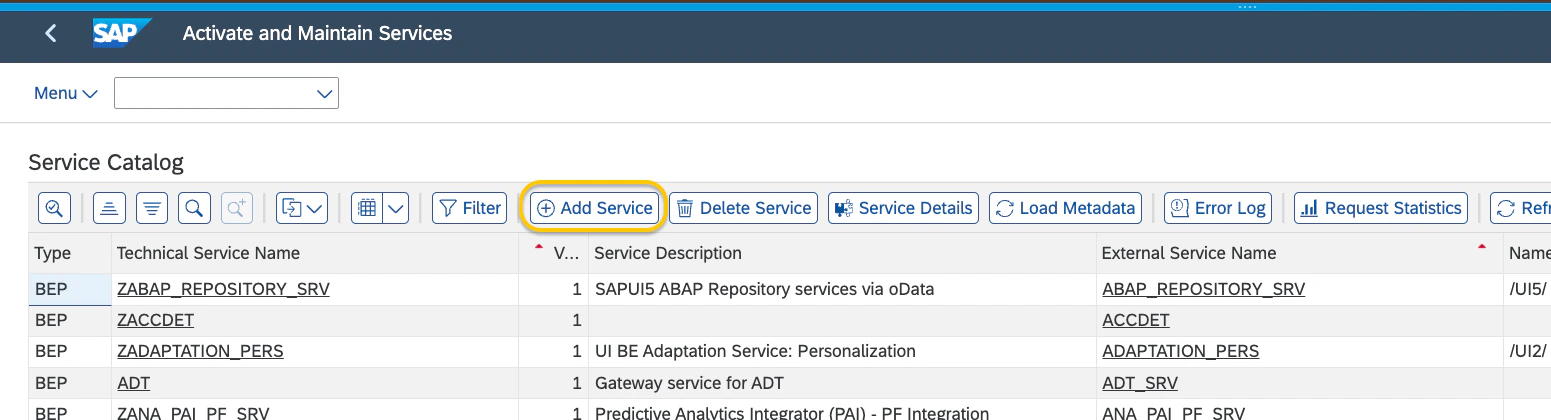
-
Enter System Alias =
LOCALand the Technical Service Name (for exampleAPI_BUSINESS_PARTNER). Click Get Services (or press Enter). -
Select the service from the results and click Add Selected Services.
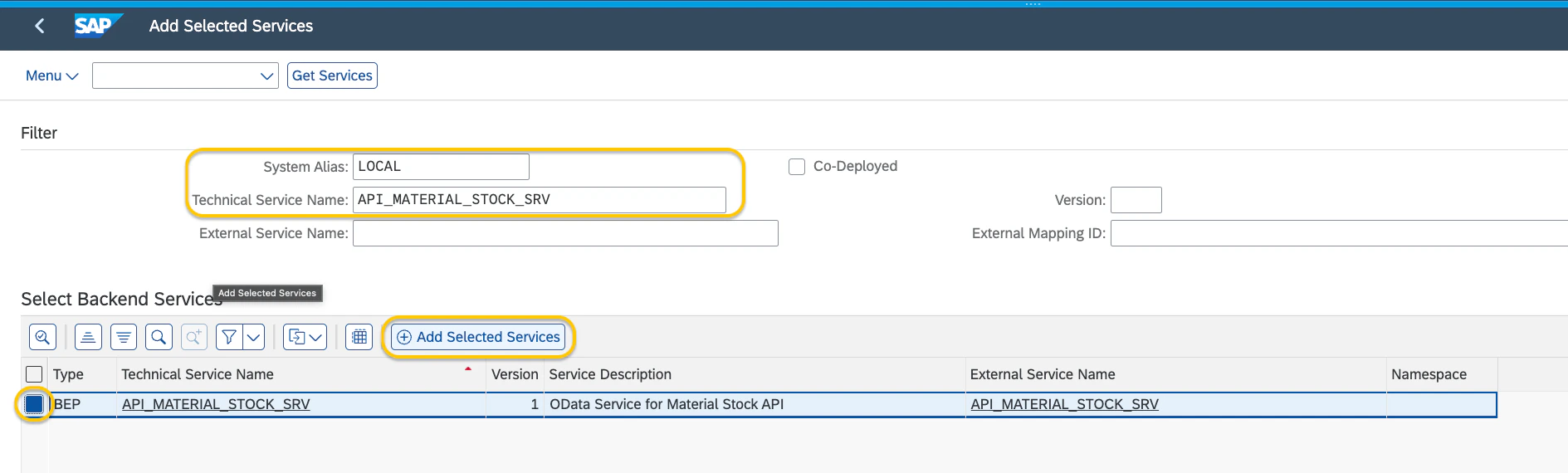
-
In the Add Service dialog:
- Package Agent: click Local Object for
$TMP(sandbox), or enter a transport request (production). - Check Enable OAuth for Service.
- Leave ICF Node and System Alias at their defaults.
- Click Continue.
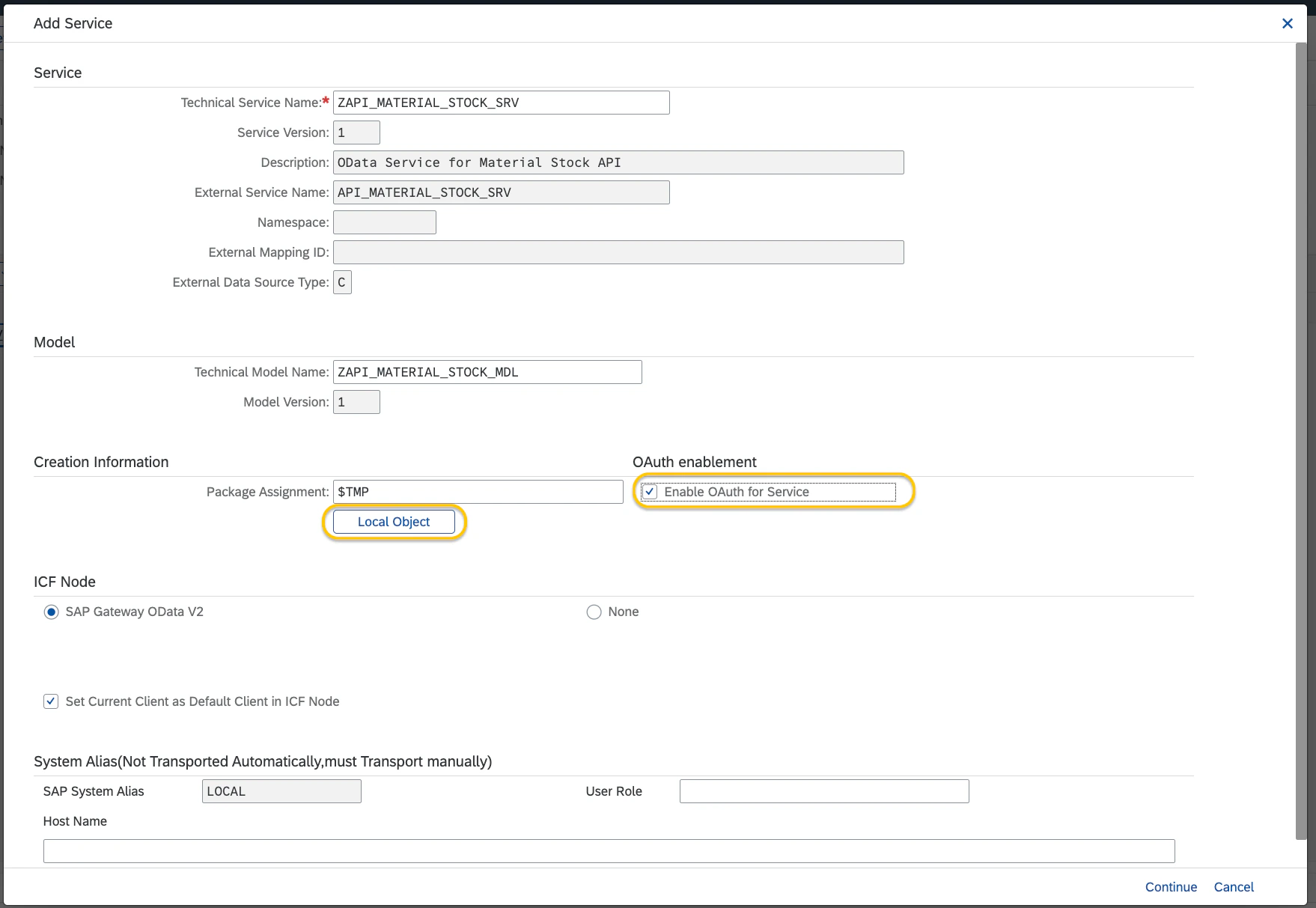
- Package Agent: click Local Object for
-
Verify the service appears in the list with OAuth enabled (checkbox column on the right).
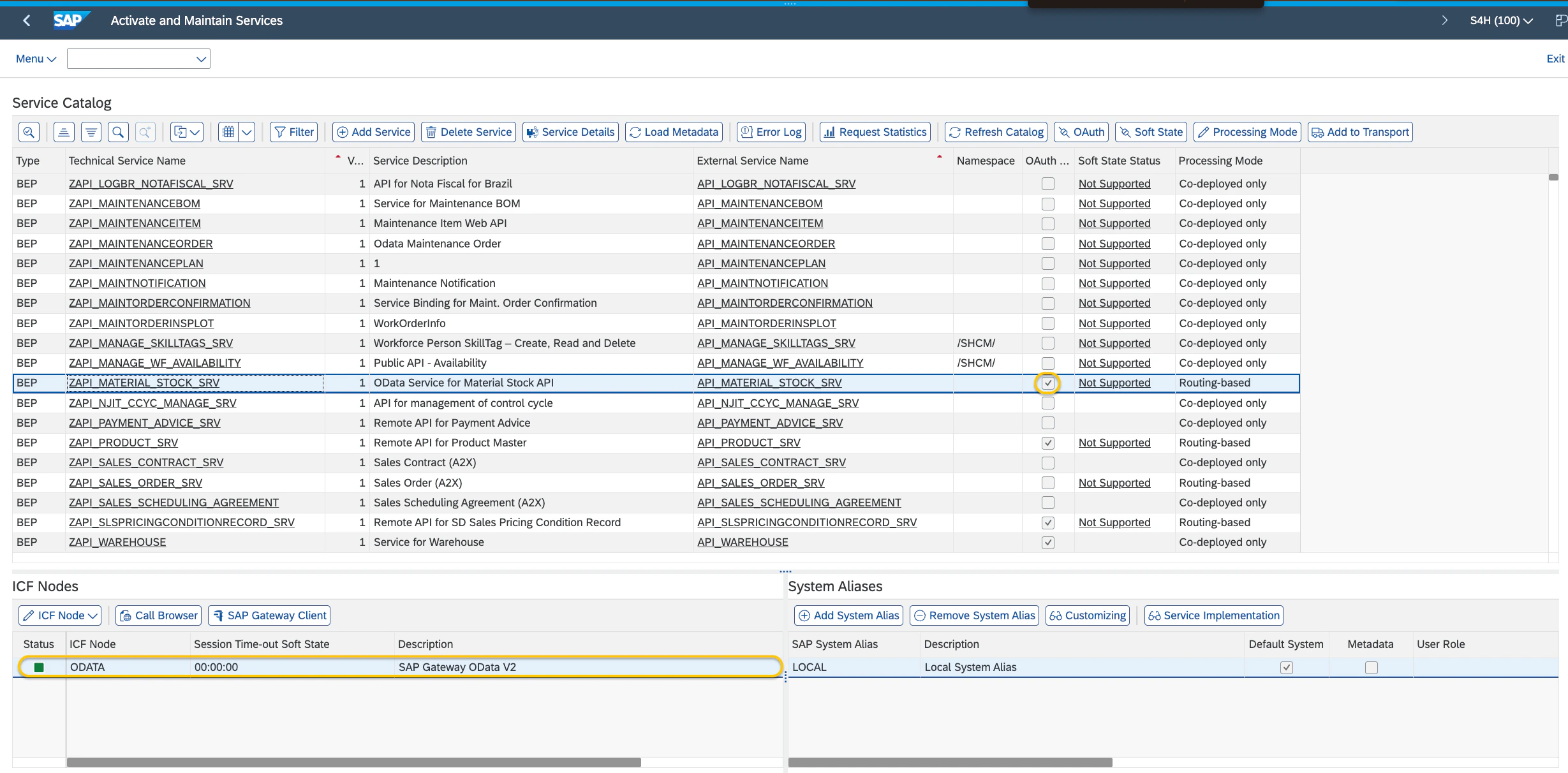
Step 3 — Register the OAuth 2.0 client
Create an OAuth 2.0 client bound to the technical user from Step 1, with Client Credentials grant and the scopes from Step 2.-
Run transaction
SOAUTH2.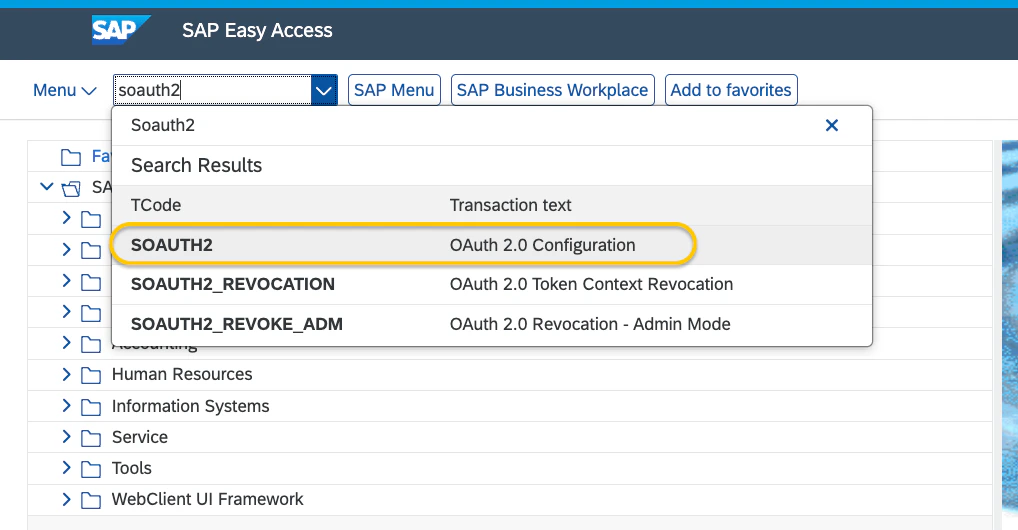
-
In OAuth 2.0 Administration, click Create.
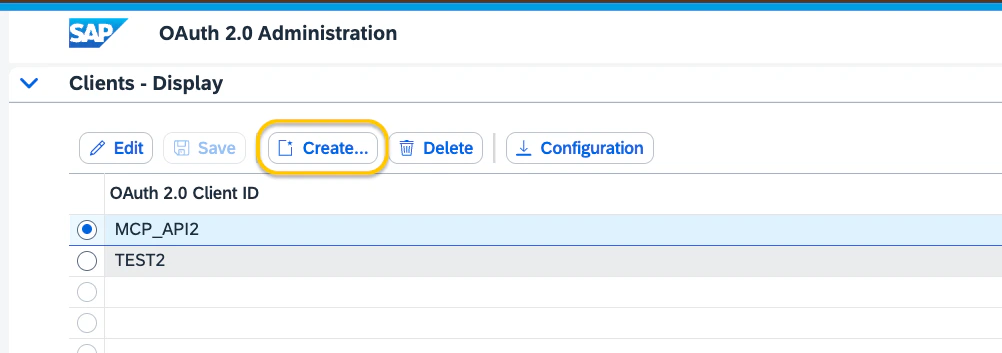
-
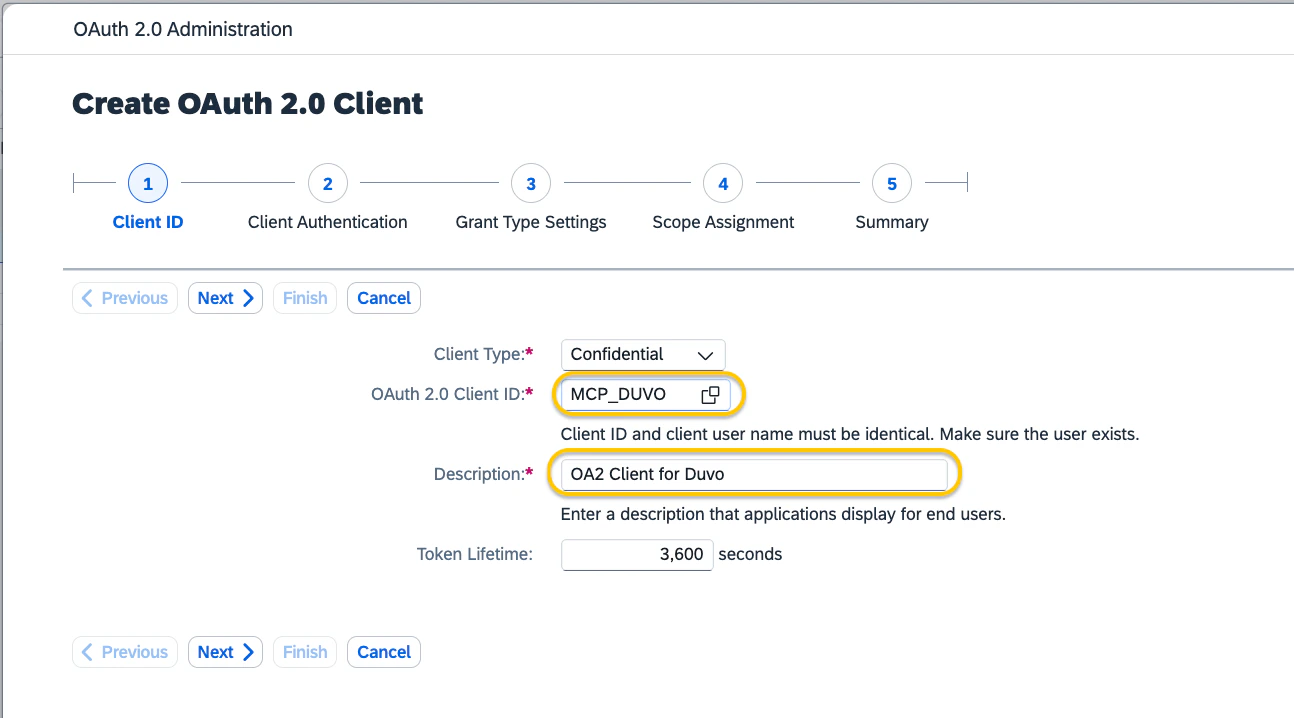
Client ID (wizard step 1):
- Client Type: Confidential
- OAuth 2.0 Client ID: must match your technical user’s username (for example
MCP_DUVO) - Description: any description
- Keep Token Lifetime at
3600. - Click Next.
-
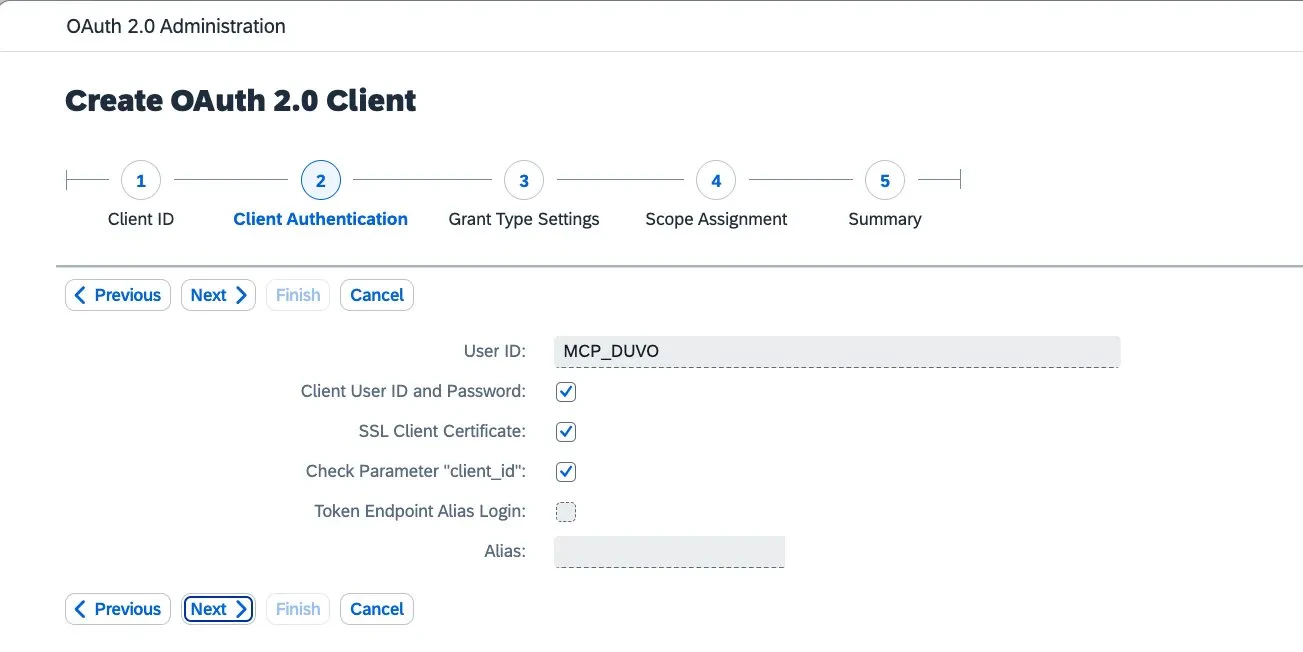
Client Authentication (wizard step 2): leave defaults. Click Next.
-
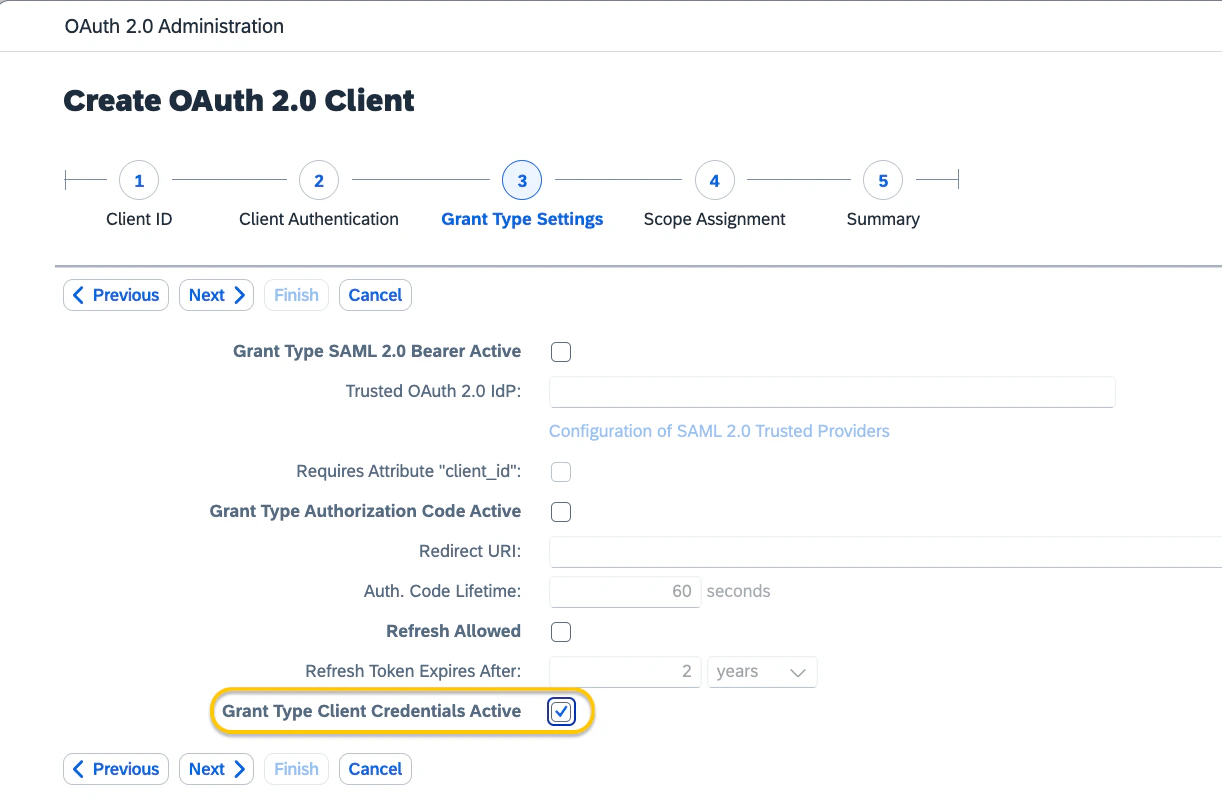
Grant Type Settings (wizard step 3): check Grant Type Client Credentials Active, uncheck all others. Click Next.
-
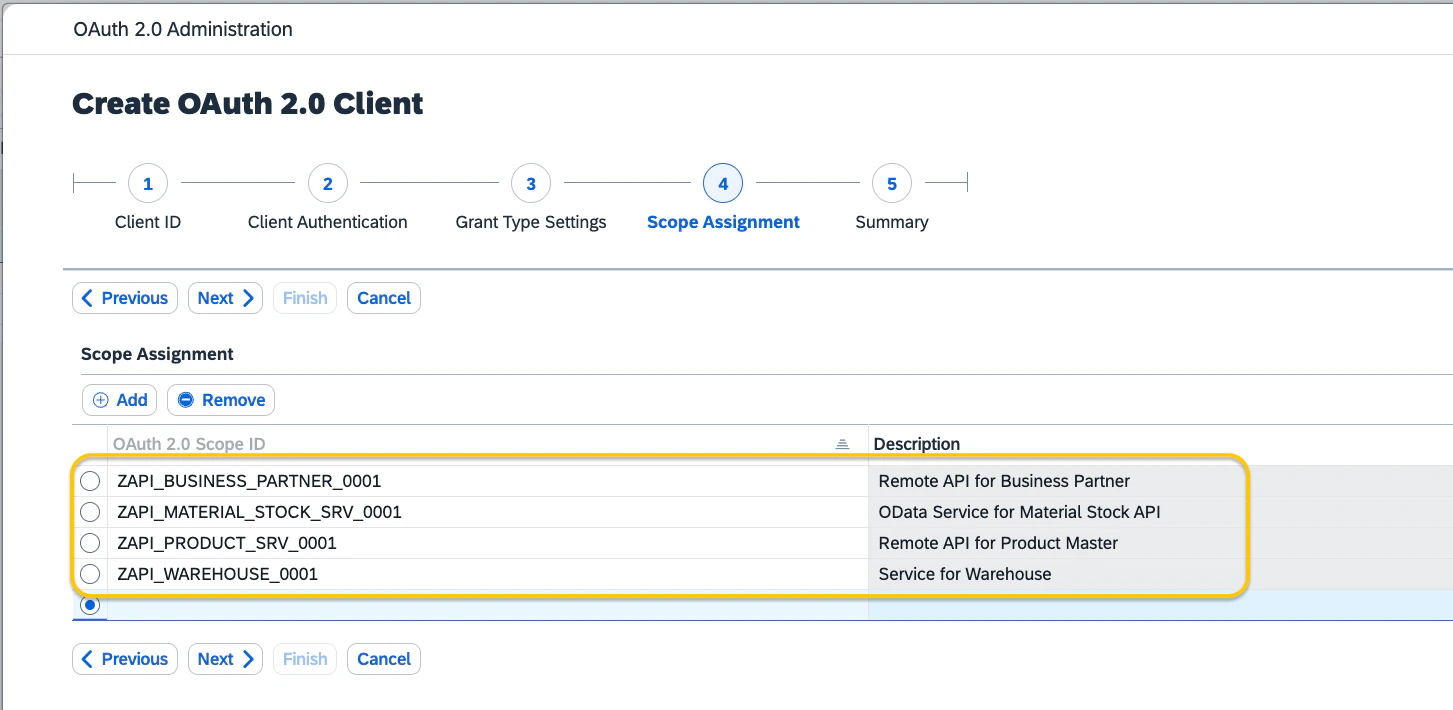
Scope Agent (wizard step 4): add all the scopes for the OData services activated in Step 2. You can also assign scopes after creating the client.
- Summary (wizard step 5): review and click Finish.
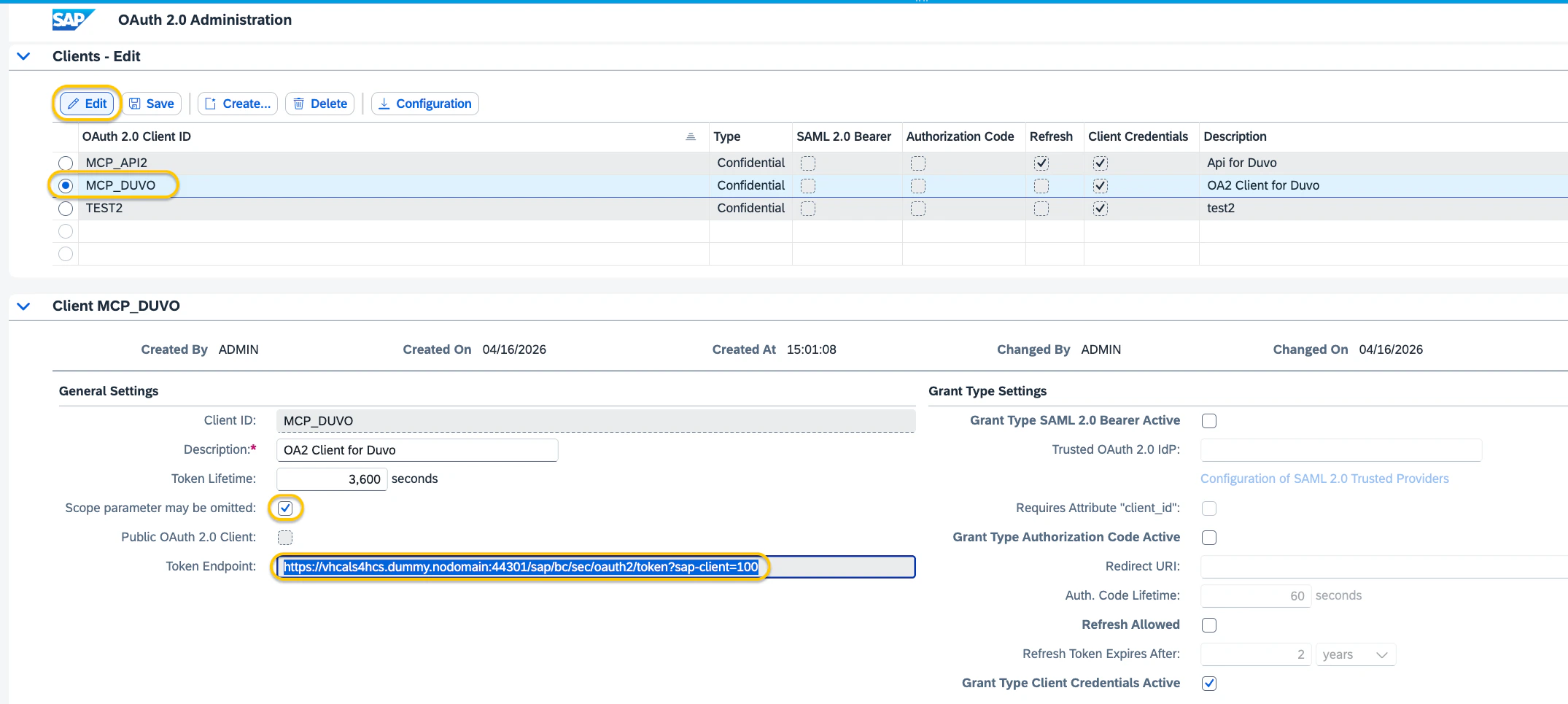
- Select the new client from the list, click Edit and check Scope parameter may be omitted, then click Save.
-
Copy the Token Endpoint URL — you’ll need it for Duvo.
Capabilities
- Business partner management — Search, filter, and retrieve detailed records for customers, vendors, and organizations, including addresses, bank accounts, tax numbers, and roles.
- Product and material lookup — Query the product master for materials, finished goods, services, and raw materials with descriptions, plant-level data, and inventory valuations.
- Sales pricing analysis — Look up base prices, discounts, and surcharges for products, filter by customer or sales organization, and review pricing validity periods.
- Warehouse visibility — List EWM warehouses and inspect storage types and warehouse details.
- Supplier invoice posting — Post supplier invoices against purchase orders or directly to G/L accounts, post credit memos, and cancel posted invoices and credit memos. Before posting, the connection checks the supplier, any referenced purchase order, and whether the invoice was already posted. If a check fails, nothing is posted.
- Flexible OData queries — Run advanced queries across the Business Partner, Product, Pricing, and Warehouse OData APIs when standard searches are not sufficient.
Key Benefits
- Live enterprise data — Agents read directly from your SAP system, so reports and decisions reflect current data without manual exports.
- Secure OAuth authentication — Uses the standard OAuth 2.0 Client Credentials flow with automatic token caching and refresh, keeping credentials safe and minimizing token endpoint calls.
- Cross-functional coverage — A single connection spans finance, procurement, supply chain, pricing, and warehouse data across several SAP APIs.
- No SAP expertise required after setup — Once your administrator completes the initial setup, agents translate natural-language questions into the correct OData queries, so business users do not need to know SAP transaction codes or API structures.
Works Well With

Google Sheets
Pull SAP business partner lists, pricing tables, or inventory valuations into spreadsheets for analysis and stakeholder reporting.

Microsoft Excel
Pull SAP business partner lists, pricing tables, or inventory valuations into workbooks for analysis and stakeholder reporting.

Gmail
Retrieve SAP records and include them in automated notification or compliance reporting emails.

Microsoft Outlook
Retrieve SAP records and include them in automated notification or compliance reporting emails.

Slack
Query SAP data and post operational summaries, procurement alerts, or pricing updates to team channels.

Microsoft Teams
Query SAP data and post operational summaries, procurement alerts, or pricing updates to team channels.