

Time to complete: 45 minutesDifficulty: IntermediatePrerequisites: BigQuery, Google Drive, and Google Sheets connectionsYou’ll build: An agent that selects products for each promo cycle by querying BigQuery, filtering out recently featured SKUs, ranking by commercial potential, and routing the shortlist for approval before handing off to a pricing agent
Why Automate This?
The Problem: Each promotional cycle, someone queries a product database to find candidates, manually cross-references what was featured recently to avoid repeats, applies ranking logic in a spreadsheet, and produces a shortlist. The cross-referencing step gets skipped under time pressure. Products that were just featured reappear. Ranking criteria drift between cycles because the logic lives in someone’s head, not in code. The Solution: A Duvo agent that resolves the cycle theme, builds a non-repetition exclusion list from past cycle archives, injects it directly into the BigQuery query before ranking, and routes the result for approval. Every decision — what was excluded, how candidates were ranked, what the reviewer changed — is recorded in a cycle sheet that becomes part of the archive for the next run. Expected Results:- Recently featured products cannot reappear — the exclusion is applied at query time, before ranking
- Ranking logic is consistent and auditable across every cycle
- Every cycle’s output is automatically archived and feeds the next exclusion list
- Reviewers see a pre-filtered, pre-ranked shortlist and can adjust it with simple commands
What You’ll Build
By the end of this playbook, you’ll have an agent that:- Resolves the cycle theme — from a promo calendar, or by asking the reviewer if none is scheduled
- Pulls the last N cycle sheets from Drive and builds a deduplicated SKU exclusion list
- Queries BigQuery scoped to the cycle theme, with the exclusion list applied as a
NOT INfilter - Ranks results by commercial potential — balancing elasticity, projected sales, and margin
- Validates the row count before writing anything
- Creates a new cycle sheet in Drive with the ranked shortlist
- Routes the shortlist for human approval, supporting inline add and remove commands
- Archives the cycle sheet URL and pushes approved SKUs to the pricing agent’s Queue
- BigQuery — scoped product query with dynamic exclusion filter
- Google Drive — read past cycle sheets; write new cycle sheet
- Google Sheets — promo calendar, cycle tracker, shortlist output
- Human-in-the-Loop — theme confirmation and shortlist approval
- Queue — handoff to the pricing agent
Before You Start
Make sure you have these ready:BigQuery access — A service account with read access to your product table: the BigQuery Job User role to run queries and BigQuery Data Viewer to read the data. The table should include a category or segment field, a stock status field, and at least one commercial metric per product (elasticity score, projected sales, margin, or similar). Connect BigQuery.
Drive archive folder — A shared Google Drive folder where each cycle’s output sheet will be saved. Connect Google Drive.
Promo calendar — A Google Sheet mapping upcoming cycle dates to themes (e.g. baby, vitamins, household). If you don’t have one, the agent will ask for the theme at runtime instead.
Cycle tracker — A Google Sheet listing past cycle sheet URLs in order. Used to build the exclusion list. Leave it empty for the first run — the agent initializes it after the first approval.
Exclusion window — How many past cycles to look back when building the exclusion list. Two to three cycles is a reasonable default.
Shortlist size — How many products to select per cycle.
Pricing Queue — The name of the Queue your pricing agent reads from. Approved SKUs are pushed here after each run.
Create Your Agent
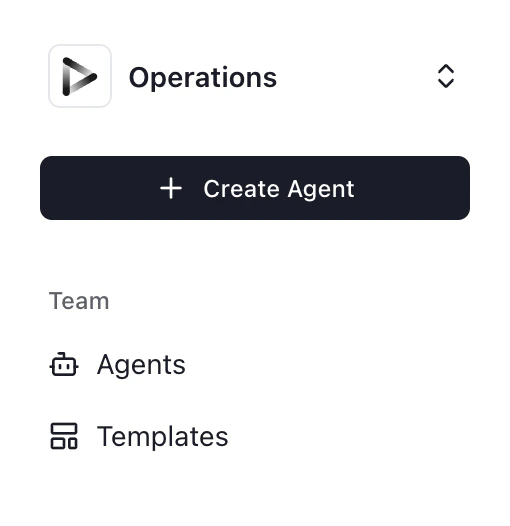
- Click ”+ Create Agent” from your dashboard.
- Select “Use Agent Builder”.
Describe Your Workflow
Paste this prompt into the Agent Builder. Replace all bracketed placeholders before generating.Click “Generate” to create the agent AOP.
Review Generated AOP
Before continuing, verify:
- Dataset, table, and field names match your BigQuery schema
- The category or segment field values align with the theme names in your promo calendar
- Both sheet URLs (promo calendar and cycle tracker) are correct
- The exclusion window (N) and shortlist size are set correctly
- The archive folder URL points to the right Drive folder
- The pricing Queue name matches the Queue your pricing agent reads from
Configure Connections and the Pricing Queue
- BigQuery — Confirm the service account can query the product table. Connect BigQuery.
- Google Drive — The archive folder. Connect Google Drive.
- Google Sheets — For the promo calendar, cycle tracker, and new cycle sheet. Connect Google Sheets.
- Human-in-the-Loop — Built in and available for every agent automatically; no setup required.
- Pricing Queue — Queues are linked in the builder, not on the Connections page. In the Queue section of the builder header, open the Queue Setup dialog and link the pricing Queue under Adds Cases (Producer).
Set Up the Promo Calendar
The promo calendar tells the agent which theme to apply without requiring manual input at runtime. It is the single source of truth for the promotional schedule.Recommended structure:
Two things to get right:
- Date format: use YYYY-MM-DD consistently. The agent compares today’s run date to this column, so the format must match.
- Theme values: must exactly match the
category(or equivalent) field in BigQuery. A mismatch here returns zero results.
Set Up the Cycle Tracker
The cycle tracker is the non-repetition memory. The agent reads it at the start of each run to find which past sheets to pull SKUs from.Recommended structure — newest row at the top:
If you have existing cycle history, add those sheet URLs here before going live. If you’re starting from scratch, leave it empty — the agent will add the first row after the first approved run.
Define the Ranking Expression
The ranking step is where commercial judgment gets encoded. Rather than sorting by a single field, combine multiple signals into a composite score that reflects what “good” means for your promo cycle.A useful pattern: multiply elasticity × projected volume × margin. This rewards products that are price-sensitive (respond well to discounts), sell in volume, and contribute healthy margin:Adapt this to your data model. If your elasticity score is an index (higher = more elastic), multiply it as-is. If it’s a coefficient (negative values), transform it first. Add an in-stock filter so out-of-stock products are excluded before ranking.The exact expression belongs in the AOP, not hardcoded in a separate query — this way it is versioned and reviewable alongside everything else the agent does.
Apply the Exclusion Filter
The exclusion filter is the most important correctness guarantee in this pattern. The right approach is to apply it inside the BigQuery Two edge cases to handle in the AOP:
WHERE clause, not as a post-query filter. This ensures that:- The
ORDER BYandLIMIToperate on the already-filtered pool - You always get exactly the right number of results
- Excluded products never appear in intermediate results the agent might act on
- Empty exclusion list:
NOT IN ()is invalid SQL in BigQuery. Instruct the agent to omit the clause entirely when the list is empty. - SKU format inconsistency: if past sheets store SKUs differently from how BigQuery stores them (e.g.
SKU-001vs001), the filter silently fails to exclude anything. Add a normalization instruction:"Strip any non-numeric prefix before comparing SKUs across sources."
Configure the Row Count Check
The row count check is a hard stop before any output is written. It protects against a specific failure mode: the exclusion window growing large enough that BigQuery cannot return a full shortlist for the theme.Running with a partial shortlist is almost always worse than surfacing the problem — it makes the downstream pricing run produce an incomplete result with no warning.
Schedule the Agent
- Open your agent and click the Schedule button (the calendar icon) in the agent header.
- In the Schedules tab, pick a frequency preset — Every Week or Every Month — or describe the cadence in plain language, like “every second Monday at 7am”.
- Click Add schedule to save it.
Test Your Agent
Run manually before going live. Cover these scenarios:
Expected Results
In Google Drive:- A new cycle sheet after each approved run, named
Cycle [YYYY-MM-DD] — [theme] - The cycle tracker grows by one row per cycle
- A pending approval per cycle with the ranked shortlist, the cycle theme, and the exclusion count — respond from Requests, a live run, Slack, or Teams
- Inline add/remove commands processed before final sign-off
- One Case per approved SKU, carrying the SKU, cycle theme, and cycle date
Troubleshooting
BigQuery returns fewer rows than expected
BigQuery returns fewer rows than expected
- The exclusion window may be too wide for the catalog size within this theme. Reduce N, or widen the theme filter (e.g. include a parent category rather than a leaf category).
- If the
NOT INlist was empty and the clause was still injected, BigQuery errors. Verify the agent omits the clause when the list is empty.
Recently excluded SKUs are appearing in the shortlist
Recently excluded SKUs are appearing in the shortlist
- The agent may be comparing SKUs that are formatted differently across sheets. Add an explicit normalization step to the AOP.
- Confirm the agent is reading the SKU column specifically, not product name or an adjacent column.
Cycle tracker is not updating after approval
Cycle tracker is not updating after approval
- Verify the agent has write access to the tracker sheet.
- Confirm the AOP says to insert a new row at the top, just below the header — not overwrite the header or clear the sheet.
- The agent should write the URL of the newly created cycle sheet, not the tracker’s own URL.
Row count check fires unexpectedly
Row count check fires unexpectedly
- The eligible pool for this theme is smaller than the shortlist — the same causes as “BigQuery returns fewer rows than expected” above. Reduce the exclusion window, widen the theme filter, or approve a smaller shortlist for this cycle.
- Increasing the query
LIMITwill not help: with theshortlist size × 2buffer in the AOP’s BigQuery query instructions, the check only fires when fewer eligible products exist, and a largerLIMITcannot add eligible products. - Confirm the theme value matches the BigQuery category field exactly — a near-miss match silently shrinks the pool.
Pricing Queue is missing Cases for some SKUs
Pricing Queue is missing Cases for some SKUs
- Confirm the agent reads from the post-approval shortlist (after any Remove/Add commands) when creating Cases in the Queue.
- Check that the pricing agent’s Case trigger is enabled (Runs on new cases) so Cases don’t sit as Pending. See Queue.
A cycle didn't run
A cycle didn't run
- The schedule creator is missing a connection: scheduled runs use the connections of whoever created the schedule. A missing BigQuery, Drive, or Sheets connection skips the cycle silently, and repeated failures disable the schedule and notify its owner. Re-add the connection and re-enable the schedule.
- The previous cycle’s run was still active: if the last shortlist approval was never answered, the run stays active and the next tick is skipped. Clear the pending request in Requests.
- Skipped cycles are not backfilled. To catch up, start the agent manually with Start Work.
Duplicate Cases in the pricing Queue
Duplicate Cases in the pricing Queue
- Queues do not deduplicate Cases. If the run was retried or the approval was processed twice, each pass creates its own Cases. Keep the guard from step 7b of the AOP prompt: check the Queue for an existing Case with the same SKU and cycle date before creating one.
- Delete the extra Cases from the Queue before the pricing agent picks them up.
Take It Further
Once the core cycle is running reliably, consider these extensions: Add a price gap check Before writing the cycle sheet, compare each selected product’s promo price against the current best competitor price. Flag any product where the gap is below your threshold — but do not block the run.Related
Giving Recurring Runs a Memory
The design principles behind this playbook, generalized to any recurring selection workflow
Human-in-the-Loop
How to write approval gates that support reviewer commands
Queue
How to hand off approved SKUs to a downstream pricing agent
Requests
Where approval requests appear and how to respond
BigQuery
How to connect and query BigQuery from an agent
Google Drive
How to read and write files in a shared Drive folder
Google Sheets
Promo calendar, cycle tracker, and shortlist output
Scheduling Agents
How to run on a recurring promo cycle schedule