Introduction
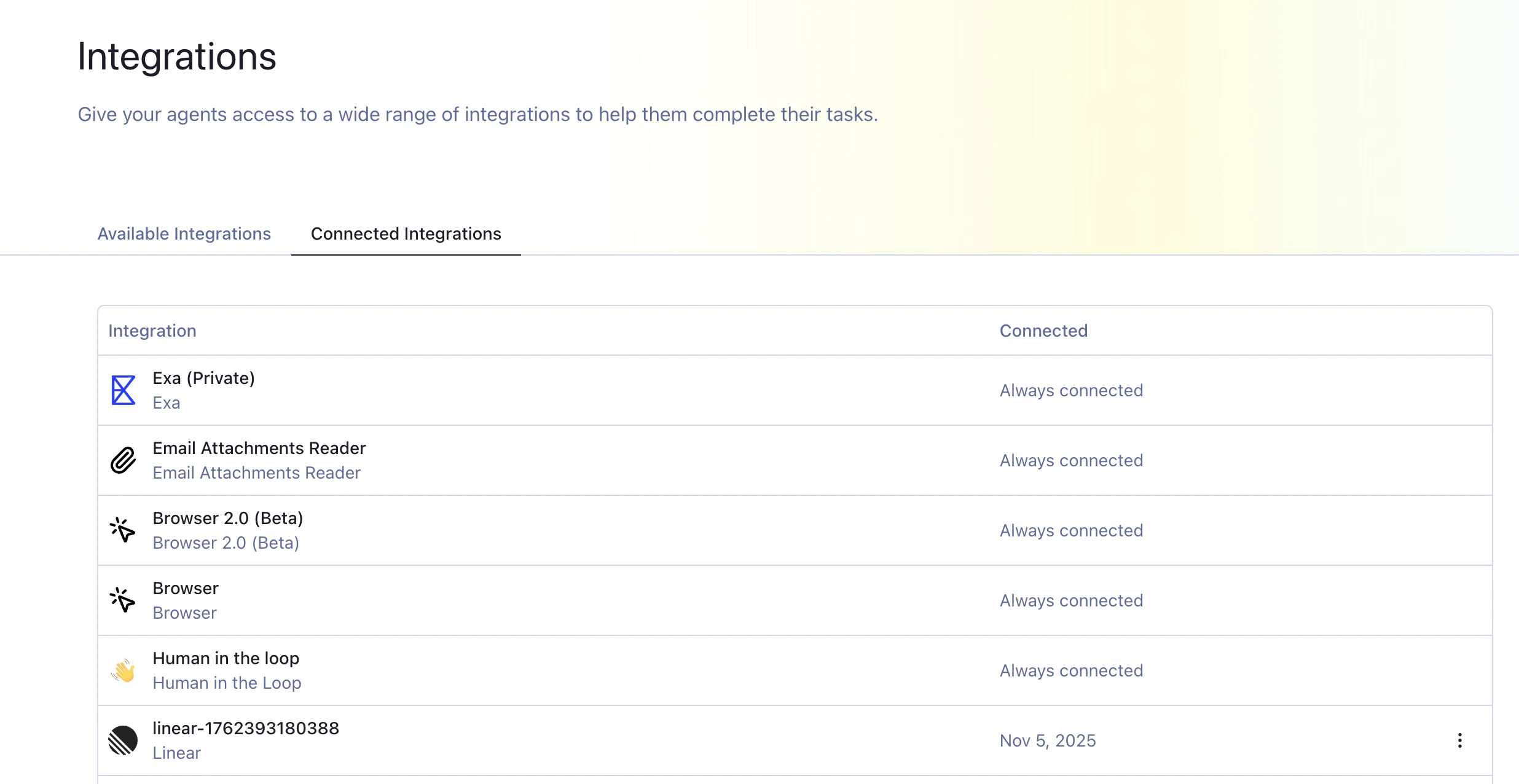
The Connections section is where you connect Duvo to the external services and tools your agents need to complete their tasks. Before an agent can access systems like Gmail, Microsoft Outlook, Google Sheets, or your CRM, you must first enable those connections. This gives your agents the ability to read data, perform actions, and automate workflows across all your essential business platforms.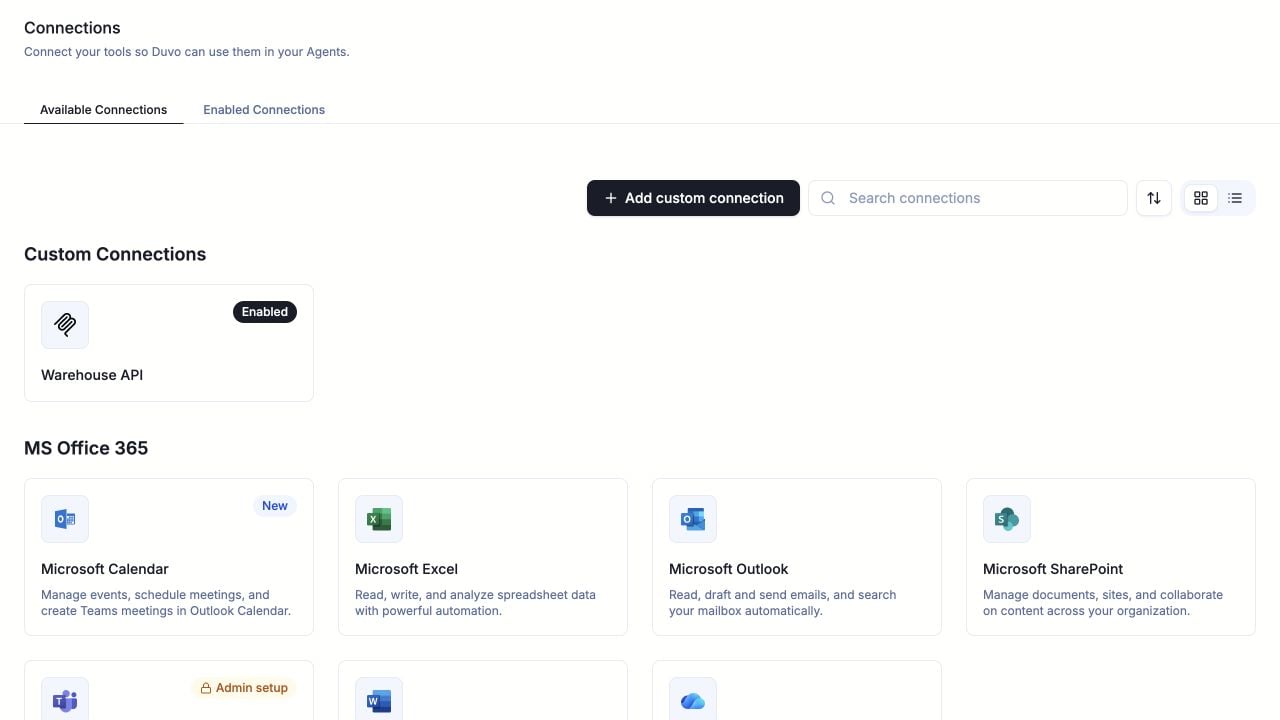
How Connections Work
Connections in Duvo are built on the Model Context Protocol (MCP). Whether you’re using a standard connection like Gmail or Google Sheets, or connecting your own custom connection, they’re all MCP servers under the hood.Connections and users
Connections are configured per user. Each user needs to connect the connections they want their agents to use, using their own logins. This ensures that:- Agents act on your behalf using your permissions and access levels
- Security is maintained through your existing authentication
- Actions taken by agents are logged under your user account
- Each team member can customize which connections they need
Choosing the Right Pattern
If you’re not sure whether to use a hosted connection, browser automation, a custom MCP server, or Computer Use, see Choosing the Right Connection Pattern for a decision tree and trade-offs table.Connection Types
Duvo offers two connection types:- Standard Connections: Pre-built connections to popular business tools like Microsoft 365, Google Workspace, and other common platforms. These are ready to connect with just a few clicks.
- Custom Connections: These allow you to connect Duvo to systems that aren’t covered by a Duvo Standard Connection. Details on how to build a custom connection for Duvo can be found in Building Custom Connections.
Available Connections
Open Available Connections to browse services by category. Select a card or row to open its details and enable it for your Agents. Use Search connections to find a service. The toolbar also lets you switch between Grid view and List view. Choose Name A–Z or Name Z–A to sort within each category. Categories keep their order. Your view and sort choices stay in the page URL when you reload, switch tabs, or follow an Enabled badge. Your browser also remembers the grid or list view when you leave Connections and return. A link with an explicit view takes priority over this saved choice. Search hides category headings and sorts service matches together. Switching tabs clears search and focuses the new search field. Managers with Automation access can select Add custom connection beside search to connect another service.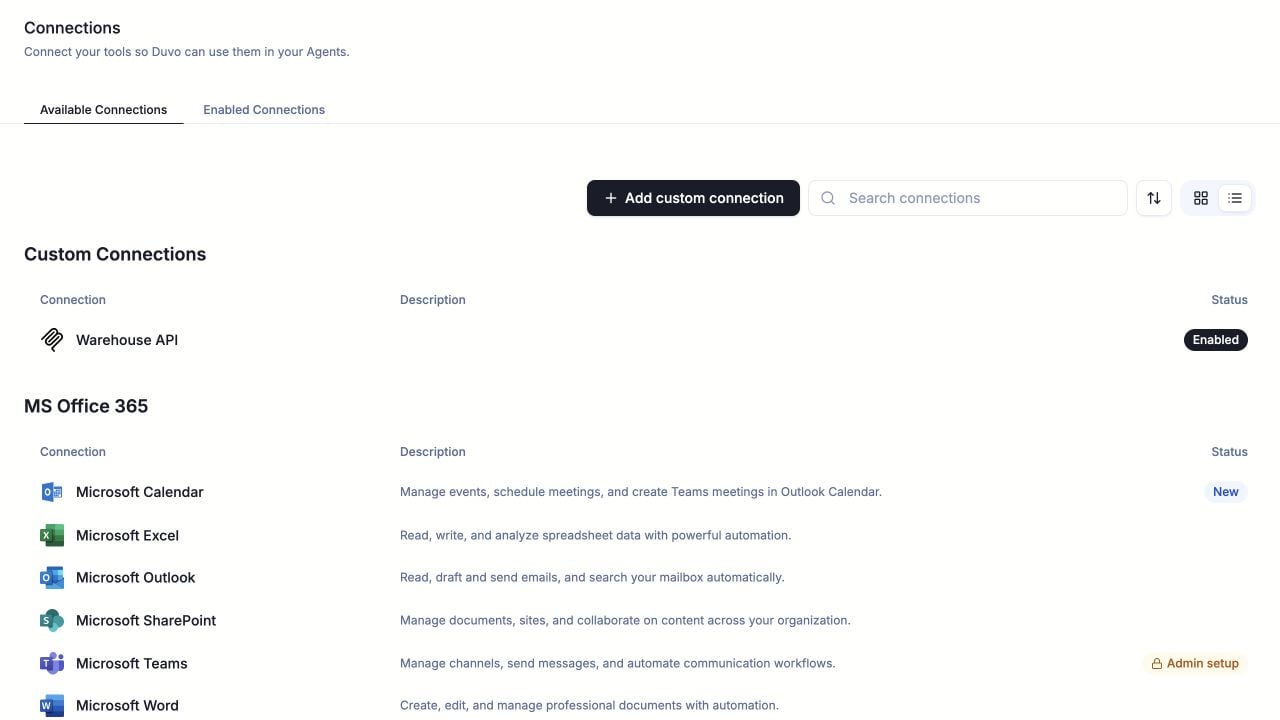
Enabled Connections
Open Enabled Connections to manage connected accounts. Team contains accounts shared with your team. Personal contains accounts that only you can use. Search by account or service name, then open the account menu or check usage.