

Time to complete: 10 minutesDifficulty: BeginnerPrerequisites: Google Calendar connection, Gmail connectionYou’ll build: An agent that summarizes your upcoming week and sends you a report
Why Automate This?
The Problem: Monday mornings start with scrambling through your calendar, trying to remember what’s coming up this week. Important meetings get forgotten. Prep time gets missed. And you never have a clear view of your week until you’ve spent 15 minutes clicking through each day. The Solution: A Duvo agent that analyzes your calendar, identifies important meetings, and sends you a nicely formatted weekly summary—delivered to your inbox before your week begins. Expected Results:- Start each week fully prepared
- Never miss an important meeting
- Identify schedule conflicts in advance
- Know which meetings need prep time
- Save 15+ minutes of calendar review each week
What You’ll Build
By the end of this tutorial, you’ll have an agent that:- Pulls all events from your calendar for the upcoming week
- Identifies high-priority meetings
- Highlights meetings with important contacts
- Creates a formatted summary with key details
- Sends the report to your email
Before You Start
Make sure you have these ready:Google Calendar connection - Connect your calendar. Connect connection
Gmail connection - For sending the summary report. Connect connection
Create Your Agent
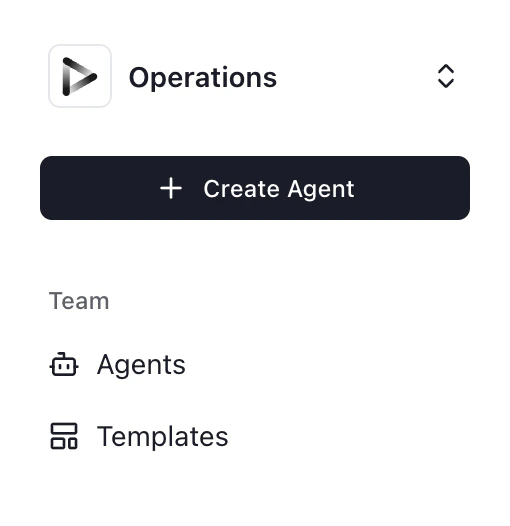
- Click ”+ Create Agent” from your dashboard
- Select “Use Agent Builder” (recommended for this tutorial)
Describe Your Workflow
Paste this prompt into the Agent Builder:Click “Generate” to create the agent AOP.
Review Generated AOP
Review to ensure:
- Your calendar is correctly identified
- Priority criteria match your preferences
- Report format meets your needs
Configure Connections
Click “Connections” and connect:
- Google Calendar - To read your events
- Gmail - To send the summary report
Test Your Agent
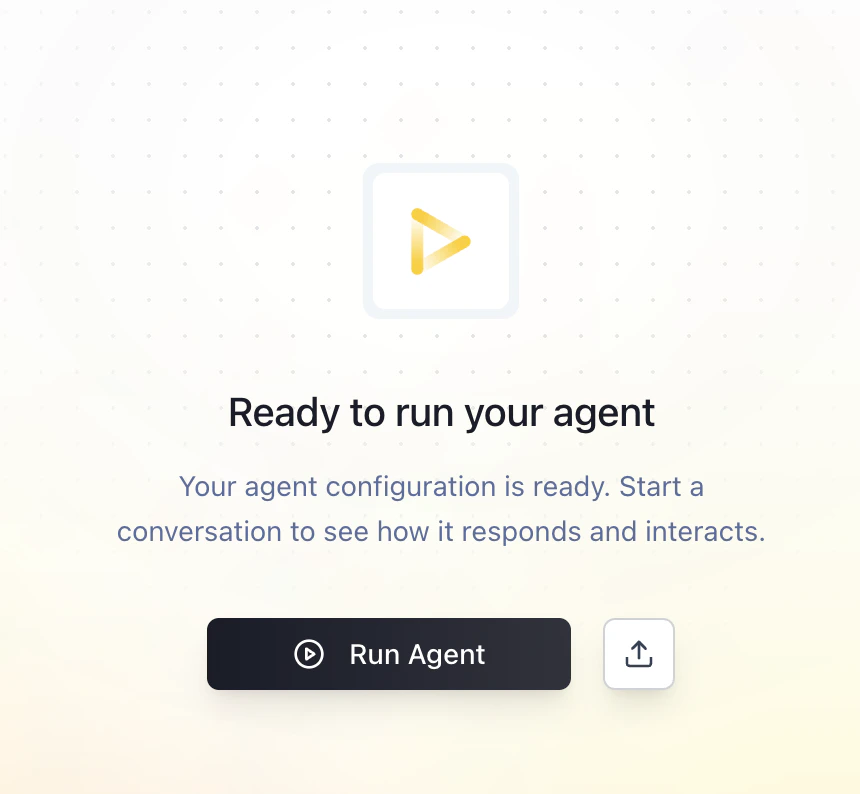
- Click “Run Agent”
- Review the generated summary
- Check your email for the report
- Did it capture all your meetings?
- Are high-priority meetings correctly identified?
- Is the formatting easy to read?
- Did the email arrive?
Schedule Weekly Runs
Set up automatic Sunday evening delivery:
- Go to Agent Settings > Schedule
- Select Weekly on Sunday at 6:00 PM
- Save settings
Expected Results
When your agent runs successfully, you should see: In your inbox:- Formatted weekly summary email
- High-priority meetings at the top
- Day-by-day breakdown
- Meeting stats (total meetings, hours)
- Links to video calls
- Execution log showing events processed
- Any conflicts or issues flagged
Troubleshooting
Calendar not connecting
Calendar not connecting
- Re-authorize: Google permissions may have expired
- Correct calendar: Ensure agent is reading the right calendar (work vs personal)
- Calendar visibility: Check that calendar isn’t set to private
Missing events
Missing events
- All-day events: May need separate handling in AOP
- Recurring events: Verify recurring events are being expanded
- Time zone: Ensure calendar and agent use same timezone
Wrong priority agents
Wrong priority agents
- Refine criteria: Adjust what constitutes “high priority” in AOP
- Add VIP list: Create a list of important contacts in Files
- Keywords: Add more keywords that indicate important meetings
Email not sending
Email not sending
- Gmail connection: Re-authorize if needed
- Spam folder: Check if summary went to spam
- Send permission: Verify agent has permission to send email
Formatting issues
Formatting issues
- HTML rendering: Some email clients display differently
- Long events: May need truncation for readability
- Links: Ensure video call links are clickable
Take It Further
Once your basic agent is working, consider these enhancements:Add VIP contact highlighting
Add VIP contact highlighting
Include prep reminders
Include prep reminders
Add travel time
Add travel time
Multiple calendars
Multiple calendars
Add meeting context
Add meeting context
Use Agent Memory for preferences
Use Agent Memory for preferences
Personalize your summary. Learn about Agent Memory
- “Always highlight meetings with anyone from the sales team. I consider any meeting over 1 hour as potentially prep-needed. Send my summary at 5 PM Sunday Pacific time.”
Related Resources
Agent Memory
Customize priority criteria and VIP lists
Connections Overview
Connect Google Calendar and Gmail
Files
Upload VIP contact lists