

Introduction
Files are how you give your agents access to important documents. These provide your agents with context and knowledge that helps them complete tasks according to your specifications.What is Files?
The Files section sits in the resources section of the left sidebar. Similar to Connections and My Logins, Files is another tool in the toolbelt that your agents can refer to to get the job done. Files supports any file up to 50 MB. Once you upload a file to Files, you will be able to give individual agents access to it.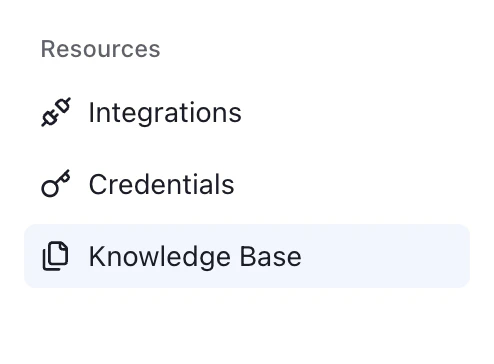
How to upload a file to Files
To upload a file to Files, click Upload files and select a document from your computer.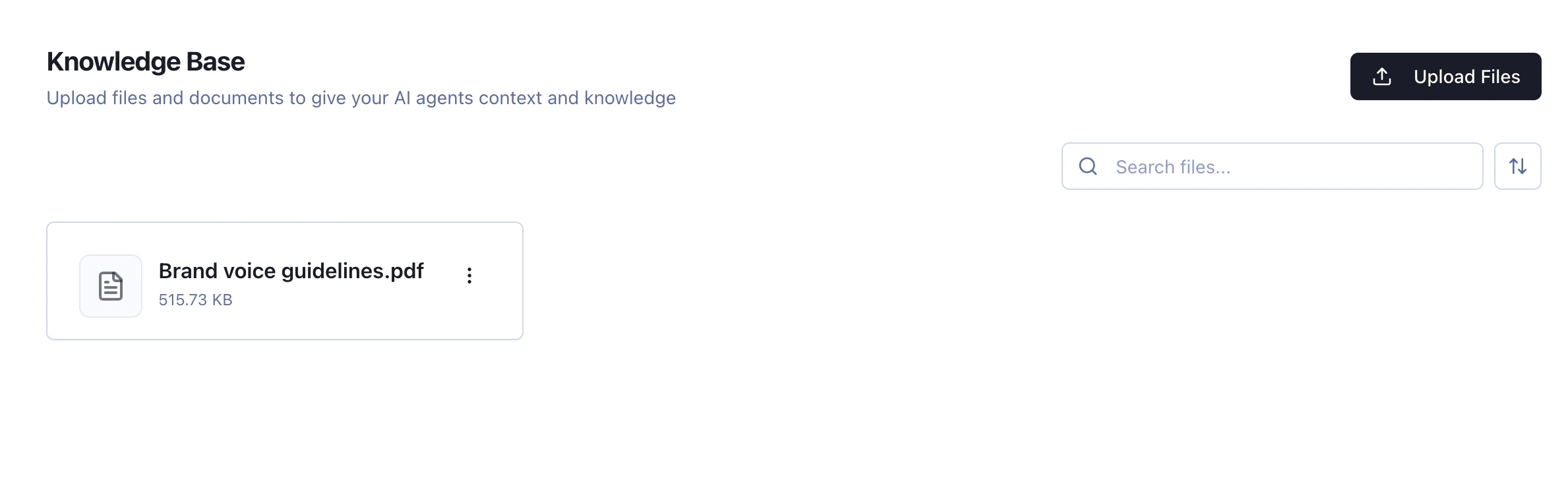
How to give an agent access to files
Manually
Once you have uploaded files into Files, you can give individual agents access to specific files. To do this, go to the agent you want to give access to via the Assignments section in the left sidebar, and click on the files block to edit access to specific files.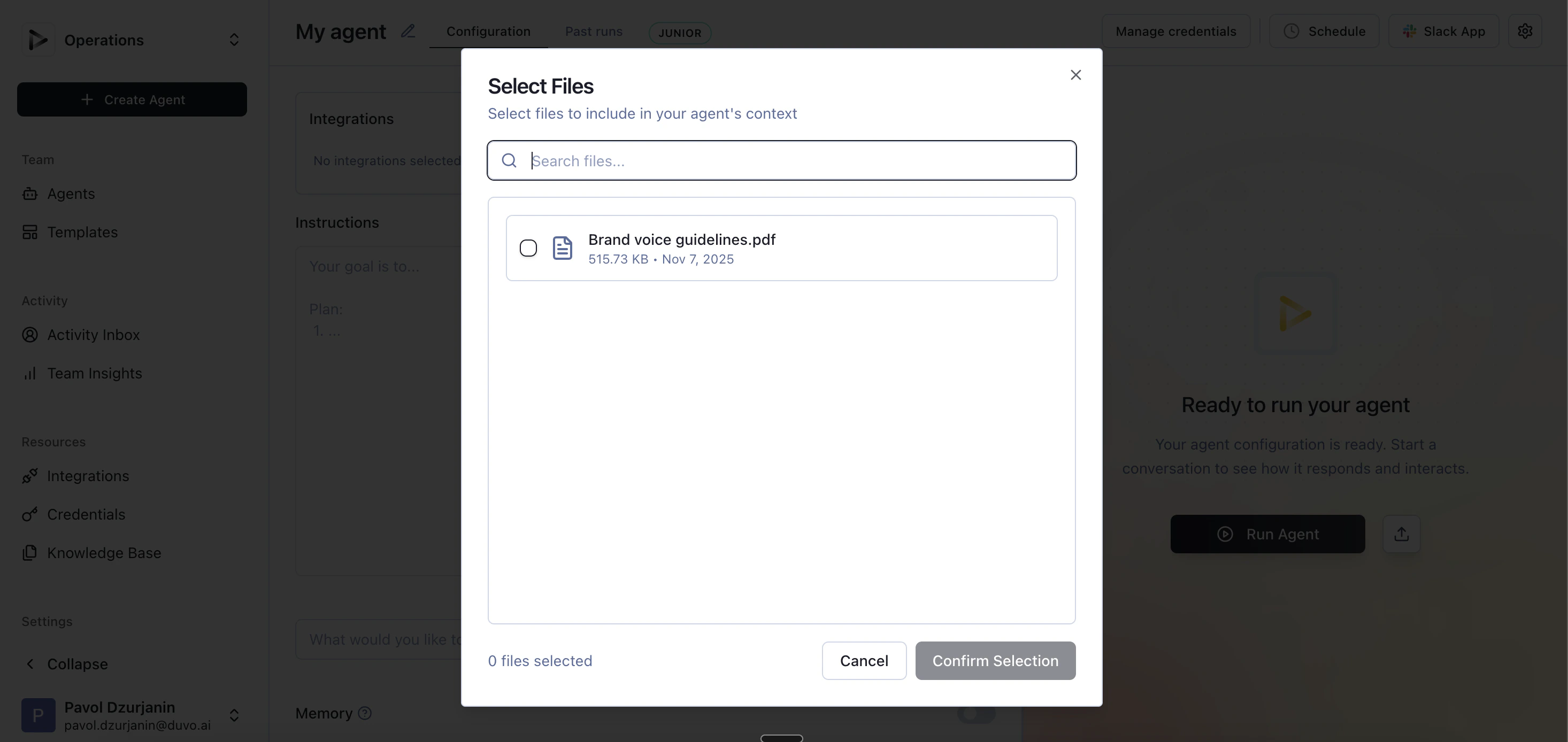
Using Agent Builder
The Agent Builder sees all available files in Files for the team and can add files to the agent setup if instructed. This reflects the same mechanics as the connection principle.Real-World Example
Example 1: Write on-brand marketing email copy
Your company has a specific and well-defined brand voice used for all customer communications. The email copywriter wants to make sure that the next campaign follows the brand voice guidelines. The copywriter uploads the Brand Voice Guidelines to Files and asks the agent to create copy for the next marketing campaign following those guidelines.Example 2: Extract data from technical documents
Your team has a bunch of technical revision documents for all the fire extinguishers at your offices. Each document has the date of revision, the type of fire extinguisher, and other important information on the revision. You want to make sure that your team can easily access this information in a fast way, without having to individually dig through numerous documents. You upload the documents into Files and create an agent that extracts the important information from each document and stores it in a single table, so your team can have everything neatly organized in one place without having to transcribe the information manually.Things to know
- Files allows you to give additional context and information to your agents.
- Search covers every file in the team library. You can sort files by name or update date.
- Use the view control to switch between a grid and a list. Duvo remembers your choice on your device.
- You can update Files at any time
- You can grant or remove access to specific documents from Files for agents anytime.
- The Agent Builder sees all files and can add them during the creation process