

Beta — Routines are in beta and may change. Ask your Duvo account team to turn them on for your team.
Routines and Skills
Both are recorded or written once and attached to an Agent. They differ in who decides each step.
Use a Routine when the task is a stable, repeatable sequence: entering an order into a portal, exporting the same report, updating a record in a desktop app. Use a Skill when the task needs interpretation along the way. An Agent can have both: its AOP decides what to do, and a Routine does the mechanical part.
Record a Routine
Routines live on the Routines tab of Skills and Files, in the Resources section of the left sidebar. Click Add Routine and choose how to record.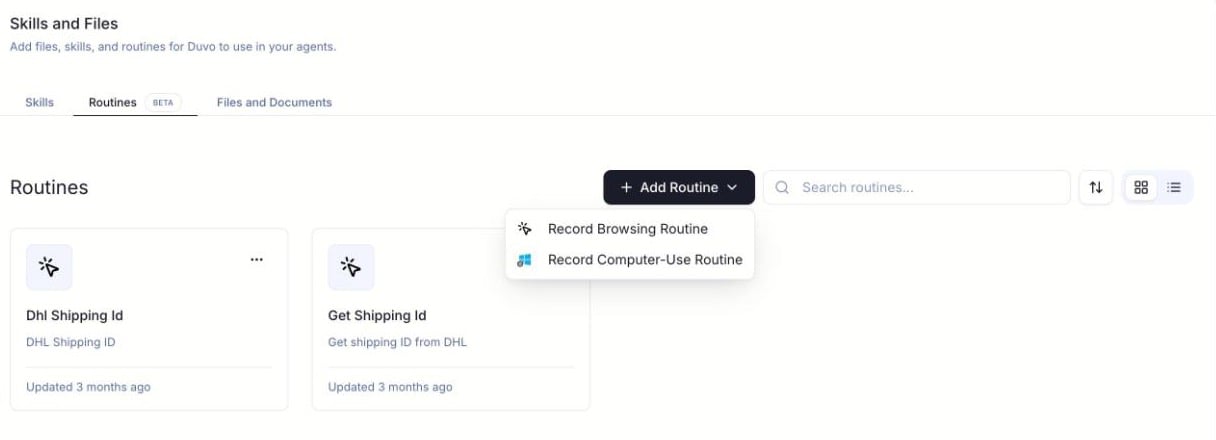
- Browsing Routine
- Computer-Use Routine
Open the recorder
Choose Record Browsing Routine. A browser opens in an embedded window. Navigate to the page where the task starts.
Sign in if needed
If the site asks you to sign in, fill a saved Login instead of typing it: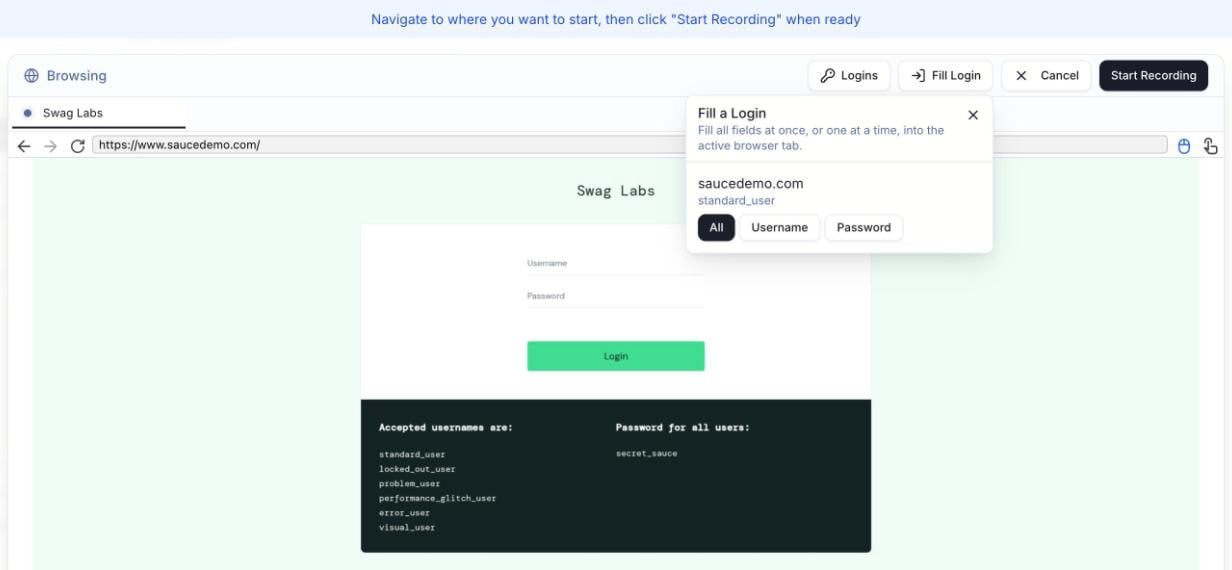
- In the bar above the browser, click Fill Login. It sits next to Logins, Cancel, and Start Recording.
- Find the Login for this site. Logins are listed by website and username.
- Click All to fill the username, password, and one-time code. To fill one field at a time, click Username, Password, or OTP.
Record the task
Click Start Recording and do the task once, the way you want it done. When you finish, click Stop Recording. A recording stops on its own after 30 minutes.
Name the Routine
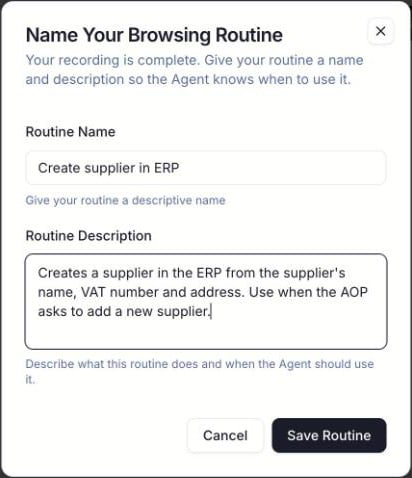
Enter a Routine Name and a Routine Description, then click Save Routine.
What Gets Replayed and What Goes to the Agent
Duvo replays clicks, typing, keyboard shortcuts, and navigation as recorded. A few kinds of steps go to the Agent instead:- Choices that depend on the task. If you clicked a specific product or order while recording, the Agent picks the right one for the current task rather than repeating your choice.
- Values that change from task to task. The Agent fills in the value for the current task, such as this order’s number instead of the one you typed while recording.
- Sign-in. Sign-in steps use the Login attached to the Agent, not the values from your recording.
- Steps that can’t be replayed. If a button or field is missing, renamed, or can’t be told apart from another, the Agent does that one step. One broken step costs one step, not the whole Routine.
A computer-use Routine also needs each step’s window. If a window is missing, the Agent tries to open it. If it still doesn’t appear, the Routine stops and the Run reports the failure. If the desktop’s screen resolution differs from the recording, the Agent does the remaining steps itself instead of replaying them.
Attach a Routine to an Agent
Attach a Routine the same way you attach a Skill:Open the Agent
Open the Agent in the Agent Builder.
Add it from Skills and Files
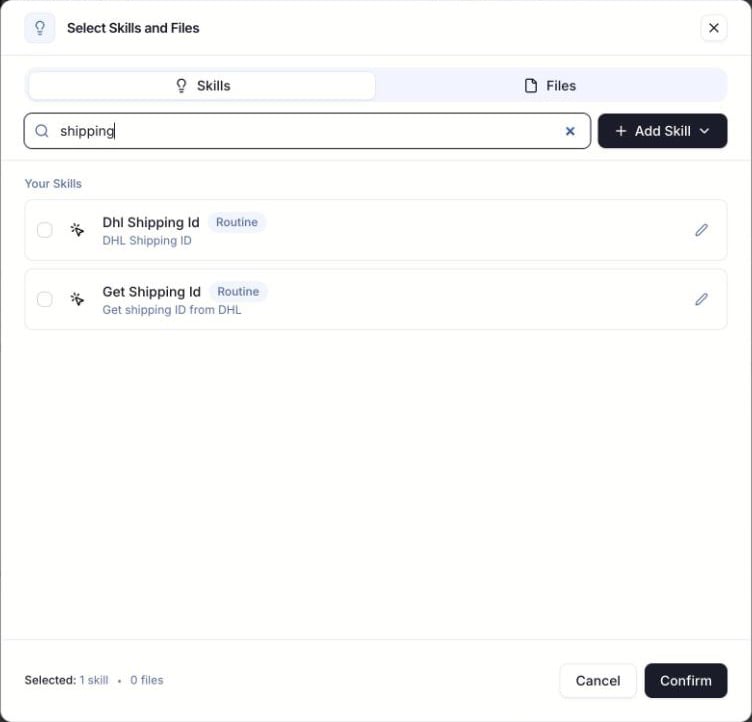
On the Skills & Files row, click the add button. In Select Skills and Files, open the Skills tab — Routines are marked with a Routine badge.
Confirm
Select the Routine and click Confirm.
- Browsing Routine — Enterprise Browser.
- Recorded on a Windows Remote Desktop — a Windows Remote Desktop connection.
- Recorded on the Duvo sandbox — Computer Use.
Check a Run
When a Run uses a Routine, the Run page shows a Routine execution panel with the share of expected steps that Duvo replayed. Expand it to see how many steps ran, how many went to the Agent, any errors, and whether the Routine completed. A Routine that keeps handing the same step to the Agent is a sign that the page or app changed, or that the step depends on the task. Record a new Routine and attach it in place of the old one, or record only the fixed part of the task and leave the rest to the Agent.Tips for Reliable Routines
For how replay finds the right element on a page, and how to keep browser work running after a redesign, see Browsing That Survives UI Changes.Related
Skills Overview
How Skills give Agents specialized knowledge.
Recording Browsing Skills
Record a browser task as a Skill the Agent follows with judgment.
Computer Use
Let Agents work in Windows desktop apps.
Logins and Secrets
Save the Logins that Routines sign in with.