

The people who run the process day to day work in the Cockpit instead: the dashboards pinned to the Automation, and the Cases behind them.
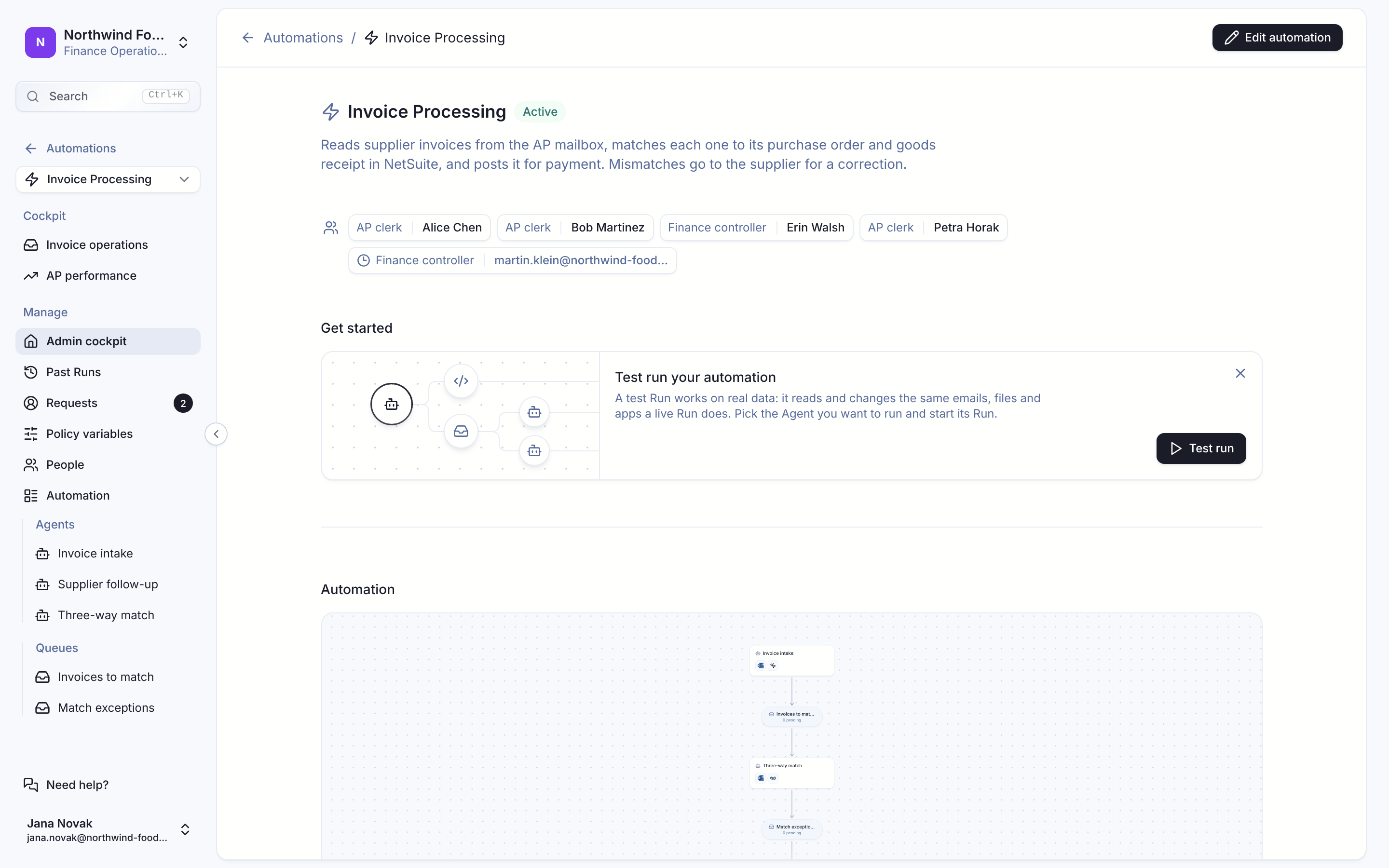
What’s on the page
Sections appear from top to bottom in this order. A section with nothing to show is left out.Header
- Name and status. The Automation’s name and its status, such as Active or Reconnect needed. Hover over the name to rename it.
- Description. A short summary of what the process does. Click it to edit, or let Duvo write one from the Automation’s Agents with Generate.
- People. Each person who holds a role, with their role, for example AP clerk · Alice Chen. Pending invitations show a clock icon. Click a person to open the People tab.
- Edit automation. Opens Ask Duvo with the Automation’s flow, so you can describe a change and let Duvo make it. Without Ask Duvo, it opens the flow so you can edit it yourself.
Get started
Cards for the setup steps that are still open, such as Add your first Agent, Add Connections to your Agents, Assign people their roles, Add schedules and triggers to your Agents and Test run your automation. Each card disappears once its step is done, except Test run your automation, which stays until you dismiss it. Click the X on a card to dismiss it.Needs attention
Everything that stops the Automation from working, most urgent first: Connections that need reconnecting and failing Logins and, when your team has the Notification Center, failed Runs and Cases that failed or came back with issues. Each item says what’s wrong and what it affects, and has the action that fixes it.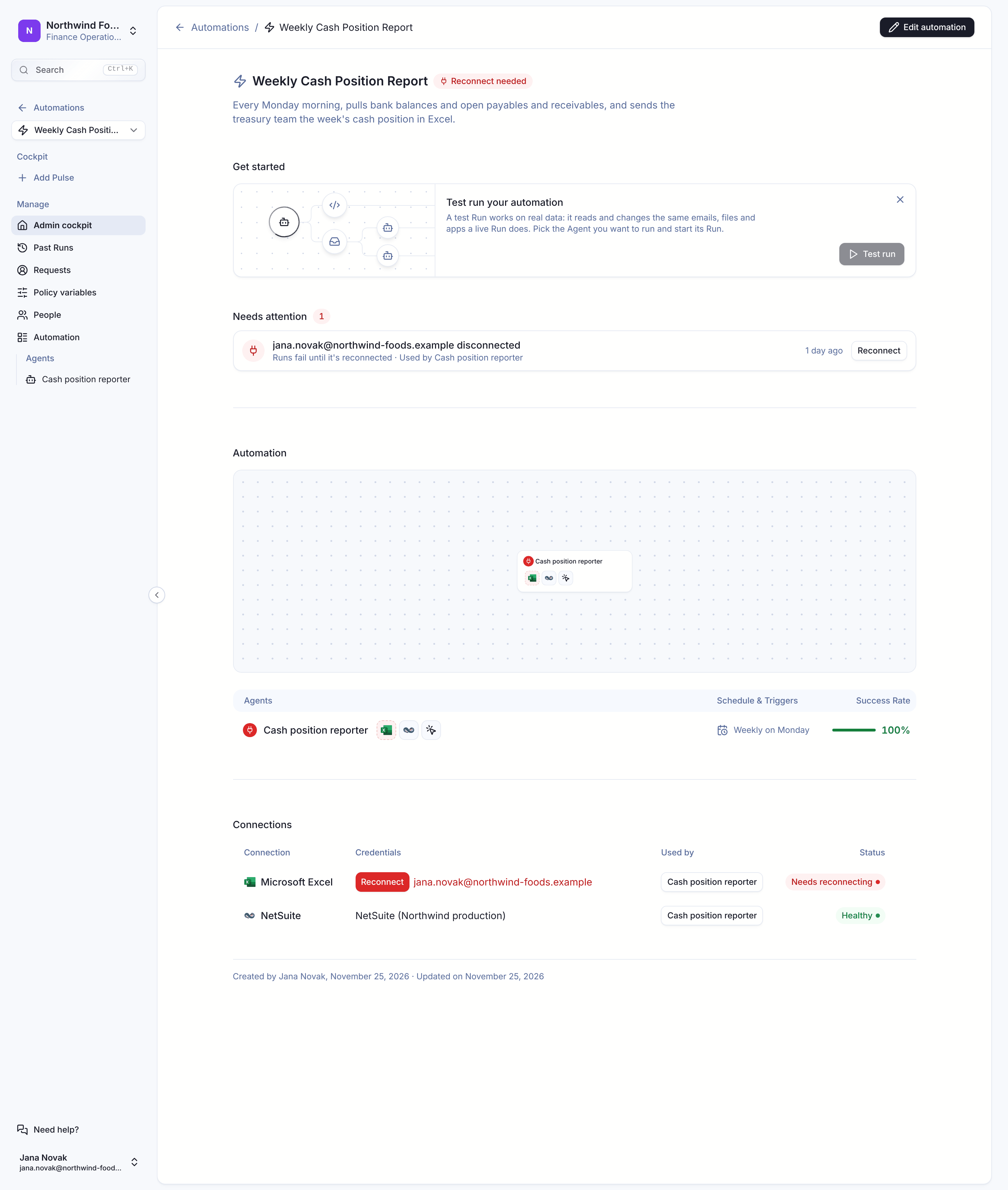
Automation
A small preview of the flow, with every Agent and Queue and how work moves between them, followed by tables of the Agents and Queues:- Agents shows each Agent’s Connections, its Schedule & Triggers and its Success Rate.
- Queue shows each Queue’s Success Rate.
Connections
Every Connection the Automation’s Agents use, in one table.
Use a row’s menu to Connect a missing account or Swap credential to point the Agents at a different account.
The footer shows who created the Automation and when it was last updated.
Related
Agents and Queues
The full flow and every member of the Automation.
Past Runs and Requests
Look into a failed Run or answer a request.
Cockpit
Set up the dashboards operators use.