

Start the Automation
Click Create Automation at the top of the Automations page and choose how to start.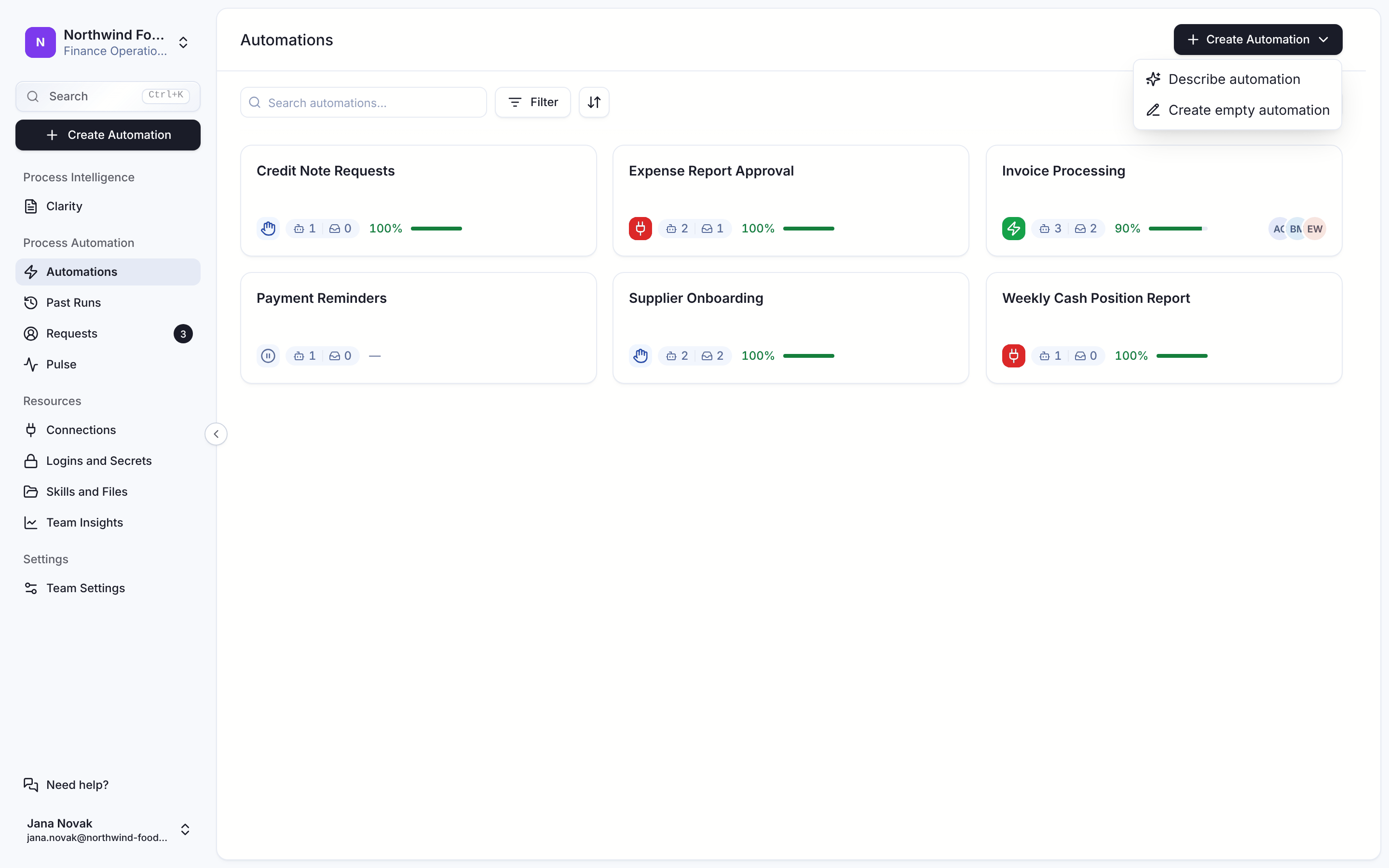
- Describe automation
- Create empty automation
Opens the Add an Automation page. Choose Start empty, then describe the work you want to automate in your own words: what comes in, which systems are involved, what should happen and who needs to approve what. Ask Duvo proposes the Agents, Queues and AOPs, asks about anything it needs, and builds the Automation once you agree.Use this when you know the process but not yet how to split it into Agents. If your team has Clarity, Map the process first lets you capture the process before you automate it.
Describing the work needs Ask Duvo on your team. Without it, Start from scratch creates an empty Automation.
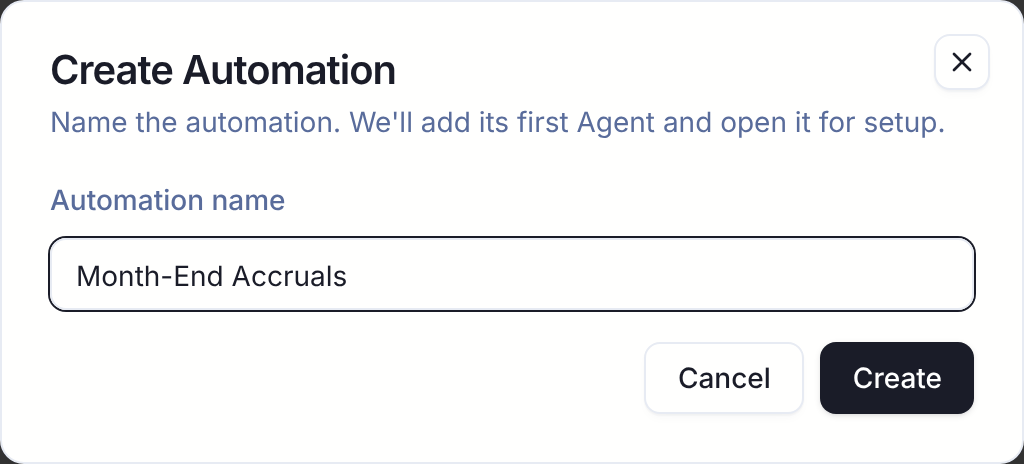
Build it out
An empty Automation starts with one Agent. Most processes need a few more steps. Work through them in this order, because each one depends on the one before:Check your Connections
Make sure the systems the process uses, such as a mailbox or an ERP, are connected. See How to add a Connection.
Set up the first Agent
Write its AOP (Agent Operating Procedure) and add the Connections, Skills and Files it needs. Everything in Building Agents applies.
Add Queues and more Agents
On the Automation tab, use Add to create the Queues and Agents the process needs. In each Agent’s setup, the Queue section sets which Queue it adds Cases to and which Queue’s Cases it processes. See Agents and Queues.
Add Policy variables
Put the values your team will want to change, such as thresholds, mailboxes and approvers, in Policy variables, and give each Agent the variables it needs by mentioning them with
@ in its AOP or turning them on in the Policy section of its setup.Run a test
Start a test Run from the Admin cockpit, or add one test Case to the first Queue, and check the result in Past Runs.
Turn on schedules and triggers
Once the test looks right, add a schedule or trigger to the Agent that starts the process. See Scheduling and Event-driven triggers.
Give people their roles
Add the people who work with the process on the People tab.
Run a test
Change an Automation later
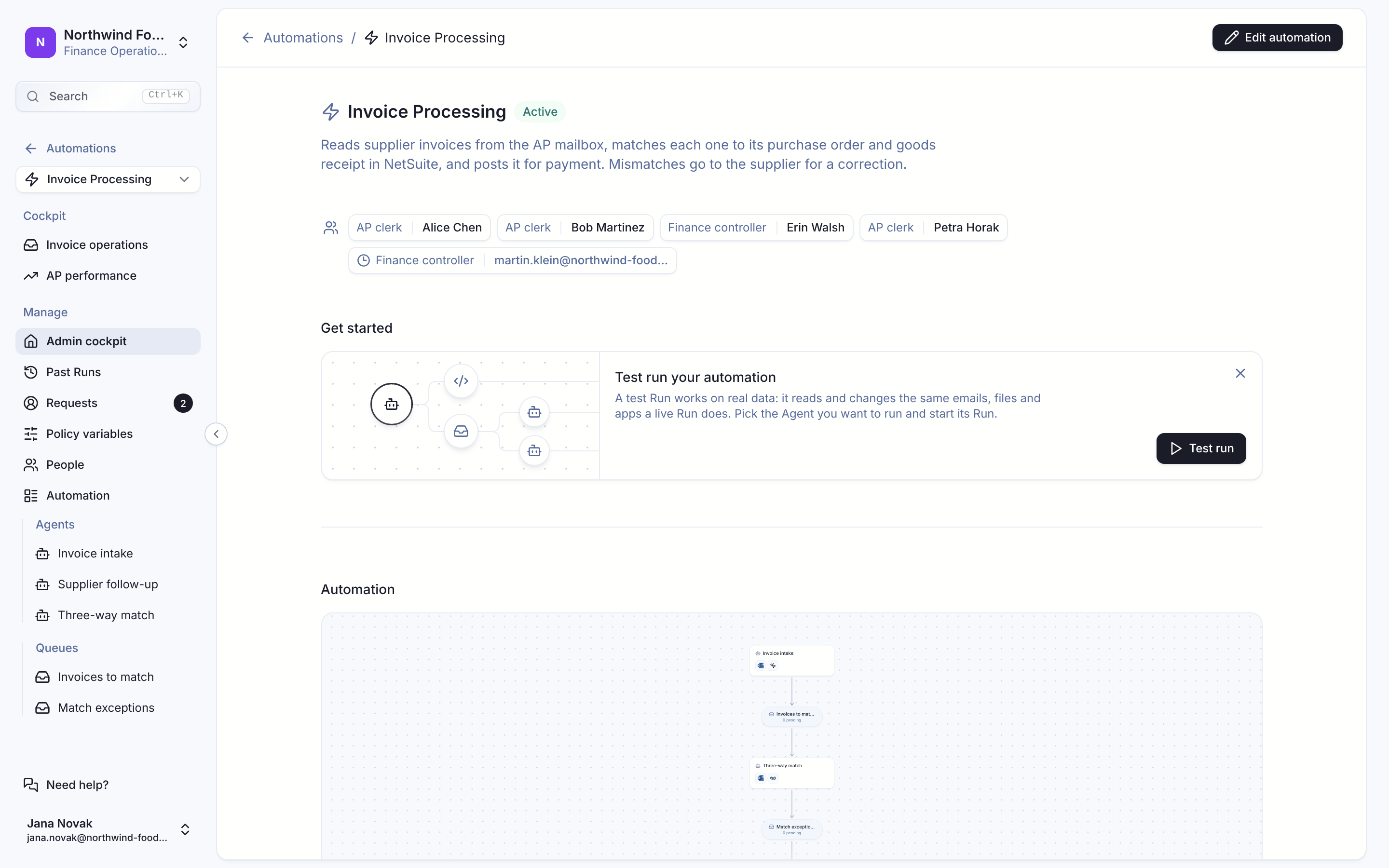
- Edit automation at the top of the Admin cockpit opens Ask Duvo with the Automation’s flow, so you can describe a change and let Duvo make it. Without Ask Duvo, it opens the flow so you can change it yourself.
- Open any Agent to edit its AOP, Connections, schedules and triggers directly.
- Change a Policy variable to change a rule without editing any Agent. Agents read the new value on their next Run.
Related
Agents and Queues
Add and wire the steps of the process.
Admin cockpit
Follow setup and health from one page.