

Grid and list views
Switch between the two views with the buttons next to Add folder. Duvo remembers your choice.- Grid
- List
Each card shows the Automation’s name, its status icon, how many Agents and Queues it has, its success rate and the people who hold a role in it.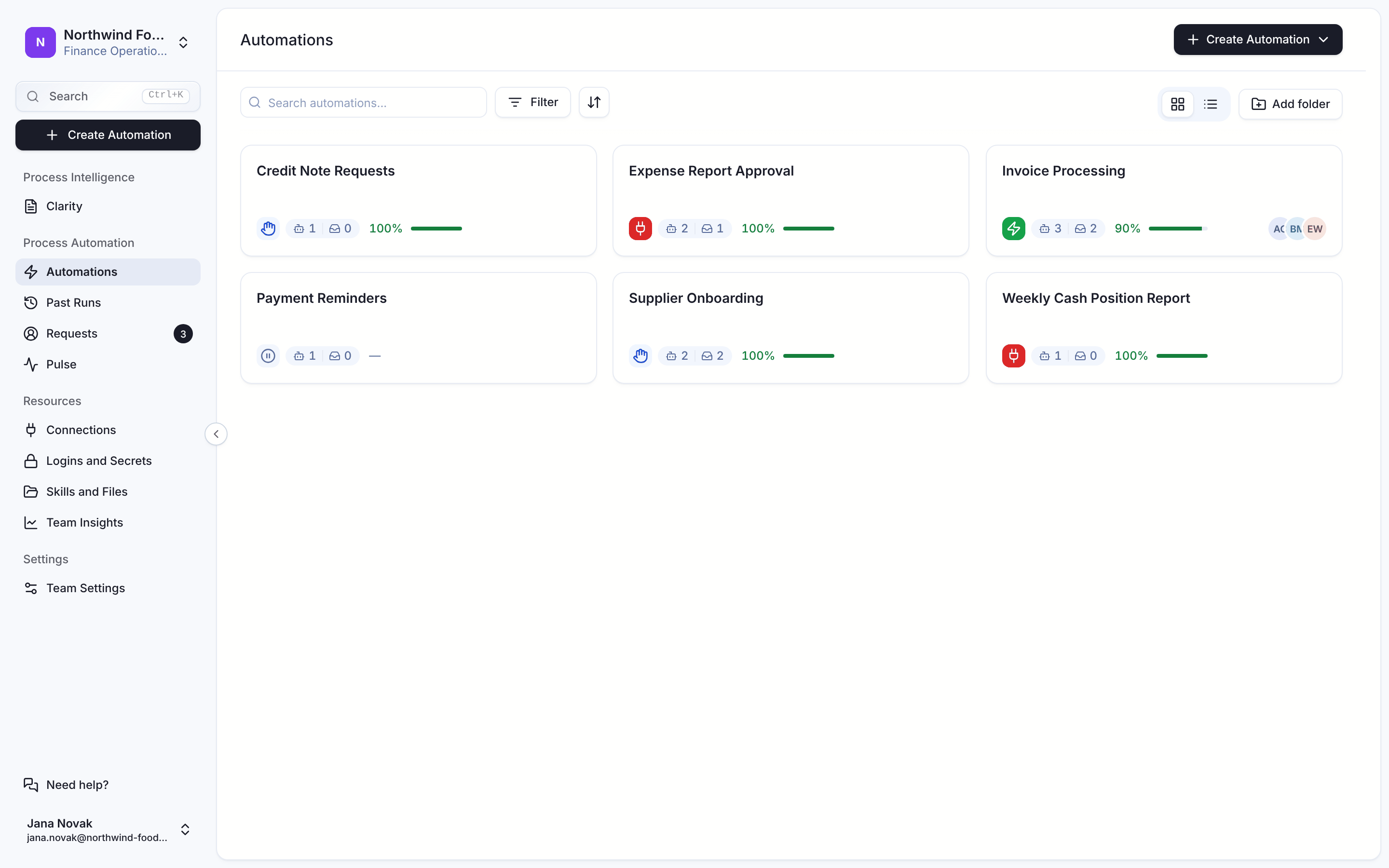
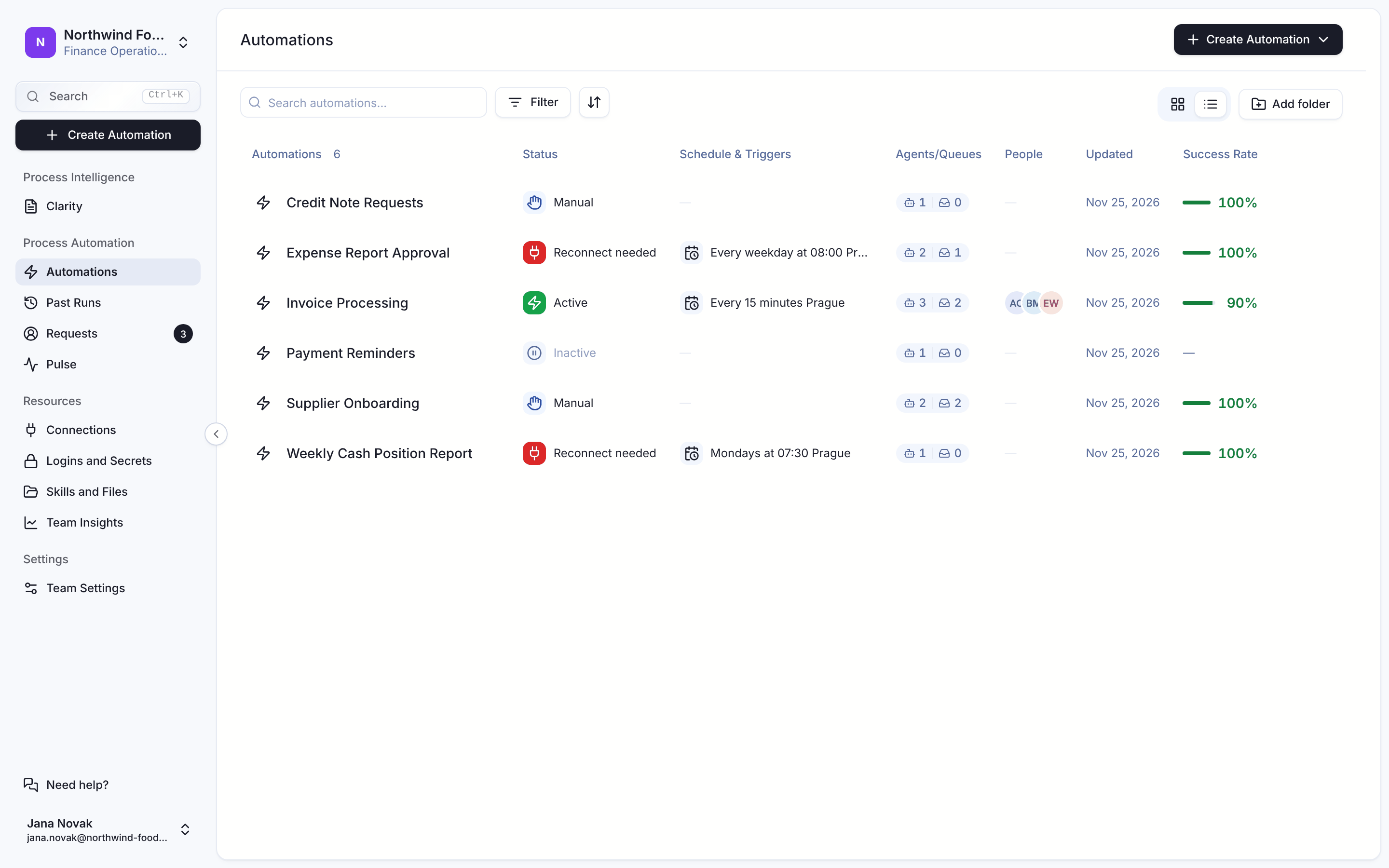
Status
Every Automation shows one status. A Connection problem takes precedence, because the Automation can’t run until it’s fixed.
Schedules and triggers belong to the person who set them up. For Administrators and Owners, the status counts everyone’s. For everyone else, it counts only your own, so an Automation that runs on a teammate’s schedule can show Manual or Inactive for you. Hover over a status to see what it’s based on. To fix a Connection problem, open the Automation: its Admin cockpit lists the problem, and its Connections table has Connect for a missing account or Reconnect for a broken one.
Search, filter and sort
- Search automations… finds Automations by name.
- Filter narrows the list by status. Managers and above can also filter by the people who hold a role in an Automation.
- The sort button orders the list by Name, Updated or Success Rate. Default puts it back.
Folders
Group related Automations, such as everything for one region or department, into folders.Create a folder
Click Add folder and name it.
Move Automations into it
Drag a card onto the folder, or select several Automations and choose Move. Move out of folder takes them back to the top level.
Open the folder
Click a folder to see what’s in it. The breadcrumb starting at All Automations takes you back.
Actions on an Automation
Hover over a card or row and click … to open its menu.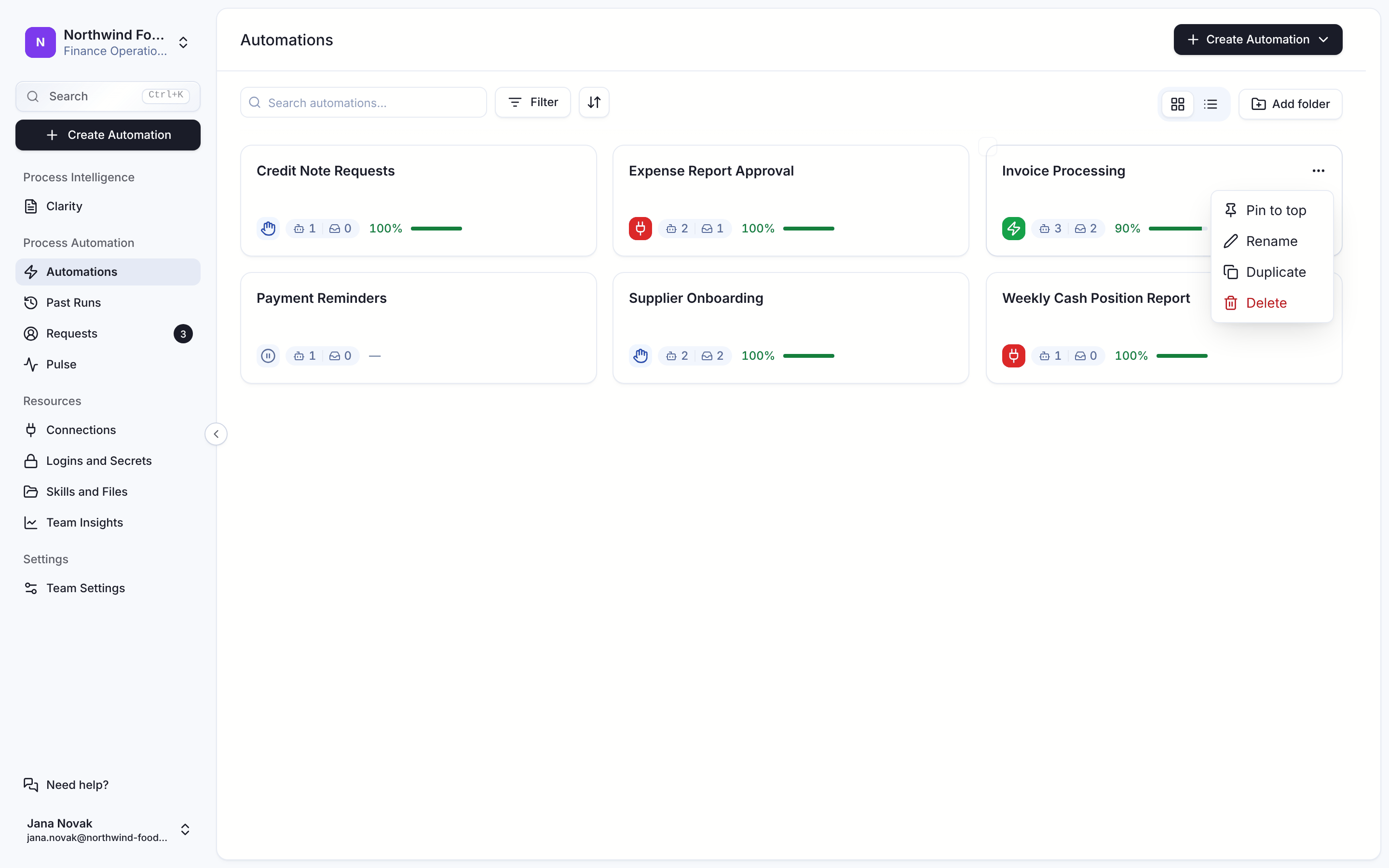
Related
Create an Automation
Start a new Automation.
Admin cockpit
What you see when you open an Automation.