

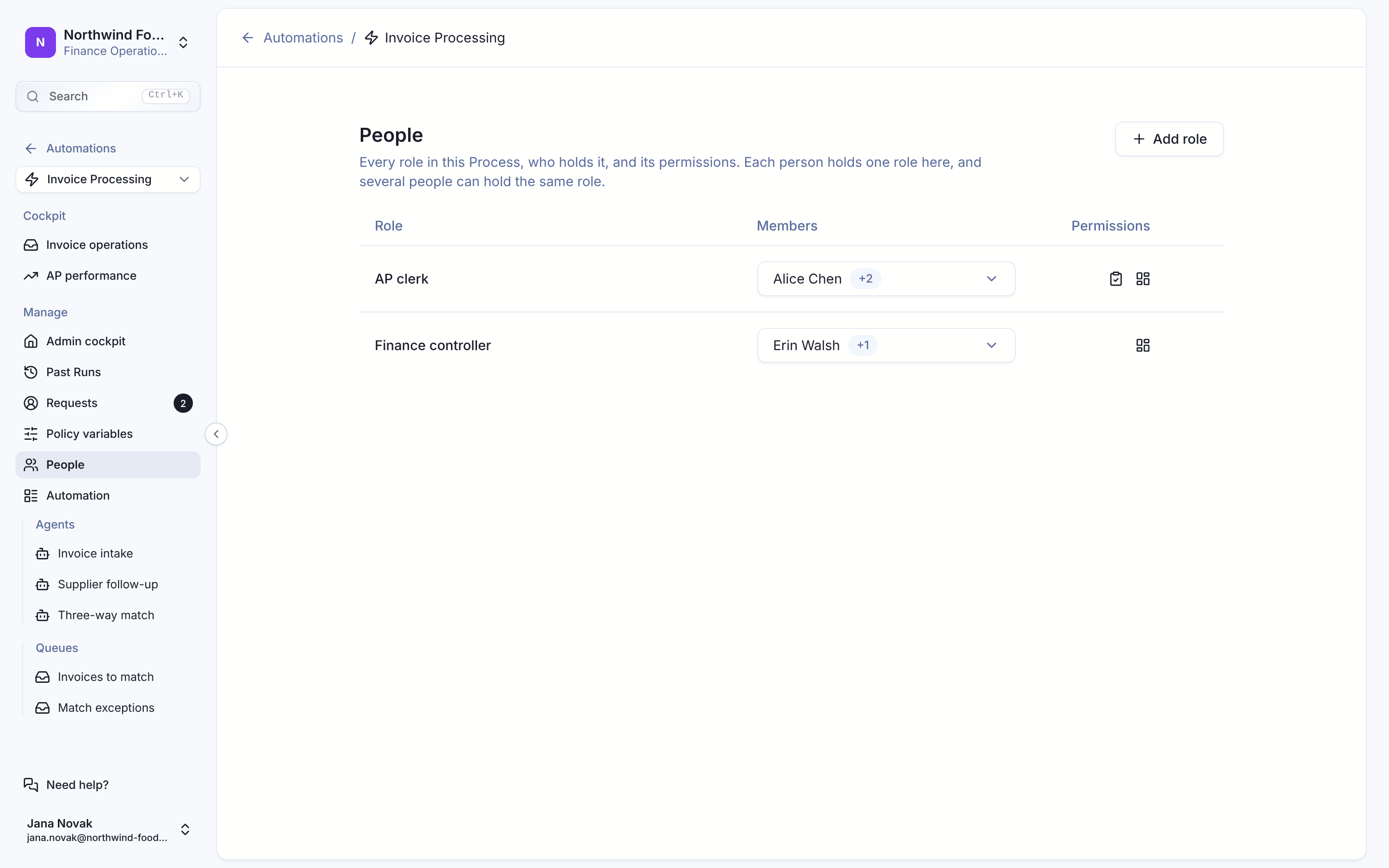
The People tab shows to Managers and above, on teams that belong to an organization.
Add a role
Open the dialog
Click Add role.
Name it
Enter a Role name that matches how your team talks about the job, such as AP manager.
Choose its permissions
- Act on cases lets the role open and act on the Cases behind its dashboards, for example answering a Case that needs input. The Queues it covers follow the dashboards the role can see.
- All dashboards gives the role every dashboard pinned to this Automation’s Cockpit, including ones pinned later. Turn it off to pick specific dashboards instead.
Save
The role appears in the table. Its icons in the Permissions column show what it can do.
Give someone a role
Open the Members list next to the role.- Someone on your team. Pick them from the list. They get the role straight away and an email letting them know.
- Someone new. Choose Add a Process Member, enter their work email and send the invite. New people only see this process: the dashboards and Cases their role allows. Anyone who already has a team role or a pending invitation keeps that access.
How roles fit together
Related
Cockpit
The dashboards and Cases that roles give people.
Team roles and permissions
What each team role can do.