

When to use a Policy variable
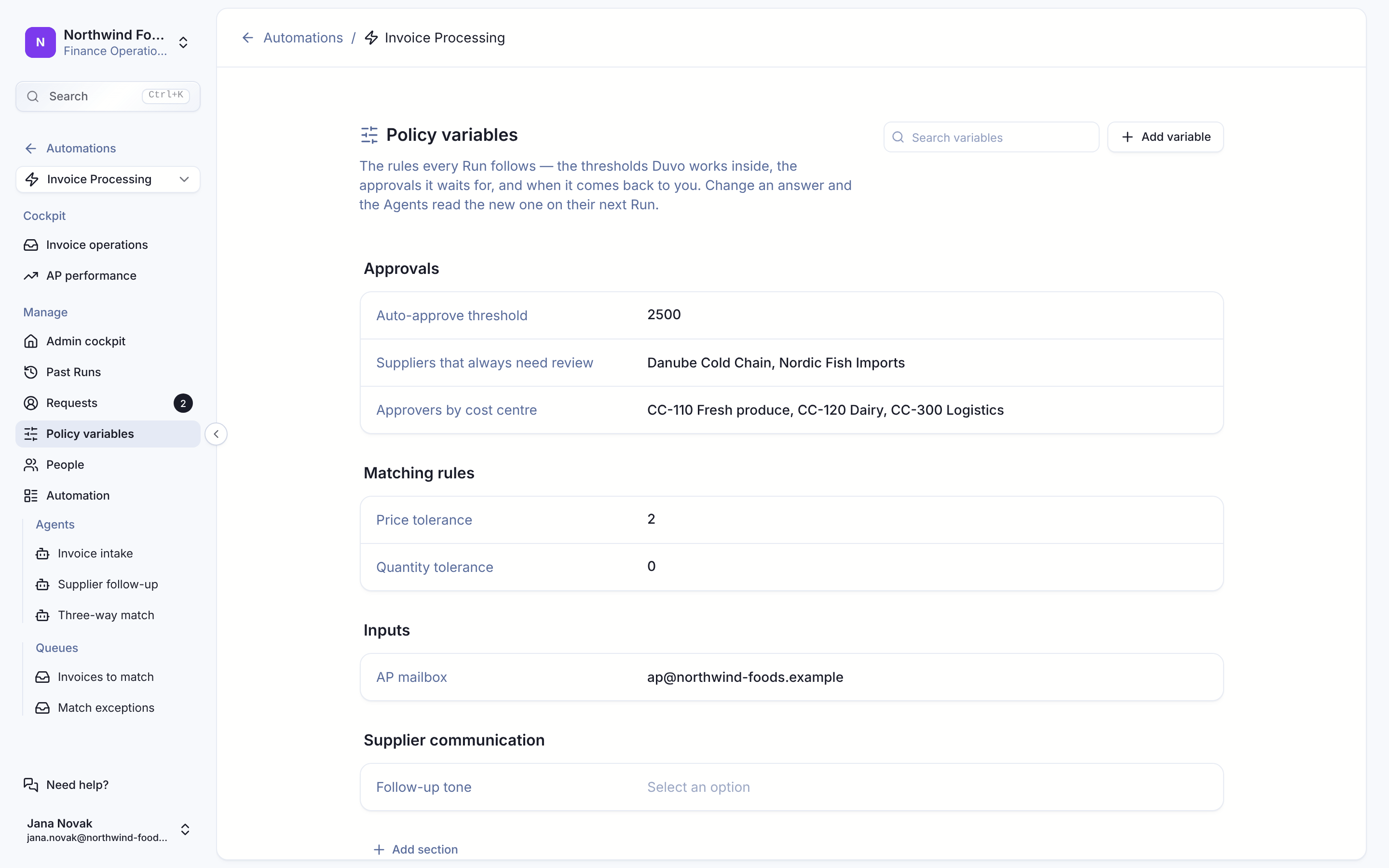
Put a value in Policy when your team expects to tune it, or when someone other than the Agent’s builder owns it:- Thresholds and limits. Auto-approve up to EUR 2,500; flag a price difference above 2%.
- Inputs and destinations. The mailbox invoices arrive in; the folder reports go to.
- Lists. Suppliers that always need review; customers who get a same-day reply.
- Routing. Who approves invoices for each cost centre.
- Preferences. The tone of supplier emails.
Give an Agent a variable
An Agent receives only the variables it’s given. There are two ways to give it one:- Mention it in the AOP. Type
@in the AOP and pick the variable, for example “post the invoice if the total is at or below @Auto-approve threshold”. The mention gives the Agent the variable, and its Policy section shows it as on. - Choose it in the Policy section. Open the Agent and turn the variable on in the Policy section of its setup. Use this for a variable the Agent needs that the AOP doesn’t name.
@, doesn’t give the Agent its value. See Writing effective AOPs.
Answer types
Each variable has a type, which decides what an answer looks like:Add a variable
Open the dialog
Click Add variable at the top of the tab.
Describe it
Give it a Label, such as Approval threshold, and the question it answers, such as Above what amount does a claim need approval? Add guidance or an example answer if the question could be read more than one way.
Choose the type and section
Pick the Type. For One choice and Several choices, add the Options; for Table, add the Columns. Put it in a Section, or create a New section… to group related variables.
Save and answer it
The variable appears in its section. Click its answer to fill it in.
Change an answer
Click an answer, change it and save. A variable without an answer shows a prompt, such as Select an option, until someone fills it in. Use Search variables to find a variable on a long list. A variable’s menu lets you edit its question or delete it; a section’s menu renames, reorders or removes the section.Who can change Policy
Policy variables follow the same rule as editing an Agent: the person who created the Automation needs the Builder role or above, and everyone else needs a role that can edit other people’s Agents, such as Manager. See Roles and permissions.Related
Agents and Queues
Refer to Policy variables from an Agent’s AOP.
People and roles
Decide who works with the process.